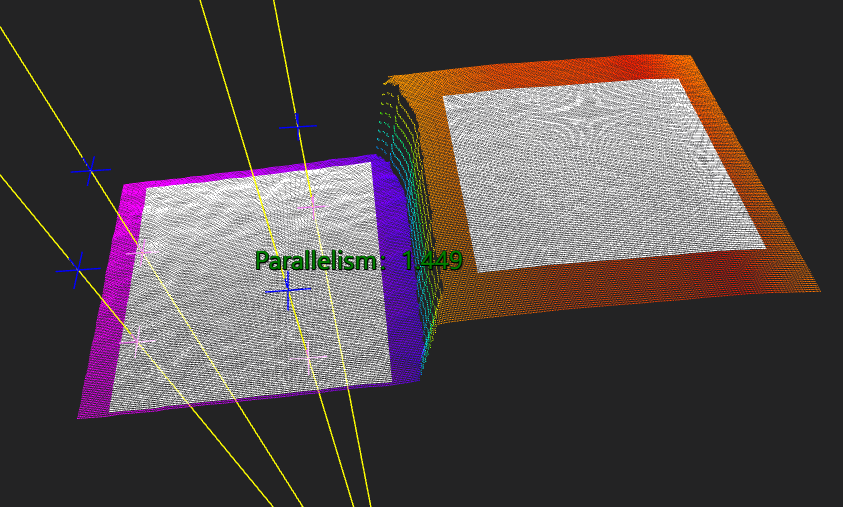
3D Surface-Surface Parallelism
Operator Function
Calculate geometric tolerance - Surface-Surface Parallelism
As shown in the figure below, collect multiple points on the measured plane, and calculate the distance from each collected point on the measured plane to the reference plane, denoted as 𝑑1, 𝑑2, ..., 𝑑n. The surface-surface parallelism calculation formula is:
𝑑𝑚𝑎𝑥 − 𝑑𝑚𝑖𝑛
Where
𝑑𝑚𝑎𝑥 = 𝑚𝑎𝑥(𝑑1, 𝑑2, ..., 𝑑n)
𝑑𝑚𝑖𝑛 = min(𝑑1, 𝑑2, ..., 𝑑n)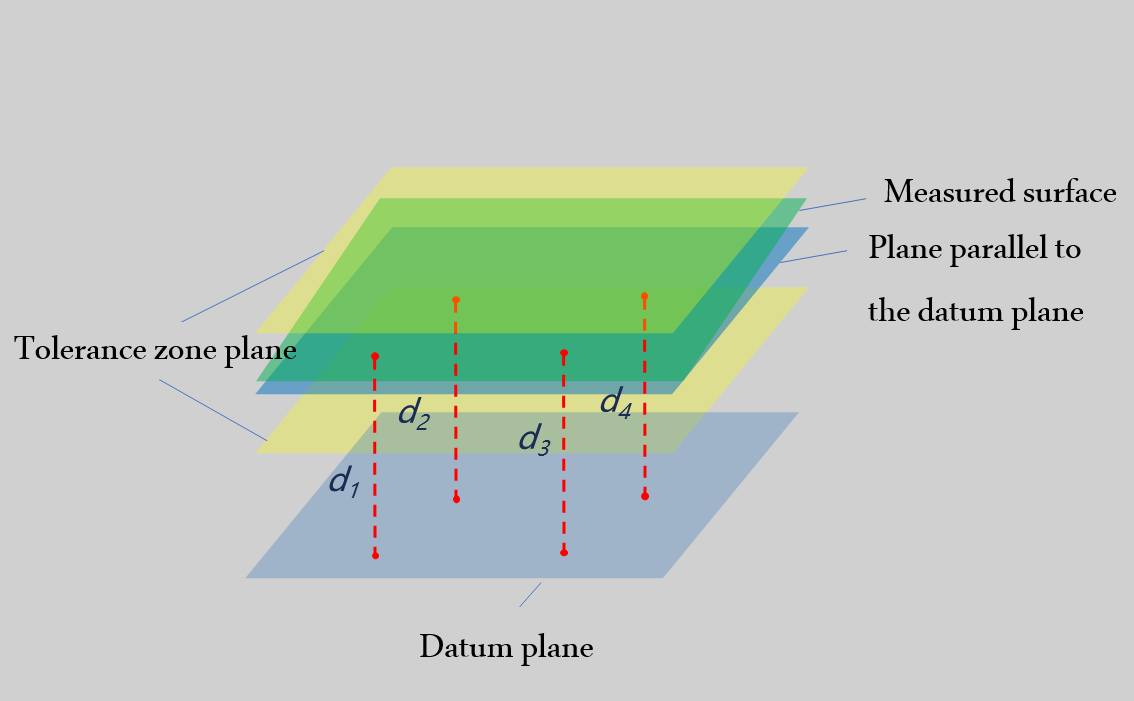
Parameter Introduction
Input Parameters

| Parameter | Range | Default Value | Description | Illustration |
|---|---|---|---|---|
| Input Image | 0-8 | 0 | The IM number for image input | |
Calculation Parameters
| Parameter | Range | Default Value | Description | Illustration |
|---|---|---|---|---|
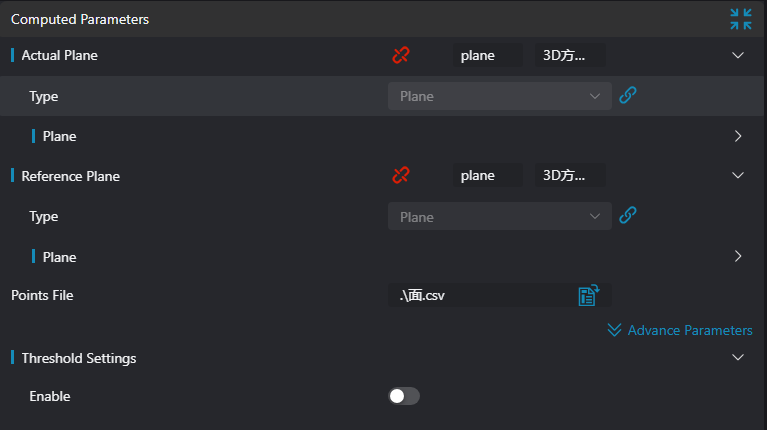
| Actual Plane | Plane | - | A point on the actual plane and its normal vector | |
| Reference Plane | Plane | - | A point on the reference plane and its normal vector | |
| Measurement Point File | json file | - | Measurement point file on the plane being tested |
Result Display
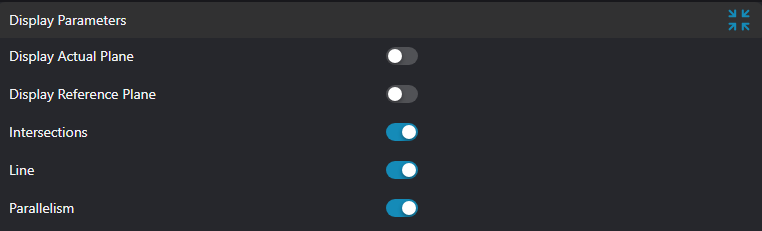
| Parameter | Range | Default Value | Description | Illustration |
|---|---|---|---|---|
| Actual Plane | true/false | false | The input actual plane. If enabled, displayed on IM | |
| Reference Plane | true/false | false | The input reference plane. If enabled, displayed on IM | |
| Intersection | true/false | false | Displays two sets of points: the input measurement points and the perpendicular feet from the measurement points to the actual plane. If enabled, displayed on IM | |
| Measurement Points and Fitted Reference Plane Intersection Connections | true/false | false | The connections from the input measurement points to their perpendicular feet on the actual plane. If enabled, displayed on IM | |
| Parallelism | true/false | false | The output parallelism. If enabled, displayed on IM |
Output Parameters
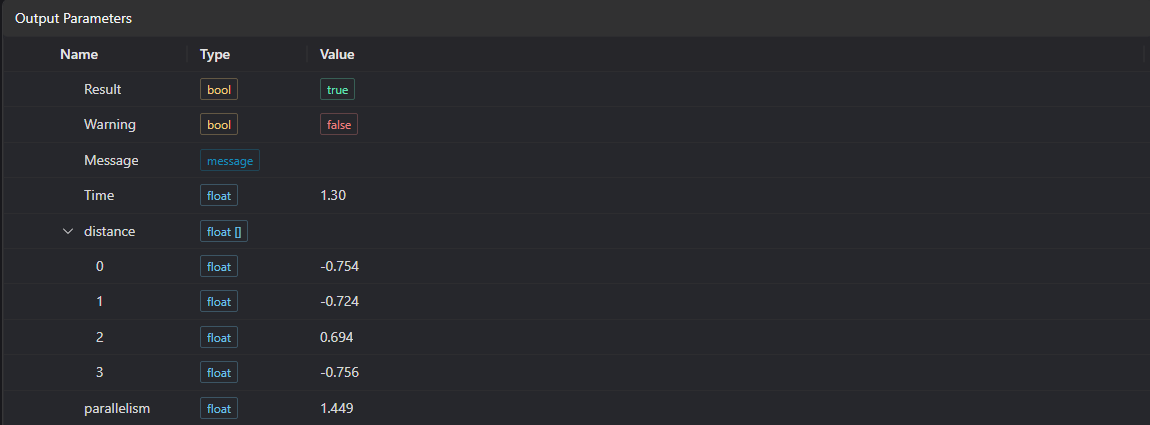
| Name | Type | Range | Description |
|---|---|---|---|
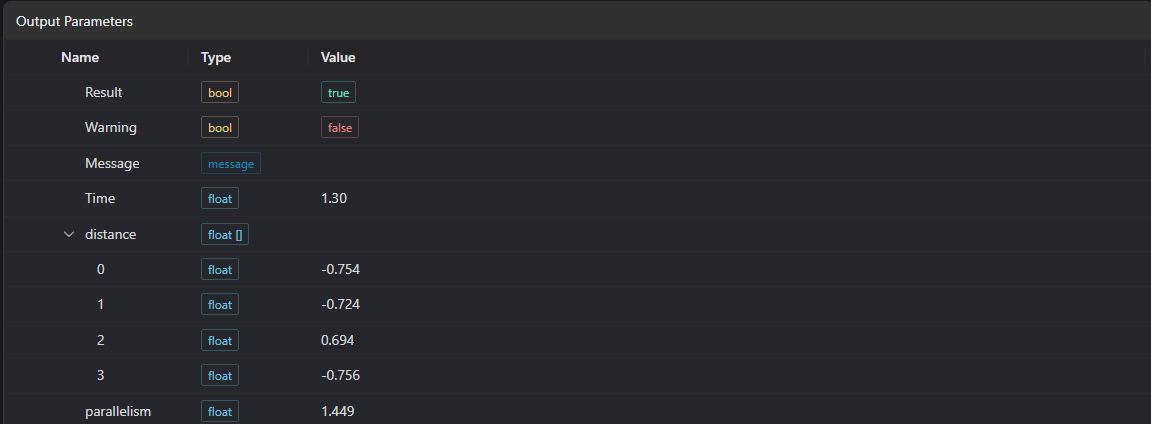
| Result | bool | true/false | true for success false for failure |
| Warning | bool | true/false | true indicates a warning false indicates no warning |
| Message | string | Output success, error, or warning messages. Empty if no error or warning. | |
| Time | float | Operator execution time, unit: ms | |
| distance | float[] | Distance from sampling points to the reference plane | |
| parallelism | float | Parallelism | |
| result | string | OK/NG | Whether the parallelism is within range |
Tip
For more detailed parameter type descriptions, please refer to Type Definition
Exception Troubleshooting
| No. | Exception Information | Corresponding Parameter | Solution |
|---|---|---|---|
| 1 | Input point cloud is empty | Confirm whether the IM contains valid points. If not, load a point cloud or switch to an IM with valid points | |
| 2 | Input actual plane type is {0}, invalid plane type | Plane Type | Check if the plane type is Plane |
| 3 | Input plane normal vector is 0 | Check if the plane normal vector is all zeros | |
| 4 | Input parallelism range minimum is greater than maximum, invalid parallelism range | Set the parallelism range minimum to be less than or equal to the maximum | |
| 5 | Parameter {0} cannot be empty | Path | Check if the path is empty |
| 6 | File {0} does not exist or cannot be accessed | Path | Check if the path is valid |
| 7 | Input theoretical position point cloud is empty | Check if the theoretical position point json file is empty | |
| 8 | Input reference line type is {0}, invalid reference line type | Reference Line Type | Check if the reference line type is 3D Line |
Example Introduction
Engineering Design
Select the
Load Point Cloudtool to load the 3D point cloud to be processed into IM0;Select the
3D Square Probetool to fit the actual plane.Select the
3D Square Probetool to fit the reference plane.Select the
3D Surface-Surface Parallelismtool.
Tool Usage
Select the input image to be operated on. The image number must match the IM number of the image in the project.
Do not enable region parameters, or enable region and select the region type as Box. Move the box to the position to be tested, surrounding the point cloud to be tested.
Usage Tips
1. Drag or scale the box through the ROI controller on the image window;
2. Directly modify the start or end coordinates of the box in the calculation parameters to adjust the box position and size
Set parameters
Check the desired display content in the result display section
Click
Testto check if the image window and parameters meet expectationsIf there are no issues, click
Save. Run the operator in the run list to view the running results in the corresponding IM.