3D Region Operation
Operator Function
Perform operations on several regions to output a new region.
Parameter Introduction
Input Parameters

| Parameter | Range | Default Value | Description | Illustration |
|---|---|---|---|---|
| Input Image | 0-8 | 0 | IM number for image input | |
Calculation Parameters
| Parameter | Range | Default Value | Description | Image |
|---|---|---|---|---|
| Mode | See Mode | 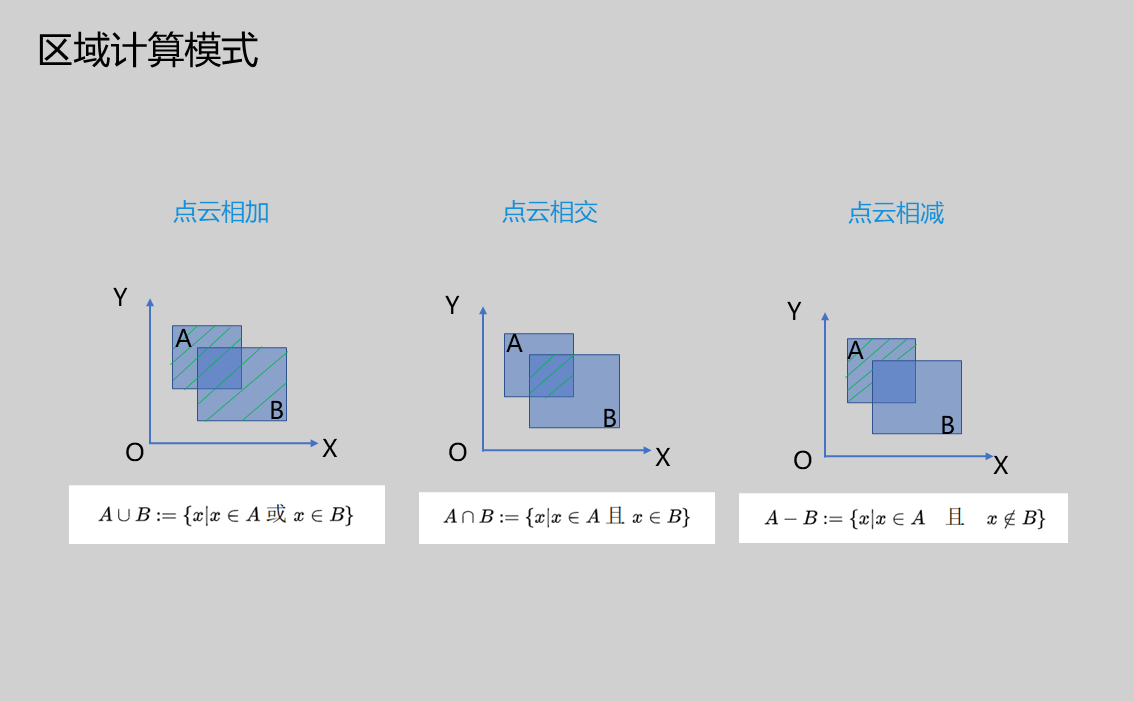 | ||
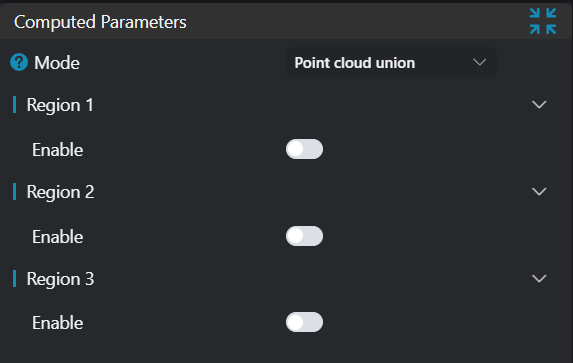
| Region 1 | true/false | false | If enabled, include it as part of the region operation | |
| Region 2 | true/false | false | If enabled, include it as part of the region operation | |
| Region 3 | true/false | false | If enabled, include it as part of the region operation |
Mode
| Parameter | Range | Default Value | Description | Image |
|---|---|---|---|---|
| Point Cloud Addition | Calculate the union of input regions | 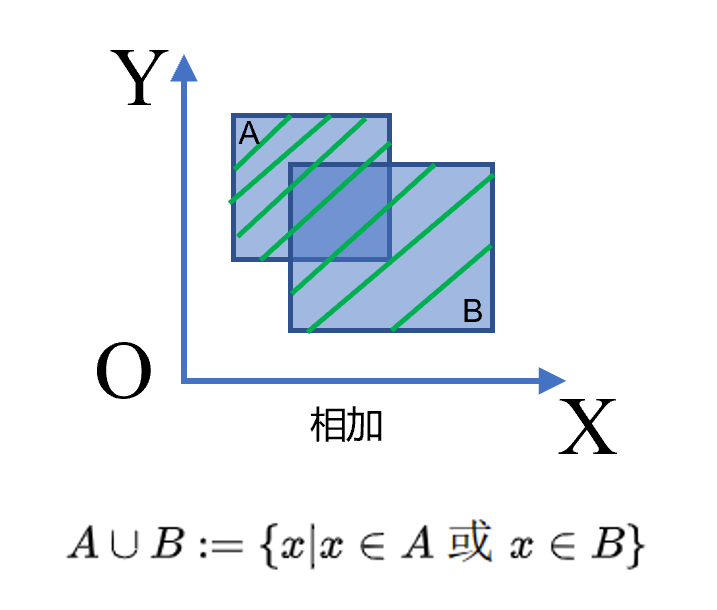 | ||
| Point Cloud Intersection | Calculate the intersection of input regions | 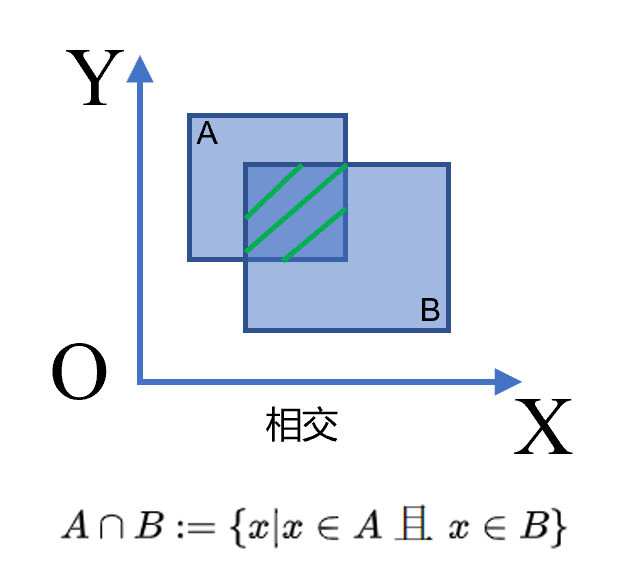 | ||
| Point Cloud Subtraction | Calculate the first input region minus the remaining regions | 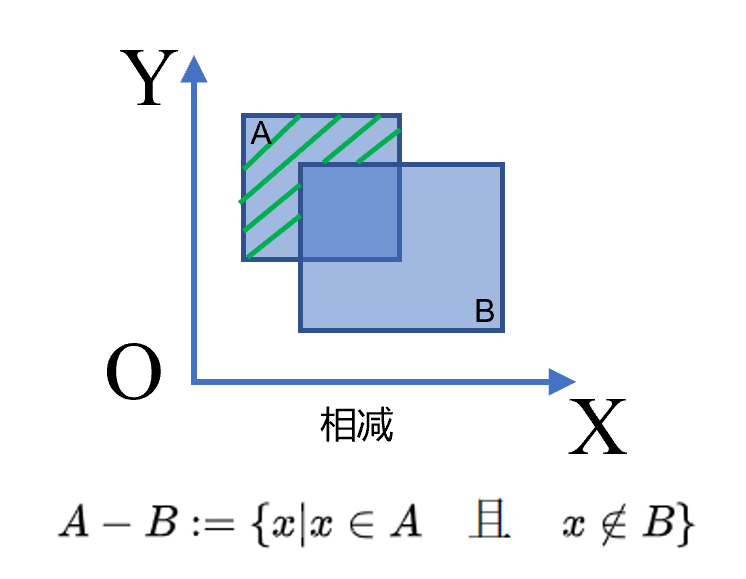 |
Result Display
| Parameter | Range | Default Value | Description | Illustration |
|---|---|---|---|---|
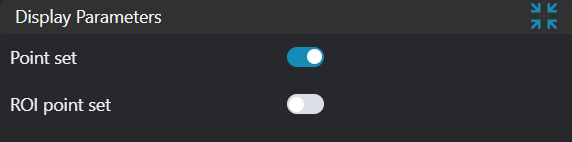
| Point Set | true/false | false | Target region point set. If enabled, display in the image | |
| ROI Point Set | true/false | false | Region point set selected by ROI box. If enabled, display in the image |
Output Parameters
| Name | Type | Range | Description |
|---|---|---|---|
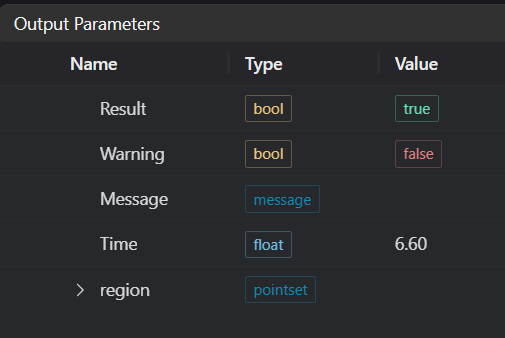
| Result | bool | true/false | true for success false for failure |
| Warning | bool | true/false | true indicates a warning false indicates no warning |
| Message | string | Output success, error, or warning messages. Empty if no error or warning. | |
| Time | float | Operator execution time, unit: ms | |
| region | pointset | Region point set |
Exception Troubleshooting
| No. | Exception Information | Corresponding Parameter | Solution |
|---|---|---|---|
| 1 | Input point cloud is empty | Check if input point cloud is empty | |
| 2 | Input value is {0}, invalid Region 1 input | Region 1 Type | Only window2d, box, pointset supported |
| 3 | Input value is {0}, invalid Region 2 input | Region 2 Type | Only window2d, box, pointset supported |
| 4 | Input value is {0}, invalid Region 3 input | Region 3 Type | Only window2d, box, pointset supported |
| 5 | Input value is {0}, invalid region calculation mode | Mode | Only intersection, subtract, add supported |
Example Introduction
Engineering Design
Select the
Load 3D Point Cloudtool to load the required 3D point cloud image to IM0.Select the
3D Point Cloud Croptool to copy IM0 to IM1 and IM2 respectively.Select the
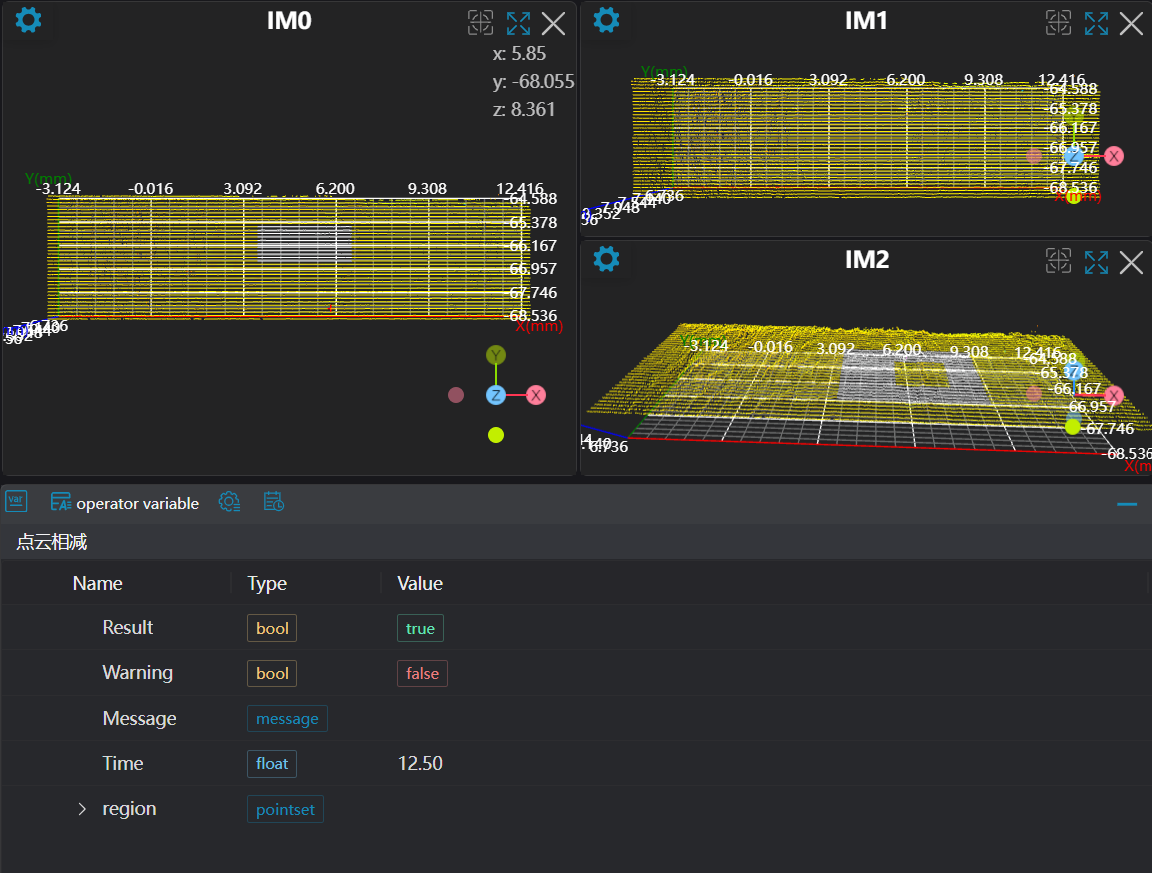
3D Region Operationtool to obtain regions in different modes (point cloud addition, point cloud subtraction, point cloud intersection).
Tool Usage
Select the input image for the operation. The image number must match the IM number where the image is located in the project.
Select the region as 2D Window, move the window to the position to be measured.
Usage Tips
- Use the ROI controller on the image window to drag or scale the window;
- Directly modify the window's start or end point coordinates in the calculation parameters to adjust the window position and size;
Set the parameters.
Check the content you want to display in the result display section.
Click
Testto check if the image window and parameters meet expectations.If there are no issues, click
Save. Run the operator in the run list, and then view the running results in the corresponding IM.