
Running List
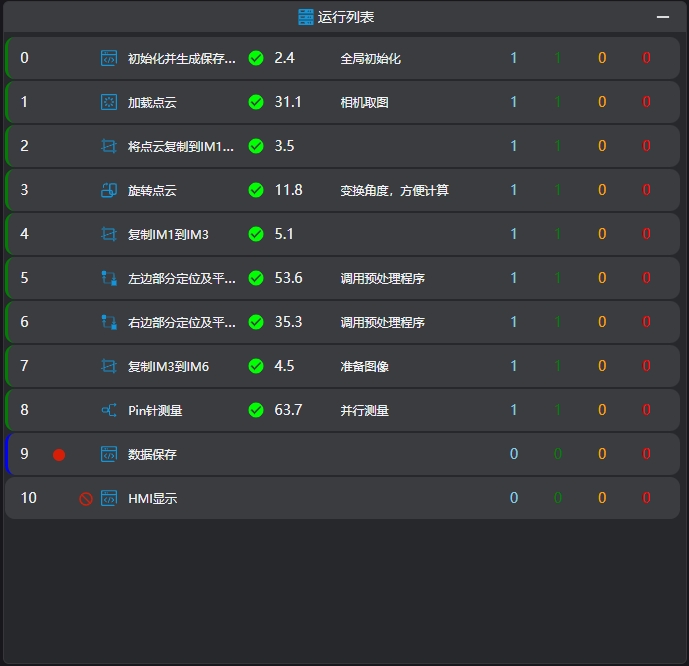
It is used to design image processing workflows. It can be combined with the run buttons in the toolbar for program running and debugging, with the image display bar to view the tool's output image results, and with the debug output bar to view the tool's output results.
Adding Tools
There are 3 ways to add tools to the running list:
- Right-click on the tool name in the tool list, and click "Add" in the pop-up menu.
- Double-click the tool in the tool list.
- Left-click on the tool in the tool list and drag it to the running list.
Reminder
Tools added via right-clicking or double-clicking are added to the last line of the program by default.
Tool Row

| Serial Number | Name | Description |
|---|---|---|
| 1 | Running Status | Empty: This row has not been run Blue: The program has reached this row but not yet executed it Green: This row ran successfully Red: This row failed to run Yellow: This row ran with a warning |
| 2 | Tool Row Number | The row number of all tools in the current program running bar, arranged from top to bottomRow numbers start from 0 |
| 3 | Breakpoint Mark | A mark for interrupting the run. When a breakpoint is enabled, full run and loop run will stop at this row |
| 4 | Disable Mark | A mark for disabling the tool. When enabled, the tool in this row will not be executed |
| 5 | Tool Icon | The icon of the tool in this row |
| 6 | Tool Name | The name of the tool in this row, which can be customized by the user. Tool names within a single program cannot be duplicatedThe default is the tool name, and this attribute is used when binding parameters |
| 7 | Execution Result | The result after the execution of the tool in this row Green: This row ran successfully Red: This row failed to run Yellow: This row ran with a warning |
| 8 | Running Time | The time taken to execute the tool in this row once, unit: ms |
| 9 | Tool Comment | Remarks for the tool, which can be defined by the user |
| 10 | Upgrade Mark | When a tool update is available, the image here lights up to prompt that the tool needs to be updatedTools that are not updated will not run properly |
| 11 | Total Run Count | The total number of times the tool has been executed in the current programThis data will be reset to 0 when the clear record button in the toolbar is clicked |
| 12 | Successful Run Count | The total number of successful executions of the tool in the current programThis data will be reset to 0 when the clear record button in the toolbar is clicked |
| 13 | Warning Run Count | The total number of executions with warnings of the tool in the current programThis data will be reset to 0 when the clear record button in the toolbar is clicked |
| 14 | Failed Run Count | The total number of failed executions of the tool in the current programThis data will be reset to 0 when the clear record button in the toolbar is clicked |
Shortcuts
AI-Vision also provides shortcuts to simplify operations. The following are detailed explanations of the shortcuts for main functions:
Menu Bar | |
|---|---|
| Ctrl + A | Select all operators in the current running list |
| Ctrl + C | Copy the currently selected operator |
| Ctrl + X | Cut the currently selected operator |
| Ctrl + V | Paste the copied/cut operator |
Right-Click Menu
| Name | Description |
|---|---|
| Edit | Pop up the Tool Editing Window to modify the parameters of the tool. For details, please refer to Tool Editing Page |
| Copy | Copy the tool in this row, including all parameters, excluding states (breakpoints, disable) |
| Paste | Paste the tool to the row above the specified tool. It can be pasted repeatedly, and the row numbers of the tools after this row will be automatically reordered |
| Cut | Cut the tool in this row. The tool with the row number of this row will disappear, and the row numbers of the tools after this row will be automatically reordered |
| Rename | Modify the tool nameTool names within a single program cannot be duplicated |
| Delete | Delete the tool |
| Comment | Modify the comment of the tool in this row. Click to pop up the Modify Comment Window |
Drag
Change the position of the tool in the program. The row number of the dragged tool will be automatically updated.