3D Contour Inflection Point
Operator Function
Obtain the coordinates of inflection points on the contour that meet the requirements.
Parameter Introduction
Input Parameters

| Parameter | Range | Default Value | Description | Illustration |
|---|---|---|---|---|
| Input Image | 0-8 | 0 | The IM number for image input | |
Calculation Parameters
| Parameter | Range | Default Value | Description | Illustration |
|---|---|---|---|---|
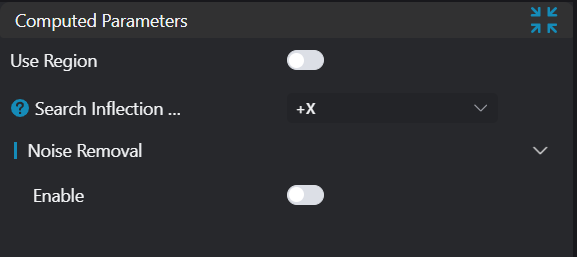
| Use Region Parameters | true/false | false | If enabled, use Region as input; if not enabled, use Input Image as input | |
| Region | Select input contour | |||
| Search Type | -X/+X/-Z/+Z | +X | -X: Search for leftmost inflection point +X: Search for rightmost inflection point -Z: Search for bottommost inflection point +Z: Search for topmost inflection point | |
| Noise Removal | 0.000 | Enable: If enabled, filter out inflection points with small jumps Threshold: Minimum difference to filter out interference points in Z direction | 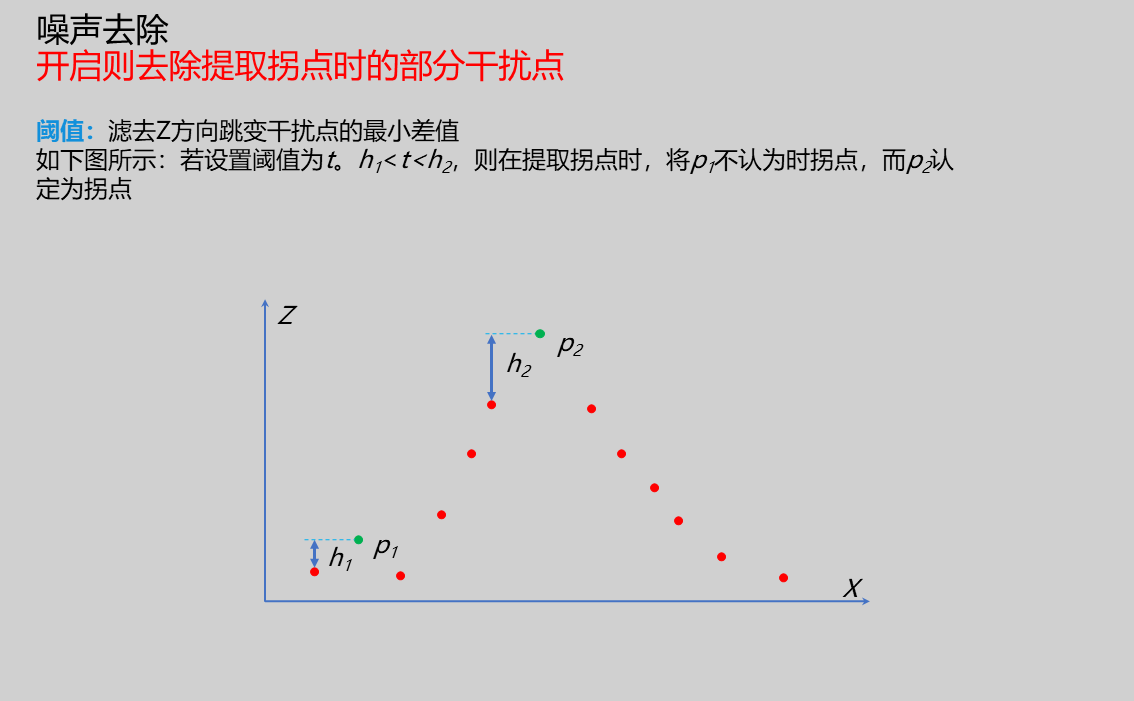 |
Result Display

| Parameter | Range | Default Value | Description | Illustration |
|---|---|---|---|---|
| Inflection Point | true/false | false | Extracted inflection point; if enabled, displayed in the image |
Output Parameters
| Name | Type | Range | Description |
|---|---|---|---|
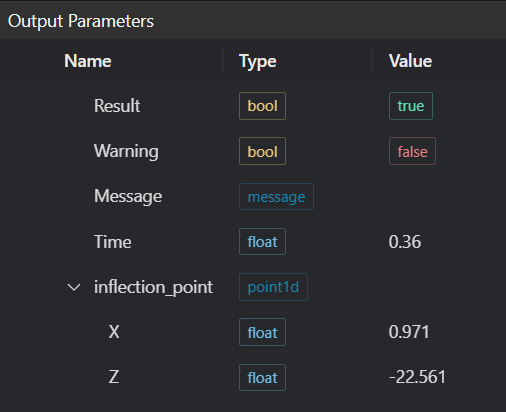
| Result | bool | true/false | true for success false for failure |
| Warning | bool | true/false | true indicates there is a warning false indicates there is none |
| Message | string | Outputs success, error, or warning information; if there is no error or warning, it is empty | |
| Time | float | Operator execution time, unit: ms | |
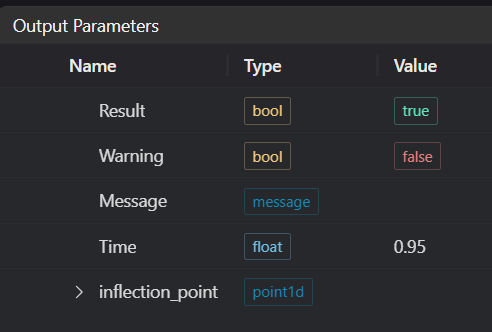
| inflection_point | point1d | Output inflection point |
Tip
For more detailed explanations of parameter types, please refer to Type Definitions
Exception Troubleshooting
| No. | Exception Information | Corresponding Parameter | Solution |
|---|---|---|---|
| 1 | Failed to get feature points in crop region | Adjust start and end parameters of point acquisition region to ensure valid points exist in selected area | |
| 2 | Input region type is {0}, invalid region type | Region Type | Input region type must be 1D Window |
| 3 | Invalid region parameters for point acquisition | Adjust region parameters so input point cloud in region is not empty | |
| 4 | No inflection point found | Adjust inflection point related parameters | |
| 5 | Input point cloud is empty | Confirm if IM contains valid points; if no valid points, load point cloud or switch to IM with valid points |
Example Introduction
Select the
Load Point Cloudtool to load the 3D point cloud image to be processed into IM0;Select the
3D Contour Extractiontool to extract required contour into IM1;Select the
3D Contour Inflection Pointtool
Tool Usage
Select the input image for operation; the image number must match the IM number where the image is located in the project.
Either do not enable Use Region Parameters, or enable region and select region type as 1D Window, move the 1D Window to the position to be measured, enclosing the contour to be measured.
Set parameters
Check the content you want to display in the result display section
Click
Testto check if the image window and parameters meet expectationsIf there are no issues, click
Save, then run the operator in the run list to view the results in the corresponding IM