3D Data Display
Operator Function
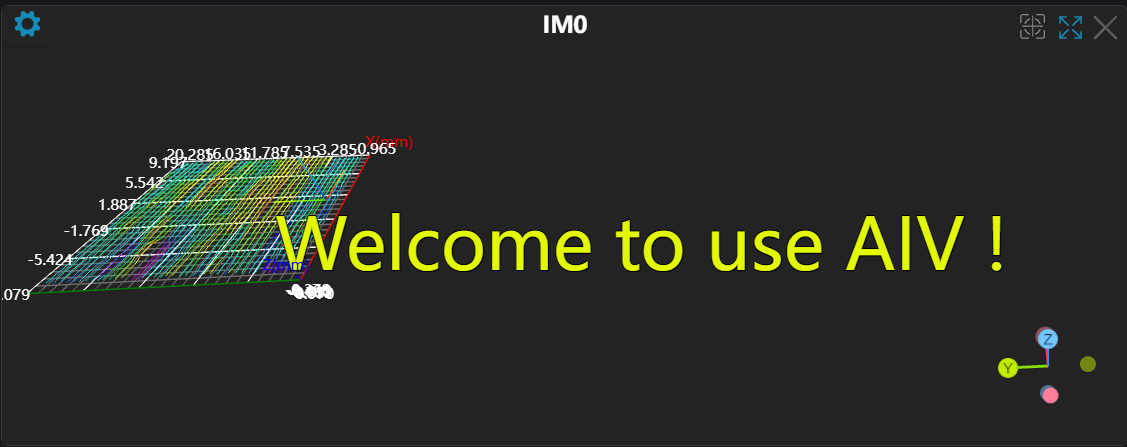
On 3D images, edit the required data parameters to be displayed and show them on the image.
Parameter Introduction
Input Parameters

| Parameter | Range | Default Value | Description | Illustration |
|---|---|---|---|---|
| Input Image | 0-8 | 0 | The IM number for image input | |
Table Design
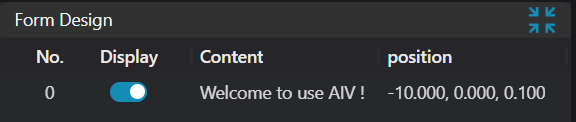
| Parameter | Range | Default Value | Description | Illustration |
|---|---|---|---|---|
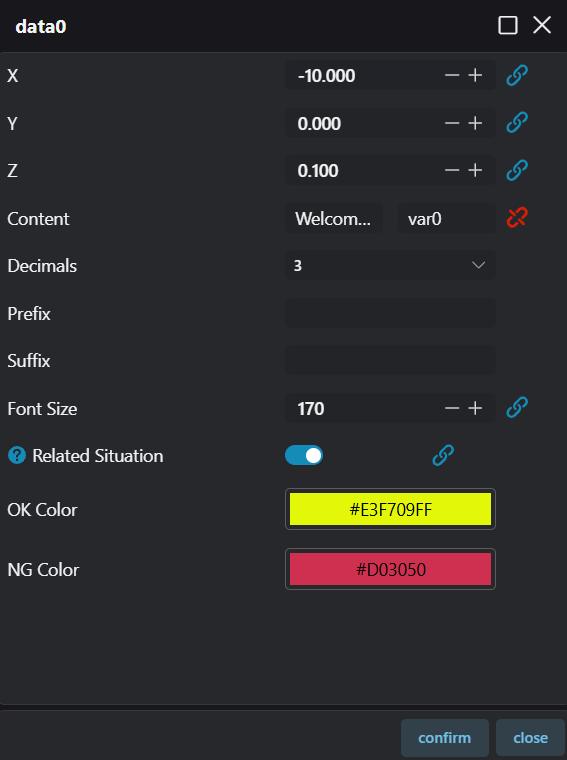
| X | 0.000 | X coordinate of the display position | ||
| Y | 0.000 | Y coordinate of the display position | ||
| Z | 0.000 | Z coordinate of the display position | ||
| Data Content | The content to display, only binding is supported, supporting int/bool/string/float four types | |||
| Decimal Places | 0-6 | 3 | Only enabled when data content is float type, retains the decimal places of the data content | |
| Prefix | Prefix, text displayed before the "Data Content" | |||
| Suffix | Suffix, text displayed after the "Data Content" | |||
| Font Size | 1-9999 | 12 | Font size, the size of the displayed font | |
| Status Association | true/false | true | If the value is true, display OK color; if false, display NG color | 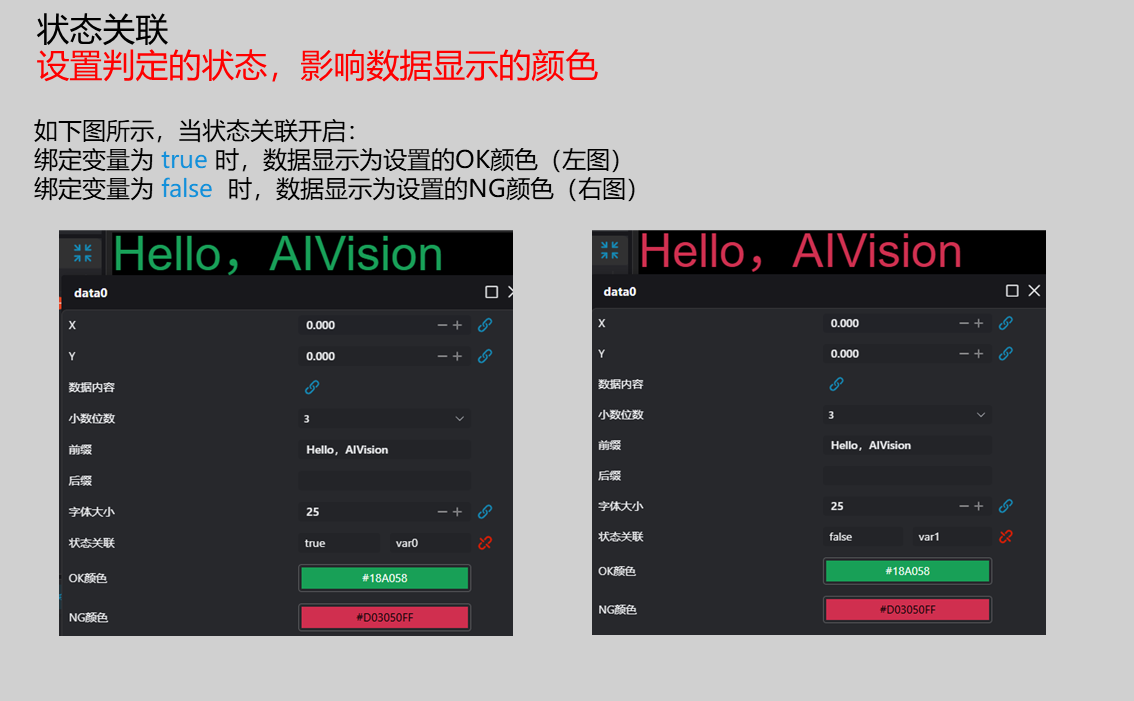 |
| OK Color | Green | OK color, the text color displayed when "Status Association" is True, default is green | ||
| NG Color | Red | NG color, the text color displayed when "Status Association" is False, default is red | ||
| Whether to Display | true/false | true | If true, display on IM; if false, do not display |
Output Parameters
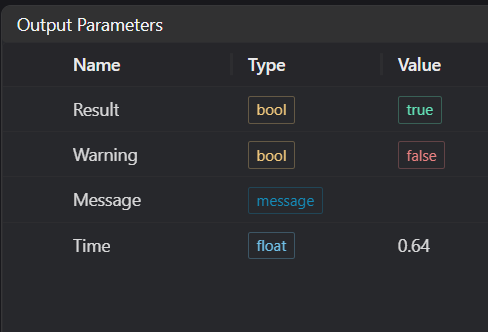
| Name | Type | Range | Description |
|---|---|---|---|
| Result | bool | true/false | true for success false for failure |
| Warning | bool | true/false | true indicates there is a warning false indicates there is none |
| Message | string | Outputs success, error, or warning information; if there is no error or warning, it is empty | |
| Time | float | Operator execution time, unit: ms |
Exception Troubleshooting
| No. | Exception Information | Corresponding Parameter | Solution |
|---|---|---|---|
| 1 | Image type not supported | Confirm that the IM is a 3D image | |
| 2 | Input point cloud is empty | Confirm that there are valid points in the IM |
Example Introduction
Engineering Design
Select the
Load Point Cloudtool to load the 3D image that needs to be processed.Select the
3D Data Displaytool.
Tool Usage
Select the input image for operation; the image number must match the IM number where the image is located in the project.
Set the input type, content, color, font size, and position.
Click
Testto check if the image window and parameters meet expectations.If there are no issues, click
Save, then run the operator in the run list to view the results in the corresponding IM.