
Installation Guide
System Requirements
To ensure smooth operation of AI-Vision, it is recommended that the industrial computer meets the following system requirements:
| Operating System | Windows 10 or higher |
| CPU | Intel i7 10th generation or higher |
| Memory | 16 GB or higher |
| GPU | No specific requirement |
| Storage | 512 GB SSD or higher |
Note
No encryption license is required. AI-Vision provides a 90-minute free trial cycle. For long-term use, please contact Tydi Intelligent’s sales representatives.
Visit the Tydi Intelligent official website
It is recommended to set the monitor resolution and scaling ratio as follows when using AI-Vision:
| Resolution | Scaling |
|---|---|
| 1920×1080 (16∶9) | 100% |
Installing the Software
To install the AI-Vision software, follow the steps below:
Double-click the installer (.exe file) to open the AI-Vision Installation Wizard, which will display the Language Selection Window. Choose Chinese or English.
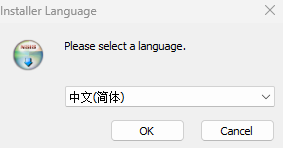
After selecting the language, click
OKto enter the Welcome Window.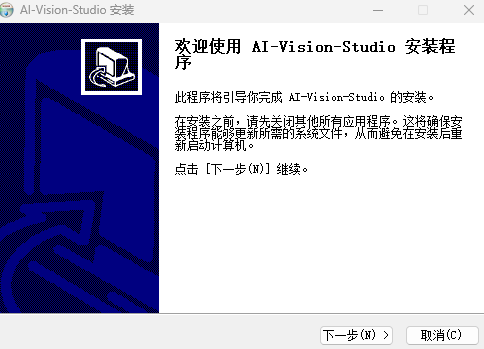
Read the software information in the welcome window, then click
Next.In the Installation Path window, change the installation directory if needed (e.g., “D:/Tydi/AIV”), then click
Next.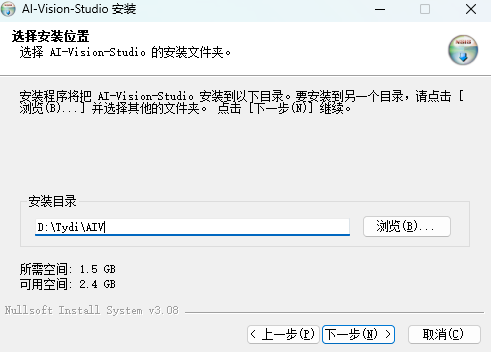
In the Start Menu Folder Selection window, set a custom name for the shortcut and confirm whether to create a desktop shortcut. Click
Install.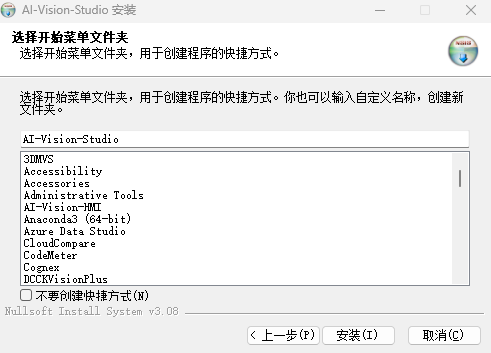
Wait for the installation process to complete, then click
Next.Once the installation finishes, in the Finish Window, choose whether to run AI-Vision (Studio) immediately and whether to create shortcuts again. Click
Finish.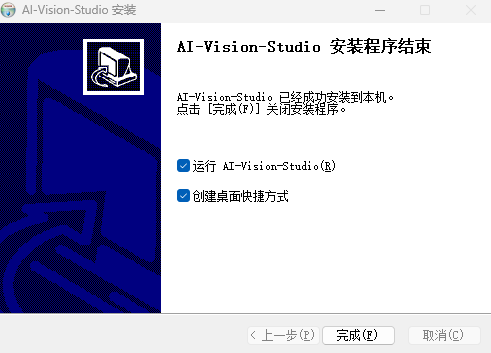
Tips: When launching the software for the first time, if a security alert appears on your PC or IPC, click “Allow access” to add AI-Vision to the firewall whitelist. Otherwise, the software may not be able to detect connected cameras due to firewall blocking.
Installing Sample Projects
Download the sample project installer (.exe file) that matches your AI-Vision version from the official website.
Double-click the sample installer (.exe file) to open the Sample Installation Wizard, which will display the Language Selection Window. Choose Chinese or English.
After selecting the language, click
OKto enter the Welcome Window.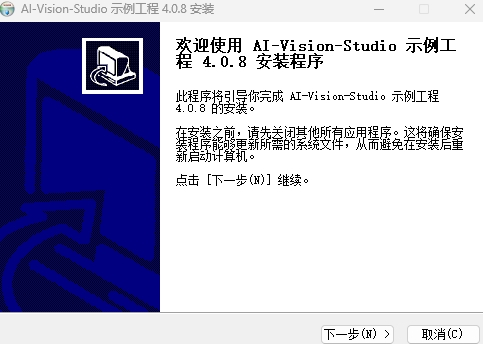
Read the sample description, then click
Next.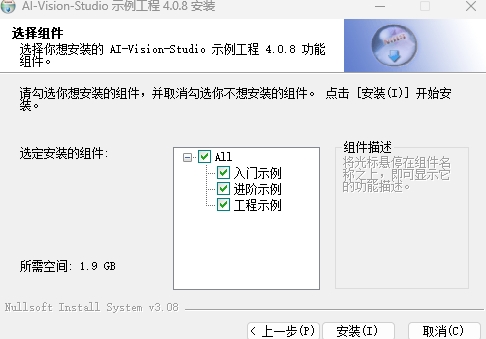
All sample projects are selected by default.Click
Installand wait for the process to complete. The sample project files will be installed in the same directory as the corresponding version of AI-Vision.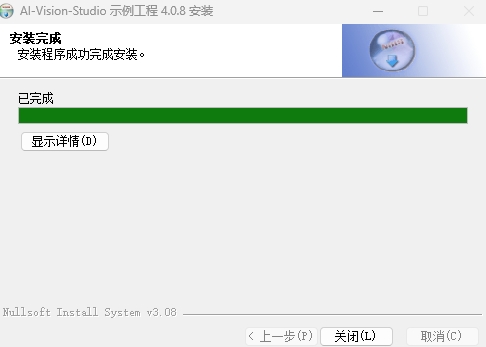
ClickCloseto finish installing the sample projects.
Upgrading the Software
To upgrade AI-Vision, follow these steps:
Download the latest installer package. Refer to Download the Software Package for details.
Double-click the installer (.exe file) to open the AI-Vision Installation Wizard, and enter the Welcome Window.
Read the software information, then click
Next.In the Installation Path window, change the directory if needed (e.g., “D:/Tydi/AIV”), then click
Next.
Versions 4.0 and above support multiple installations. If you wish to install multiple versions, make sure to choose different installation paths!In the Start Menu Folder Selection window, set the shortcut name and confirm whether to create a desktop shortcut. Click
Install.Wait for the installation to complete, then click
Next.Once finished, in the Completion Window, choose whether to launch AI-Vision (Studio) immediately and whether to create shortcuts again. Click
Finish.
Tips: During an upgrade, make sure to close AI-Vision completely. If the software is force-closed by the upgrade tool, you must manually terminate the "kernel.exe" process in the Task Manager before continuing the upgrade.
Uninstalling the Software
If you need to uninstall AI-Vision, you can do it in two ways:
- Uninstall via Installation Wizard
- Uninstall via Uninstall Program
Uninstall via Installation Wizard
To uninstall using the installation wizard, follow these steps:
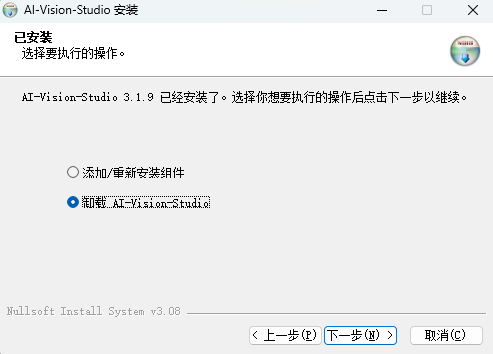
Double-click the software installer (.exe file) to open the AI-Vision Installation Wizard. In the Maintenance Window, click Uninstall.
In the Uninstall Window, choose whether to delete application data, then click
Uninstall.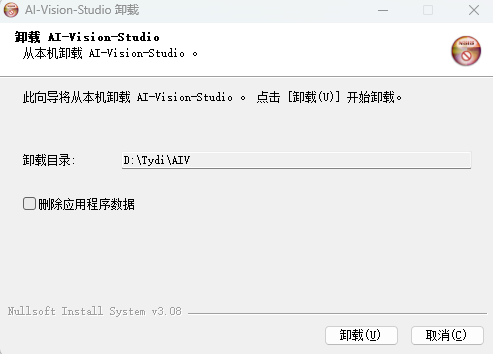
Wait for the uninstallation process to complete.
Uninstall via Uninstall Program
To uninstall using the uninstall program, follow these steps:
- Open the software installation directory folder.
- Double-click uninstall.exe to run the uninstaller.
- In the Uninstall Window, choose whether to delete application data, then click
Uninstall. - Wait for the uninstallation process to complete.