3D Surface Unwrapping
Operator Function
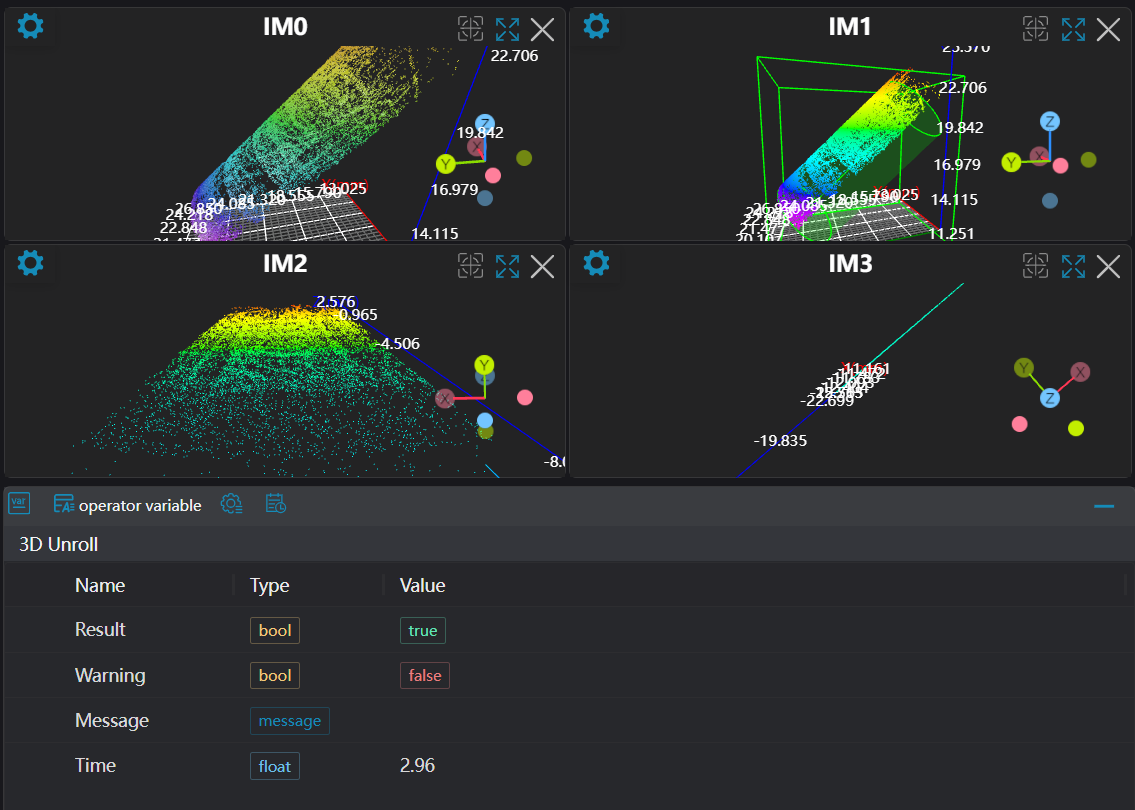
As shown in the figure, this operator implements the process of projecting a cylinder onto a plane. Based on the input point cloud and fitting parameters, it unwraps the point cloud and outputs the unwrapped planar point cloud.

Parameter Introduction
Input Parameters

| Parameter | Range | Default Value | Description | Illustration |
|---|---|---|---|---|
| Input Image | 0-8 | 0 | The IM number for image input | |
Calculation Parameters
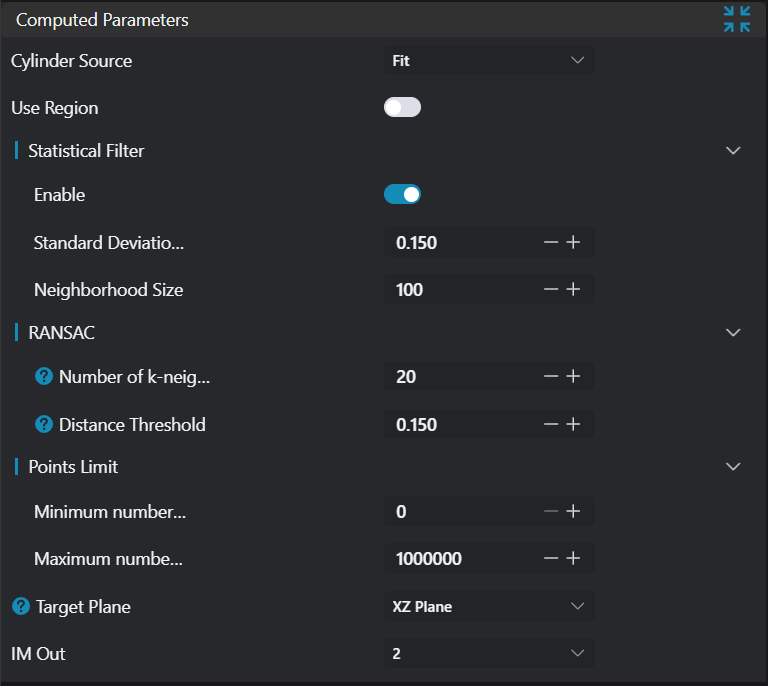
Cylinder Source: Fitting
| Parameter | Range | Default Value | Description | Illustration |
|---|---|---|---|---|
| Cylinder Source | Fitting/Input | Fitting | Fitting: Select the point cloud to be fitted, then fit and unwrap this portion Input: Obtain cylinder parameters from registers or manually, then unwrap the input image | |
| Region | 2D Window/2D Circular Window/2D Polygon Window/Box/Cylinder Box/Rotated Box/Point Set (binding only) | Box | Manual selection: Set the ROI region for cylinder fitting > Note: Ensure the ROI center point is within the circle. Can bind to select existing ROI regions | |
| Statistical Filtering | true/false | false | Apply statistical filtering to input point cloud | |
| Standard Deviation Multiple Threshold | 0.1-10 | 0.150 | Input parameter n, any point exceeding n standard deviations from the mean will be considered an outlier and removed | |
| Neighborhood Points | 3-500 | 100 | Number of neighbor points to consider during filtering (must be less than input point cloud count) | |
| K-Nearest Neighbors | 3-500 | 20 | When calculating normal for a point in the point cloud, number of surrounding points to search. If set too high, may include distant points causing inaccuracies; if set too low, may ignore nearby points affecting normal estimation accuracy. |  |
| Distance Threshold | 0-10000 | 0.15 | When the distance between a data point and the fitted model is less than this threshold, the data point is considered an inlier (conforms to the model); otherwise, it's considered an outlier (does not conform). | 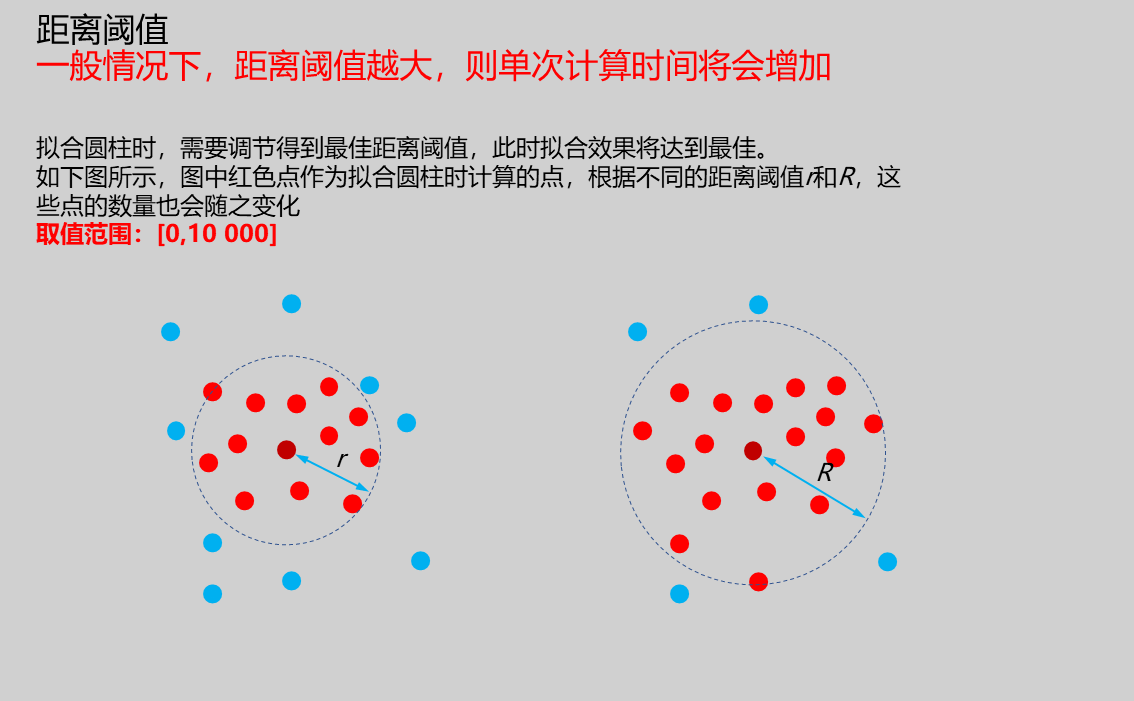 |
| Minimum Points | 0 | Set the minimum number of input point cloud points | ||
| Maximum Points | 1000000 | Set the maximum number of input point cloud points | ||
| Target Plane | XY Plane/XZ Plane/YZ Plane | XZ Plane | XY Plane: Unwrap point cloud to XY plane XZ Plane: Unwrap point cloud to XZ plane YZ Plane: Unwrap point cloud to YZ plane | |
| Output Image | 0-8 | 0 | The IM number for image output |
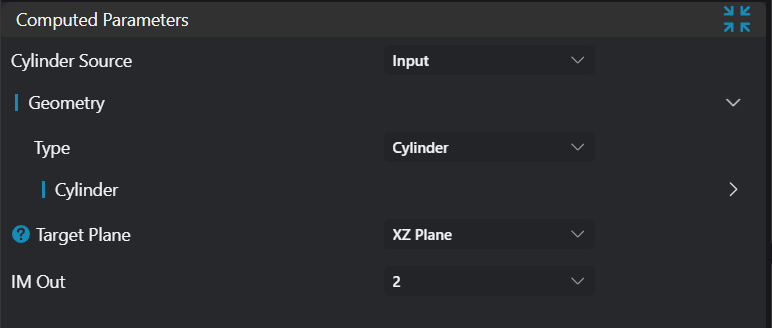
Cylinder Source: Input
| Parameter | Range | Default Value | Description | Illustration |
|---|---|---|---|---|
| Cylinder Source | Fitting/Input | Fitting | Fitting: Select the point cloud to be fitted, then fit and unwrap this portion Input: Obtain cylinder parameters from registers or manually, then unwrap the input image | |
| Geometry | Cylinder | Set cylinder information: base circle center, radiusCan bind to select fitted cylinder | ||
| Target Plane | XY Plane/XZ Plane/YZ Plane | XZ Plane | XY Plane: Unwrap point cloud to XY plane XZ Plane: Unwrap point cloud to XZ plane YZ Plane: Unwrap point cloud to YZ plane | |
| Output Image | 0-8 | 0 | The IM number for image output |
Output Parameters
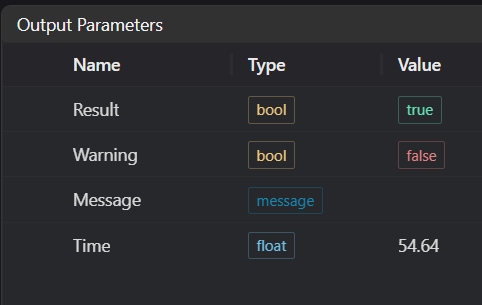
| Name | Type | Range | Description |
|---|---|---|---|
| Result | bool | true/false | true for success false for failure |
| Warning | bool | true/false | true indicates there is a warning false indicates there is none |
| Message | string | Outputs success, error, or warning information; if there is no error or warning, it is empty | |
| Time | float | Operator execution time, unit: ms |
Exception Troubleshooting
| No. | Exception Information | Corresponding Parameter | Solution |
|---|---|---|---|
| 1 | Input region type is {0}, invalid region type | Region Type | Region input type must be one of: 2D Window/2D Circular Window/2D Polygon Window/Box/Cylinder Box/Rotated Box/Point Set |
| 2 | Region is empty | 1. Check if selection is empty 2. Check if point set is empty | |
| 3 | Point cloud input is empty | Confirm if IM contains valid points; if no valid points, load point cloud or switch to IM with valid points | |
| 4 | Point count limit invalid | Set point cloud minimum less than maximum | |
| 5 | Filter parameters invalid | Adjust statistical filtering parameters: 1. Increase standard deviation multiple threshold 2. Decrease neighborhood points (neighborhood points must be less than selected point cloud count) | |
| 6 | Input point cloud count exceeds limit | Adjust point count limit range or replace with point cloud that meets limits | |
| 7 | Input geometry is {0}, invalid geometry type | Geometry Type | Geometry must be Cylinder |
| 8 | Input cylinder source is {0}, invalid cylinder source | Cylinder Source | Image source must be Fitting/Input |
| 9 | Input polygon vertex count less than 3, cannot form polygon | Add 2D polygon window vertices so vertex count is at least three |
Example Introduction
Engineering Design
Select the
Load Point Cloudtool to load the 3D point cloud image to be processed into IM0.Select the
3D Croptool to copy IM0 to IM1.Set up the
3D Cylindertool to fit the point cloud as a cylindrical surface.Select two
3D Unwrappingtools, setting different cylinder sources for each.
Tool Usage
Select the input image for operation; the image number must match the IM number where the image is located in the project.
Set cylinder source
When setting cylinder source to Fitting, set region as Box, move the box to the position to be measured, enclosing the point cloud to be measured.
When setting cylinder source to Input, bind the cylindrical surface output from the 3D Cylinder tool as input.
Usage Tips
- Use the ROI controller on the image window to drag or scale the box;
- Directly modify the start or end coordinates of the box in the calculation parameters to adjust the box position and size;
Set parameters
Click
Testto check if the image window and parameters meet expectationsIf there are no issues, click
Save, then run the operator in the run list to view the results in the corresponding IM