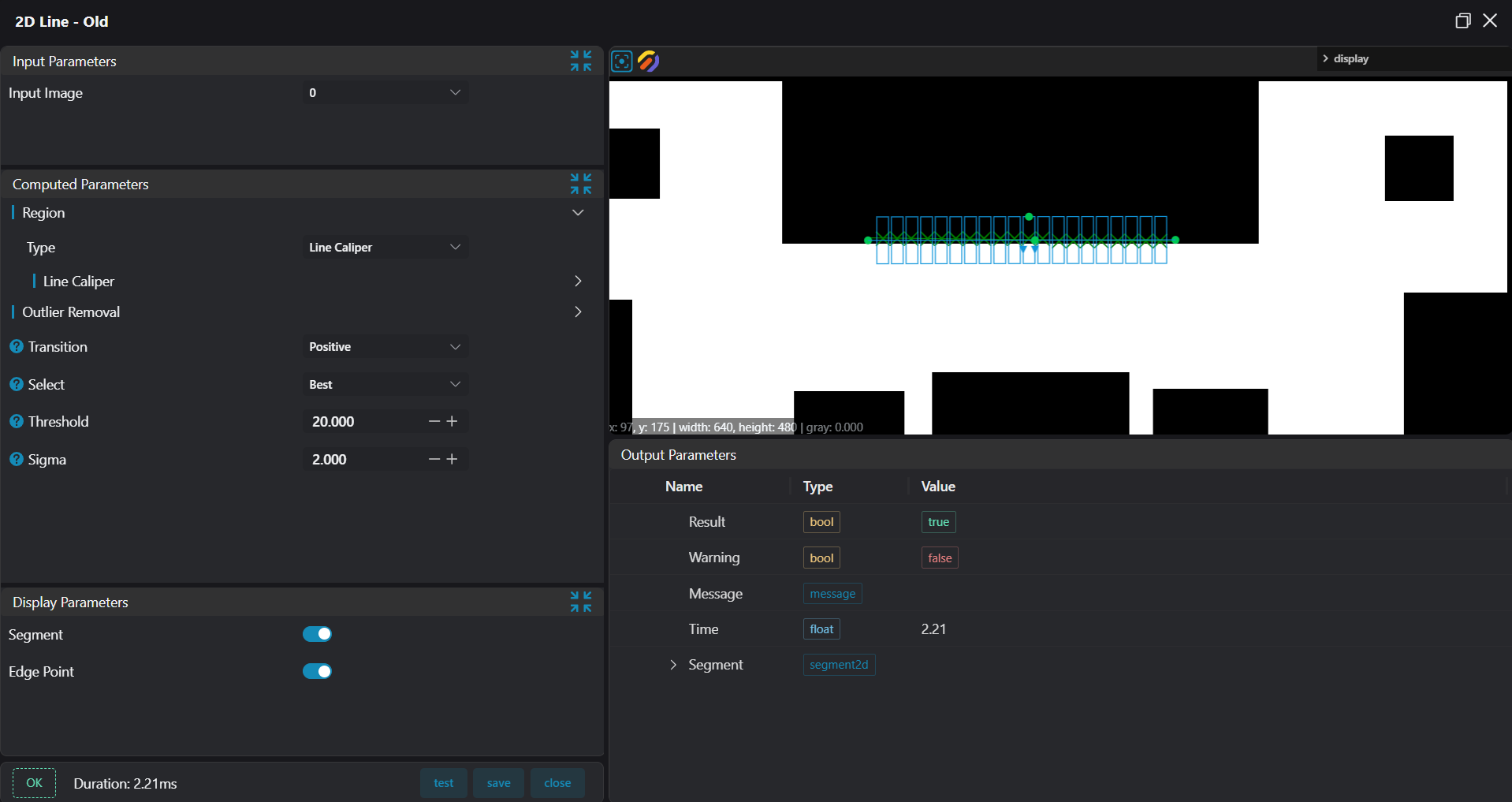
2D Line
Operator Function
Find line segments in the input image using 2D calipers and output the start and end points of the line segments.
Parameter Introduction
Input Parameters

| Parameter | Range | Default Value | Description | Illustration |
|---|---|---|---|---|
| Input Image | 0-8 | 0 | IM number for image input | |
Calculation Parameters
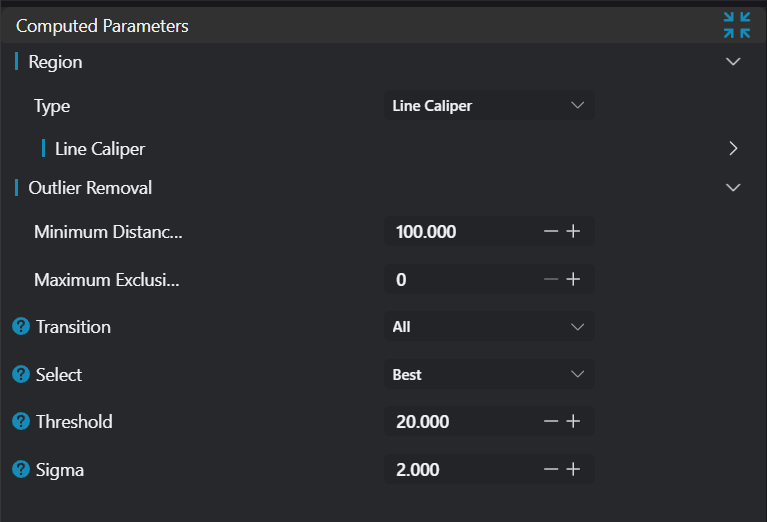
| Parameter | Range | Default Value | Description | Illustration |
|---|---|---|---|---|
| Caliper | Set the range of the search area | 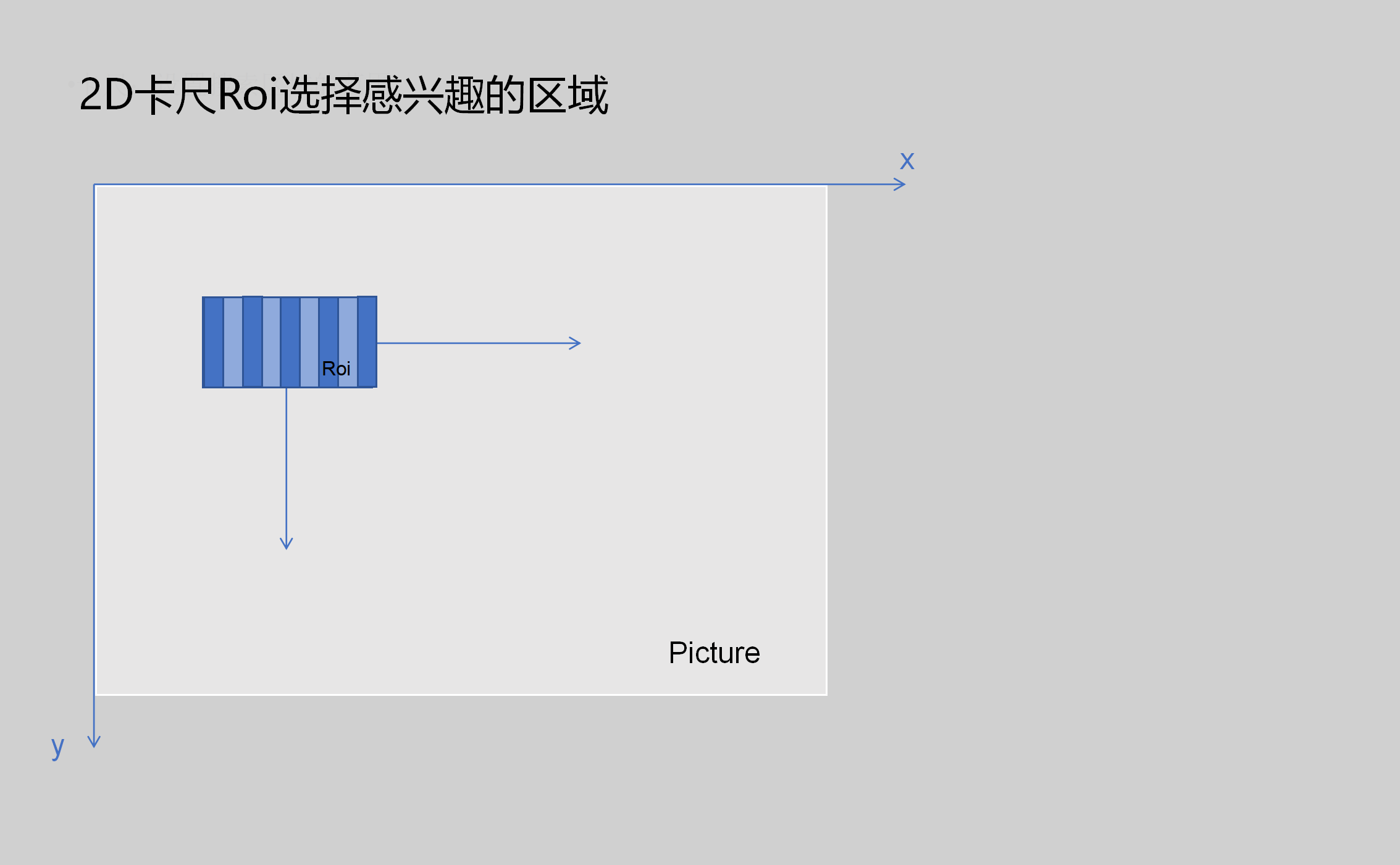 | ||
| Outlier Removal | Remove noise points and outliers | 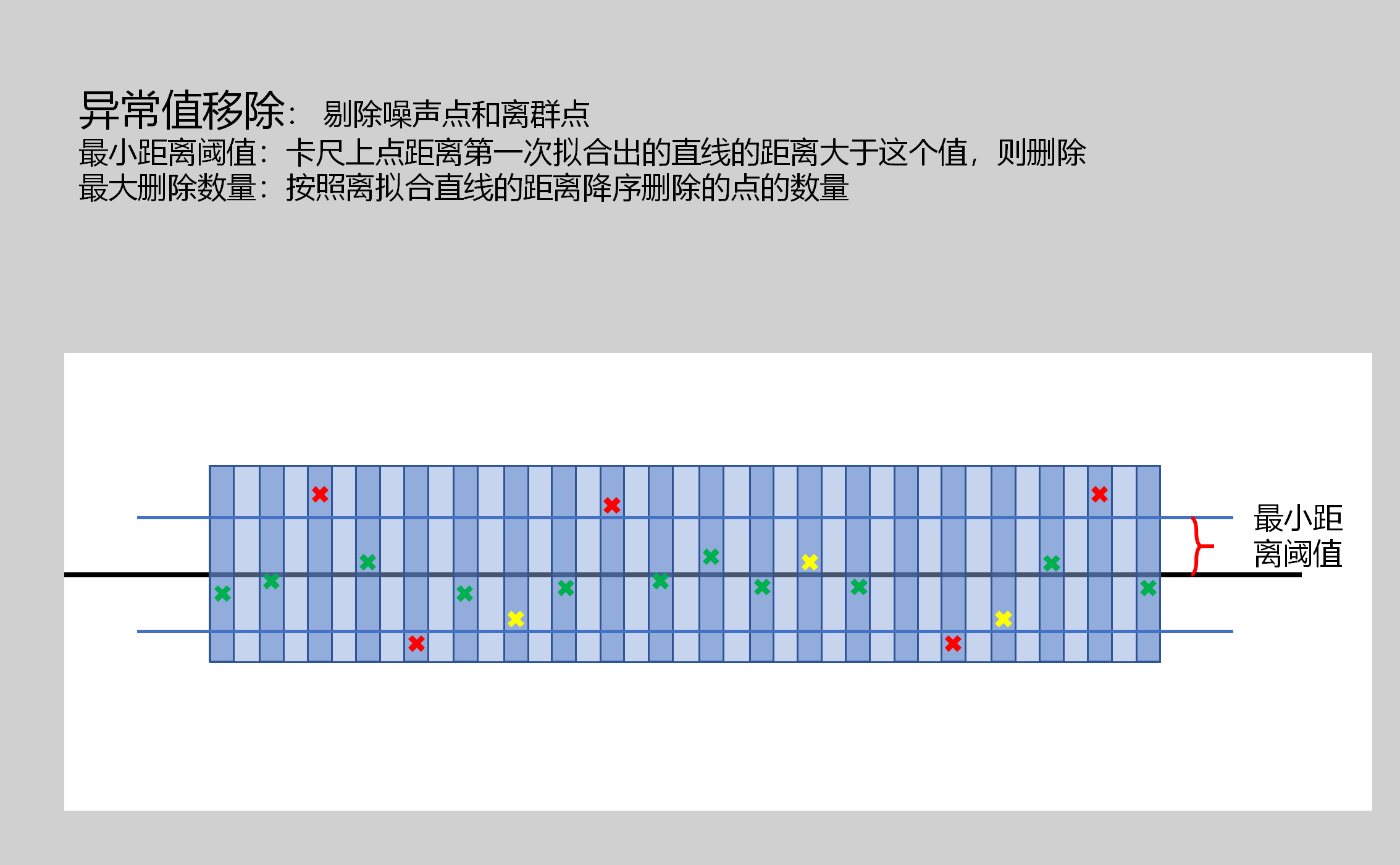 | ||
| Minimum Distance Threshold | 0-5000 | 100 | If the distance between a point on the caliper and the initially fitted line is greater than this value, delete it | |
| Maximum Deletion Count | 0-100 | 0 | Number of points to delete in descending order of distance from the fitted line | |
| Transition | Positive/Negative/All | All | Positive: Transition from black to white Negative: Transition from white to black All: Both transitions | 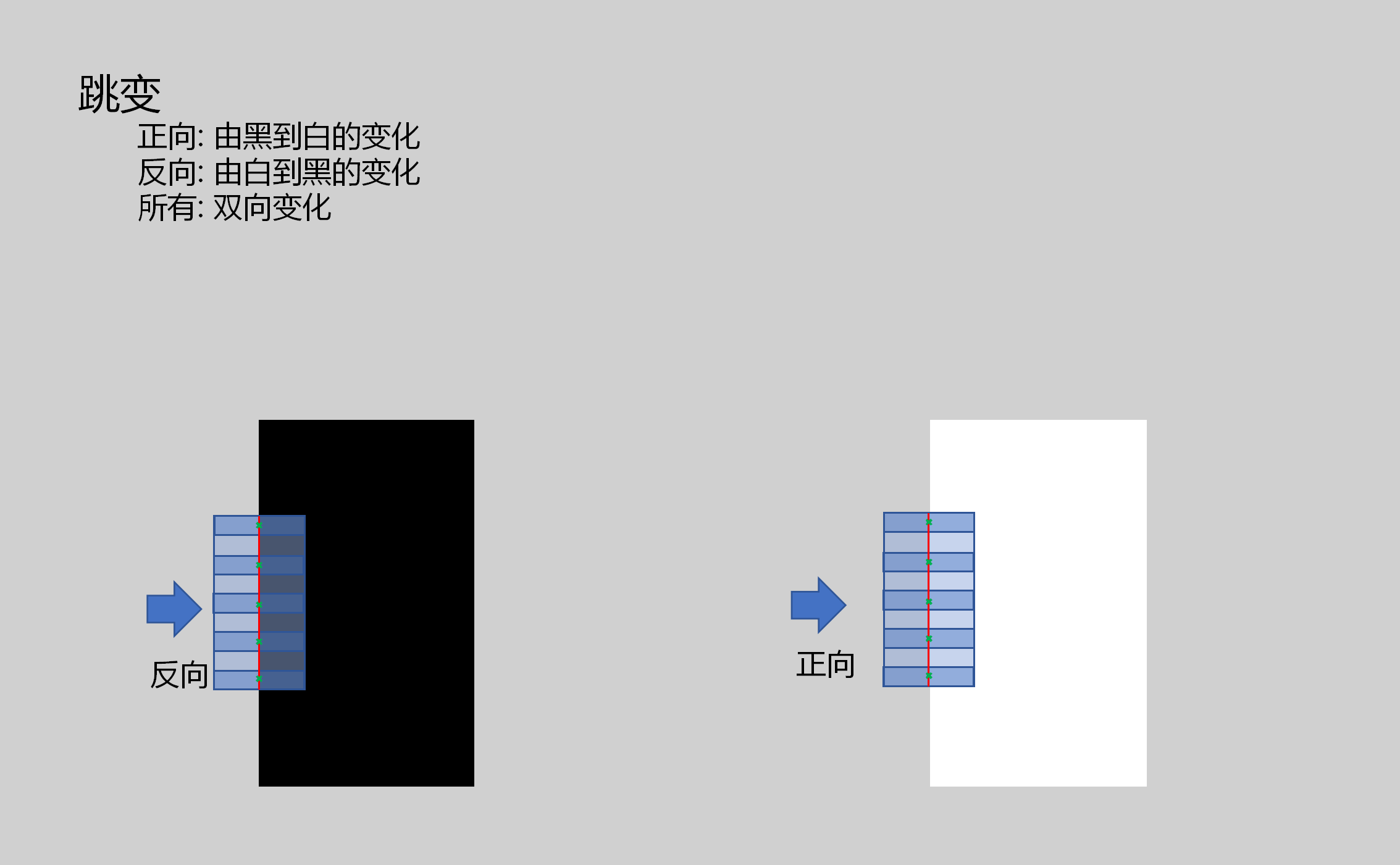 |
| Selection | First/Last/Best | Best | First: The first point found that meets the threshold Last: The last point that meets the threshold Best: The point with the largest threshold change | 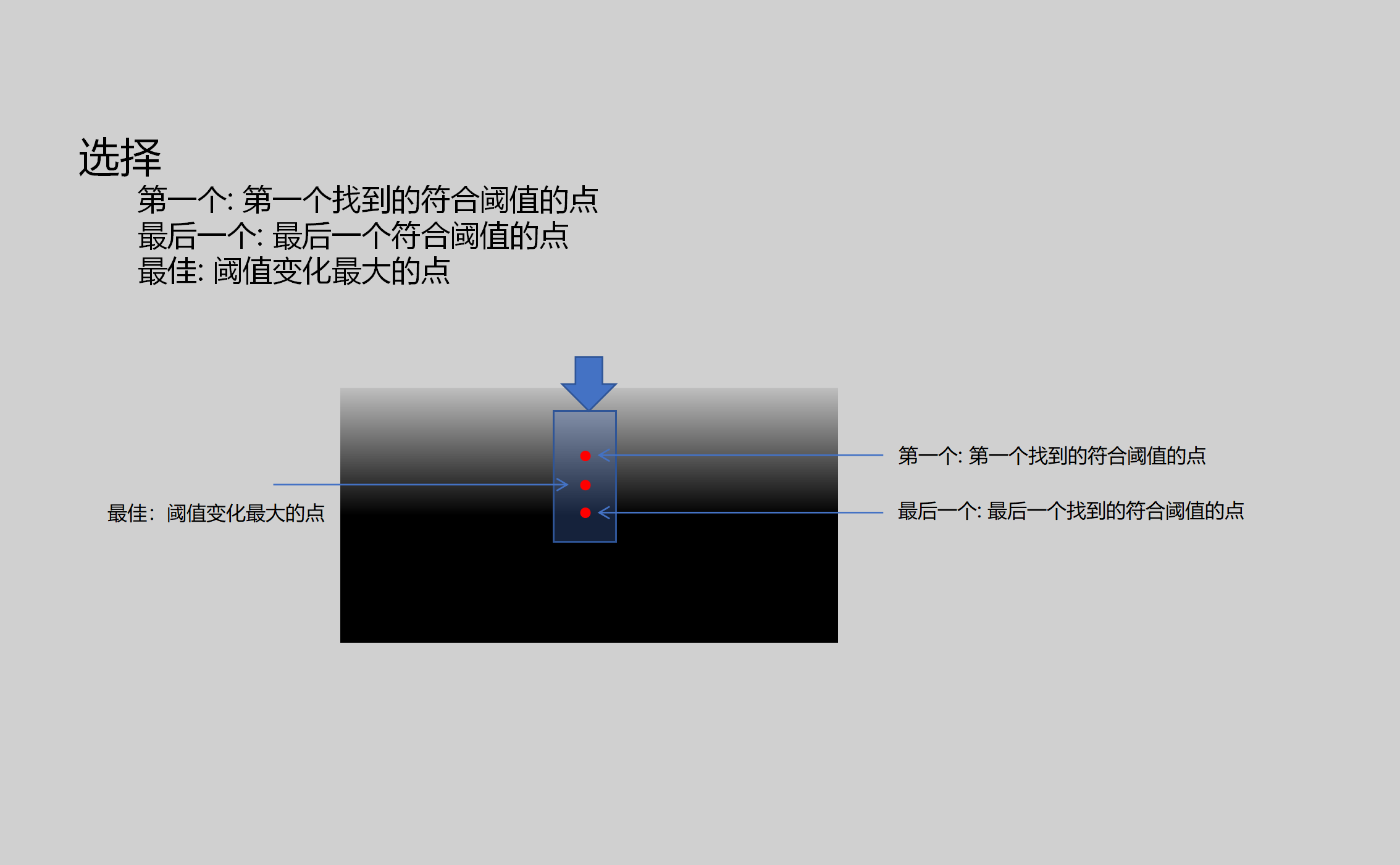 |
| Threshold | 1-255 | 20.000 | Threshold setting for gradient change | 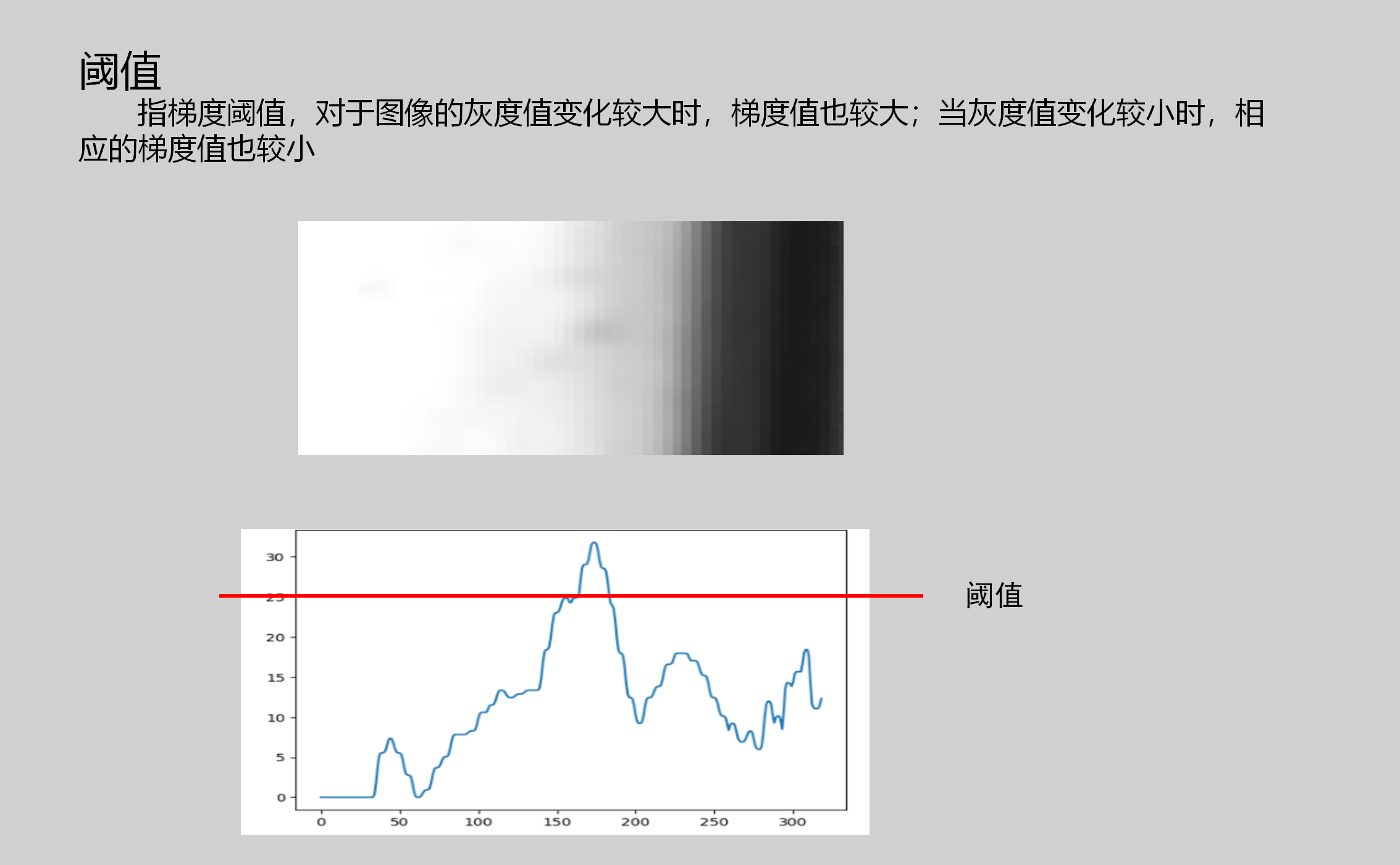 |
| Standard Deviation | 0.4-100 | 2.000 | Standard deviation for smoothing gradient changes |  |
Result Display

| Parameter | Range | Default Value | Description | Illustration |
|---|---|---|---|---|
| Line Segment | true/false | false | If enabled, display the found line segment on the IM image | |
| Edge Points | true/false | false | If enabled, display the found caliper contour points on the IM image |
Output Parameters
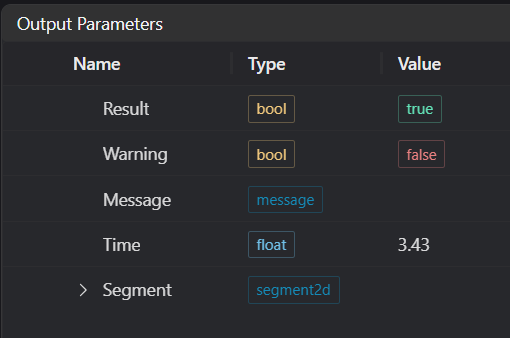
| Name | Type | Range | Description |
|---|---|---|---|
| Result | bool | true/false | true for success false for failure |
| Warning | bool | true/false | true indicates a warning false indicates no warning |
| Message | string | Output success, error, or warning messages. Empty if no error or warning. | |
| Time | float | Operator execution time, unit: ms | |
| Segment | segment2d | Found line segment information | Start and end point XY position information |
Exception Troubleshooting
| No. | Exception Information | Corresponding Parameter | Solution |
|---|---|---|---|
| 1 | Not enough suitable points found | 1. Increase the number of calipers 2. Adjust the threshold | |
| 2 | Insufficient filtered fitting points | Insufficient points after filtering, adjust the minimum distance threshold and maximum exclusion count | |
| 3 | Input image is empty | Check if the input image is empty |
Example Introduction
Engineering Design
Select the
Load Imagetool to load the required 2D image to IM0.Select the
2D Linetool.
Tool Usage
Select the input image for the operation. The image number must match the IM number where the image is located in the project.
Use the caliper to select the area where the line needs to be found.
::: Warning Tips 1. Use the ROI controller on the image window to drag or scale the caliper; 2. Directly modify the caliper parameters (such as start and end points) in the calculation parameters to set the caliper; :::
Set the parameters.
Check the content you want to display in the result display section.
Click
Testto check if the image window and parameters meet expectations.If there are no issues, click
Save. Run the operator in the run list, and then view the running results in the corresponding IM.