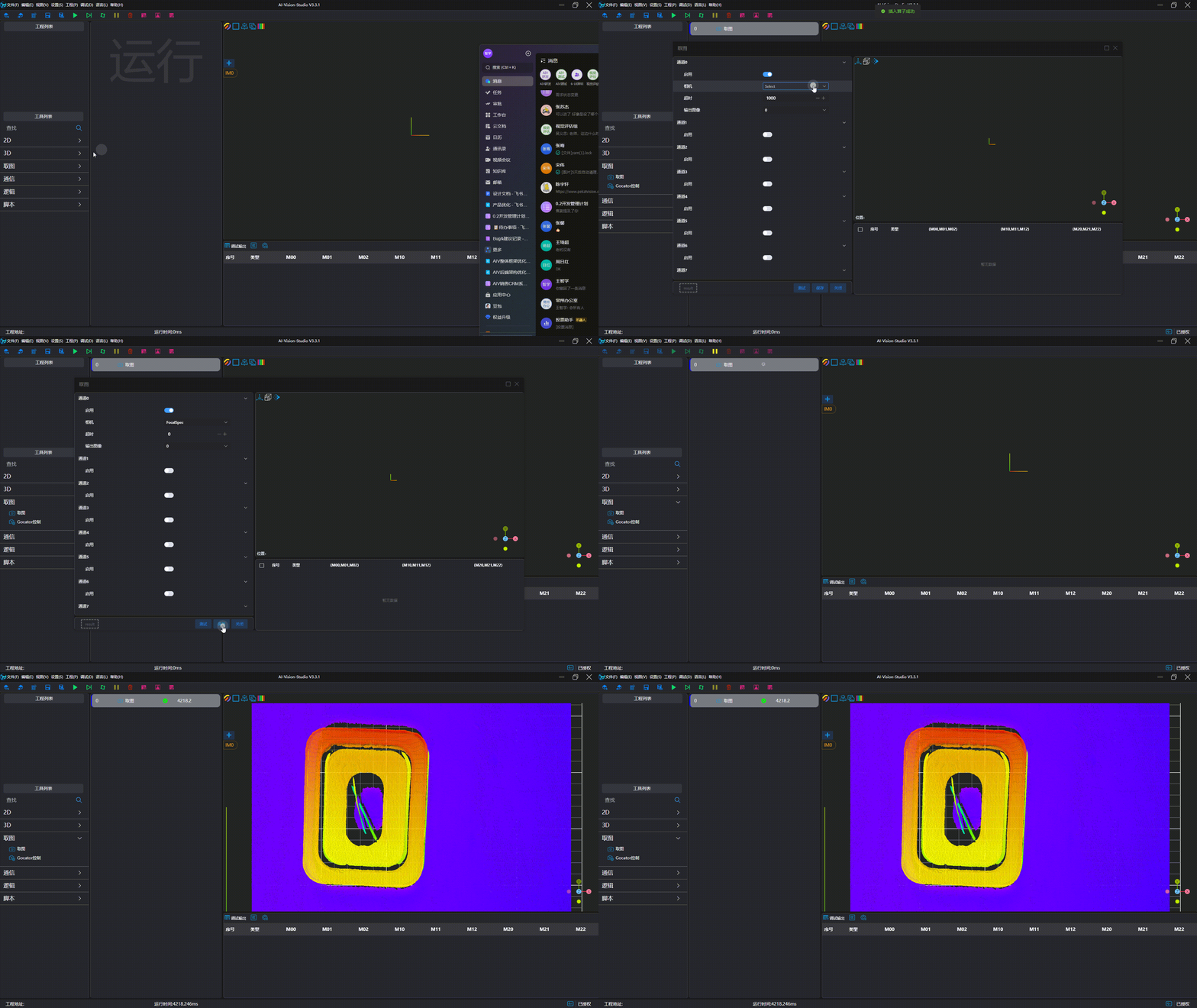
FocalSpec 3D Line Confocal Sensor
Note
It is required to install the FocalSpec Software Development Kit v2.5.1, and add the directory of the SDK library to the system environment variable Path (the default path is C:\Focalspec\FocalSpec Software Development Kit\API\x64) 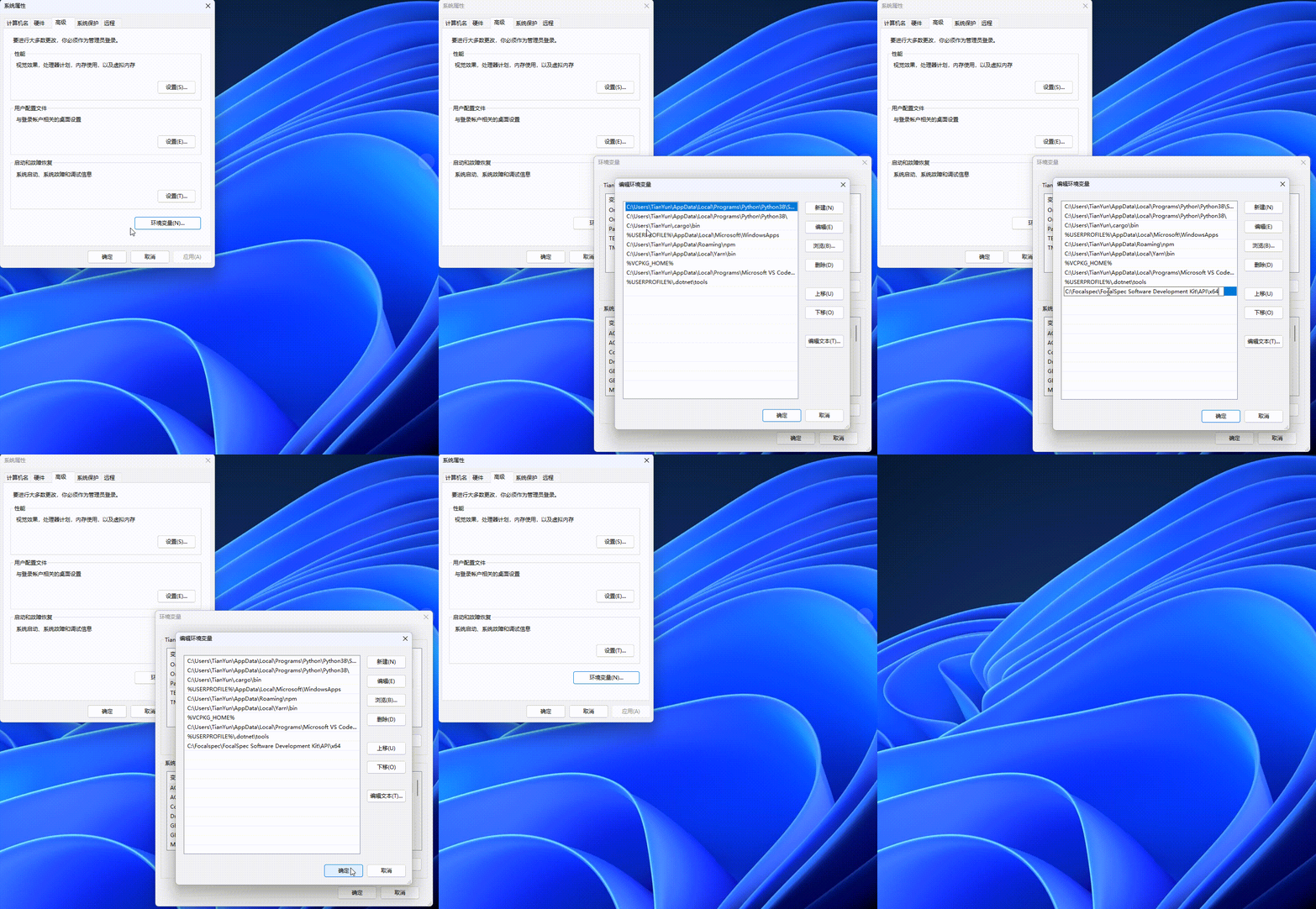
| Parameter | Type | Description | Dependency |
|---|---|---|---|
| Camera ID | Enumeration | Specify the ID of the camera | |
| Recipe File | Path | Specify the camera configuration recipe file | |
| Calibration. X-axis Calibration File | Path | Specify the X-axis calibration file of the camera; use the camera's internal calibration file if left blank | |
| Calibration. Z-axis Calibration File | Path | Specify the Z-axis calibration file of the camera; use the camera's internal calibration file if left blank | |
| Surface Selection. Sorting | Enumeration | Set the sorting method of surface layers: Brightest Top Layer, Top Layer, Bottom Layer | |
| Surface Selection. Index | Integer | Set the index of the selected surface layer, range: 1-10 | |
| Frequency Limit. Restricted by Z-axis Range | Boolean (Switch) | Set whether to use the Z-axis Range to automatically adjust the frequency limit | |
| Frequency Limit. Frequency | Set the frequency limit; triggering frequencies higher than this limit may result in trigger loss | Frequency Limit. Restricted by Z-axis Range = Off | |
| Frequency Limit. Z-axis Range | Set the Z-axis imaging range; the smaller the range, the larger the frequency limit value. The maximum value is determined by the camera model; an excessively large value will cause an error | Frequency Limit. Restricted by Z-axis Range = On | |
| Number of Rows | Integer | Set the number of rows for point cloud generation | |
| Y-axis Point Spacing | Float | Specify the Y-axis point spacing | |
| Remove Invalid Points | Boolean (Switch) | Set whether to enable the function of removing invalid points; an unordered point cloud will be output after removing invalid points |
Camera Usage
Camera Preparation
- Ensure the IP address of the camera controller and the network card are in the same subnet.
- Verify that images can be captured using the official camera software and meet the desired results.
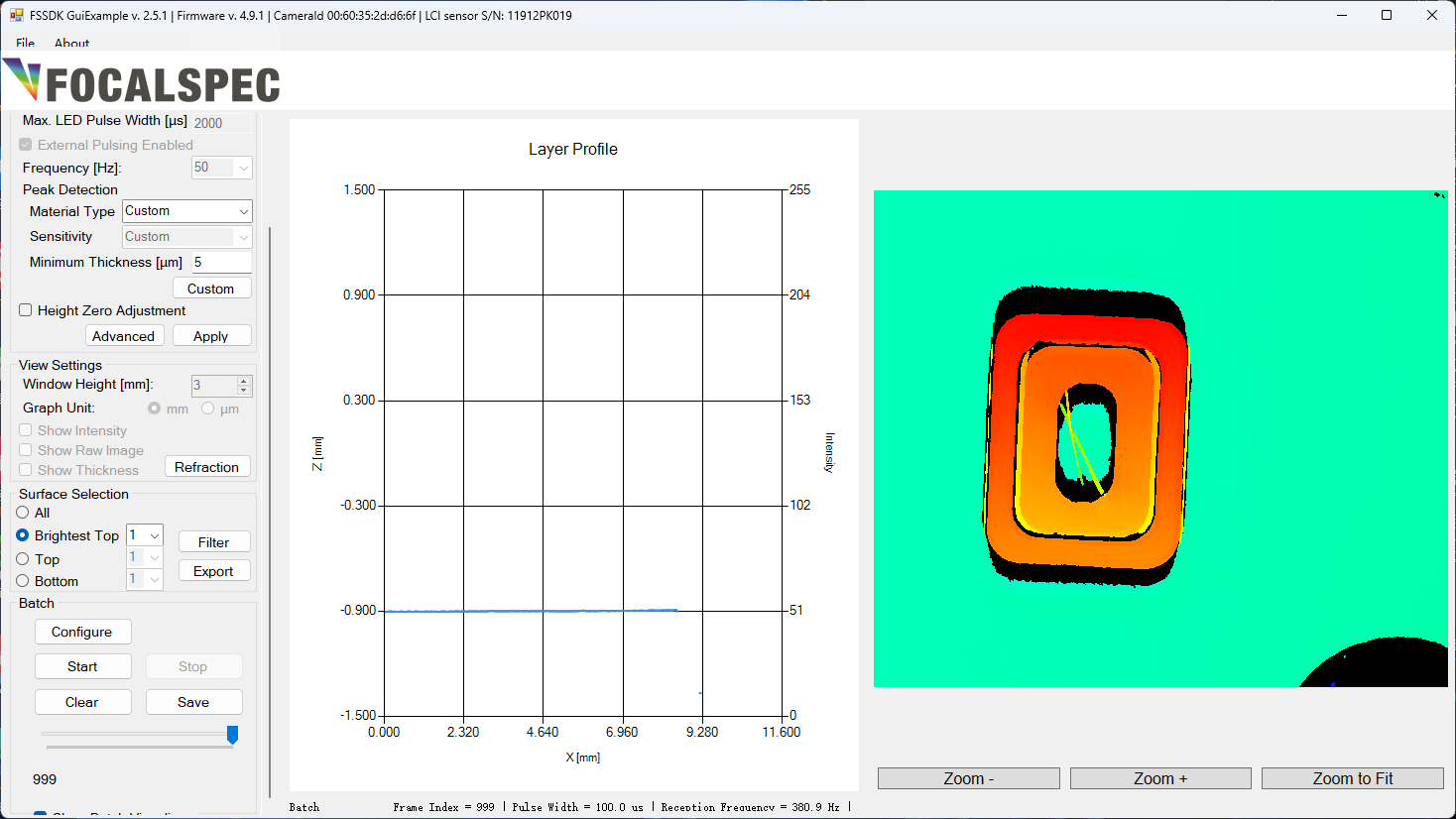
- Save the camera configuration file
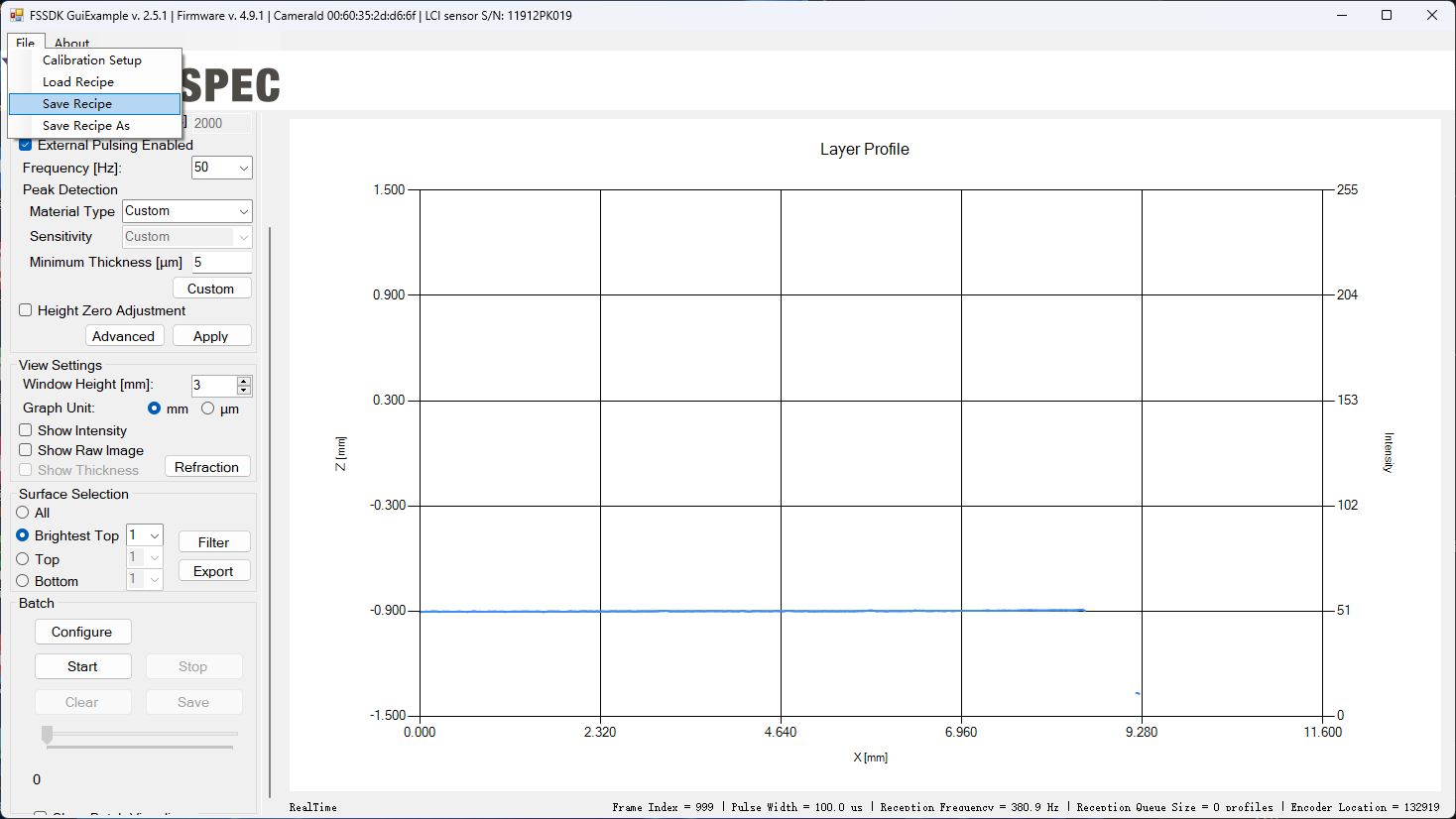 When saving a recipe for the first time, you will be prompted to enter a recipe name. Recipes are saved in the
 C:\Focalspec\SDK Recipesdirectory by default, with the file typejson.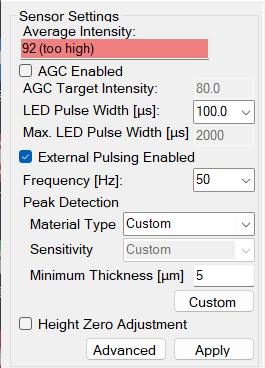 Only the parameters in the position shown in the figure above will be saved to the recipe. Click Apply after modification to make the configuration take effect and save it.
Add and Connect Device
Tip
Please close the official imaging software before connection to avoid mutual interference.
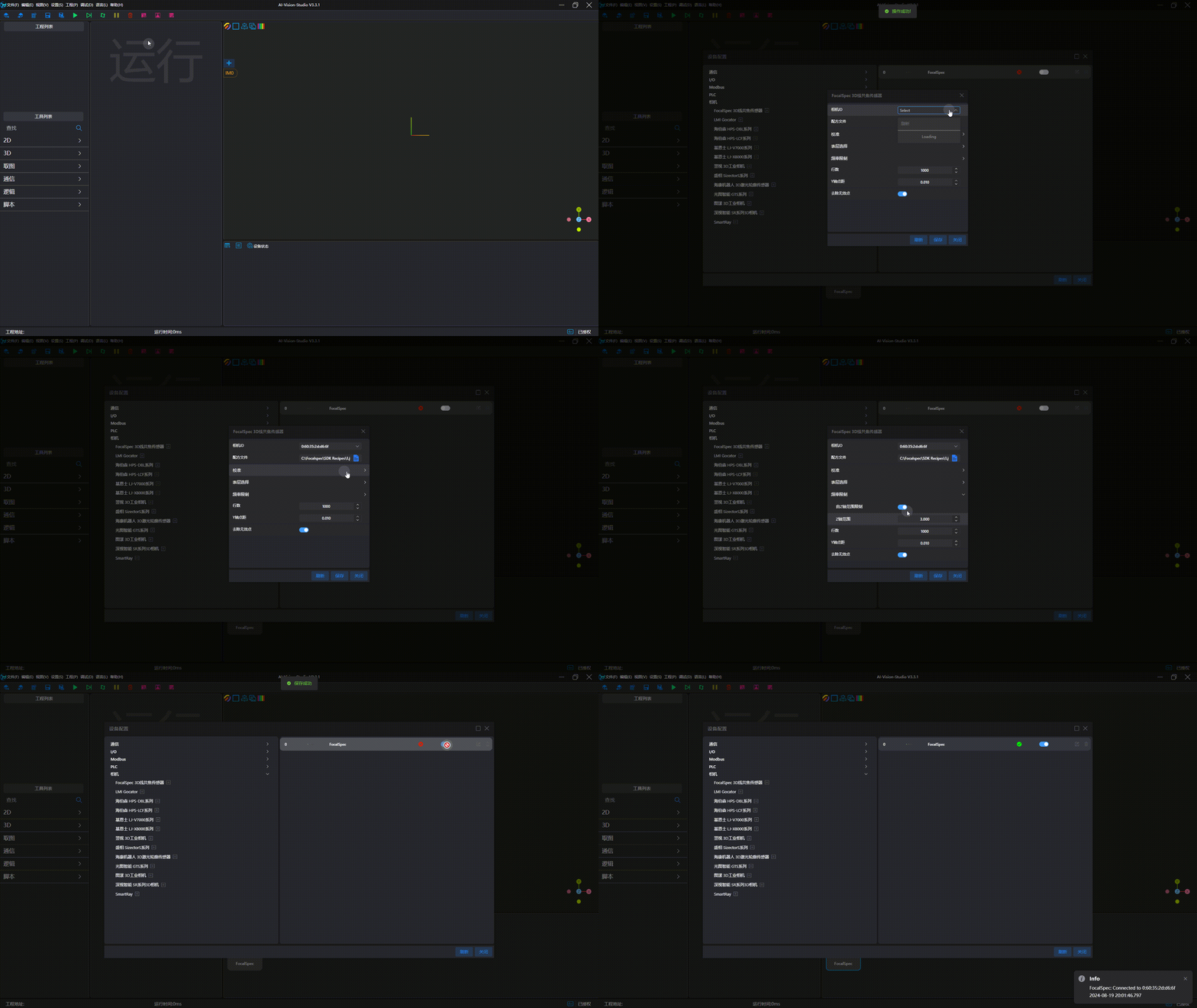
Imaging Test