2D Template Creation
Operator Function
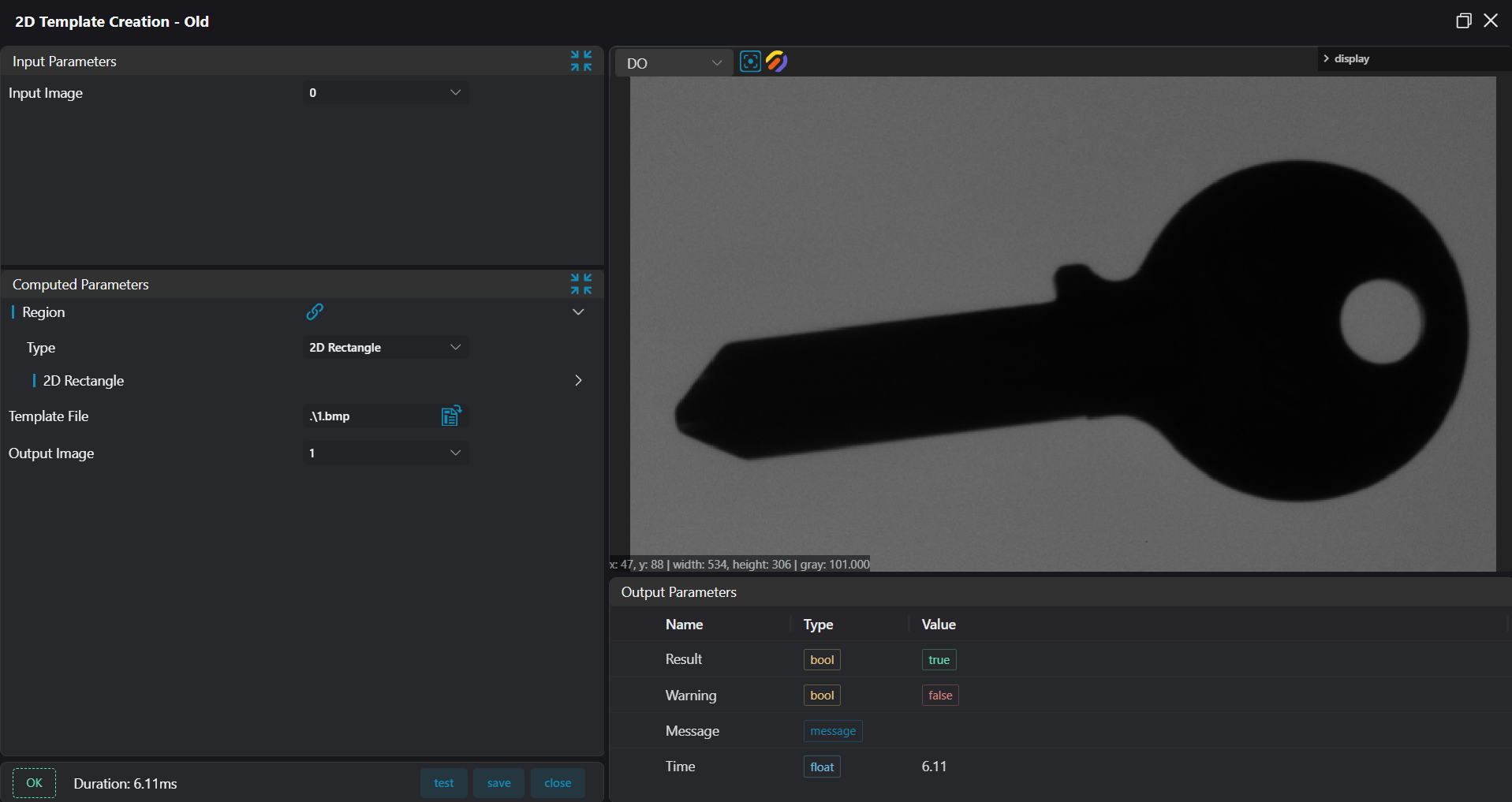
Output the cropped image according to the input ROI.
Parameter Introduction
Input Parameters

| Parameter | Range | Default Value | Description | Illustration |
|---|---|---|---|---|
| Input Image | 0-8 | 0 | IM number for image input | |
Calculation Parameters
| Parameter | Range | Default Value | Description | Illustration |
|---|---|---|---|---|
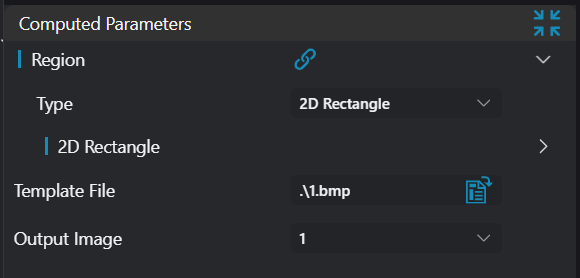
| Region | 2D Window | 2D Window | Set the range of the search area | |
| Template File | Empty | Save address of the image | ||
| Output Image | 0-8 | 1 | IM number for image output |
Output Parameters
| Name | Type | Range | Description |
|---|---|---|---|
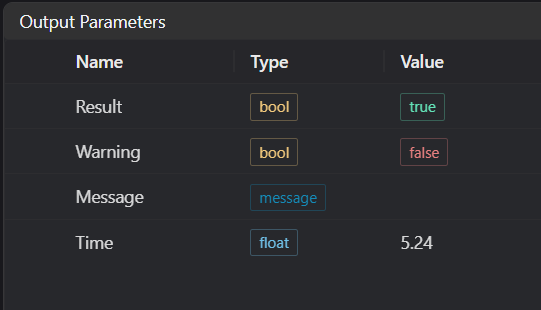
| Result | bool | true/false | true for success false for failure |
| Warning | bool | true/false | true indicates a warning false indicates no warning |
| Message | string | Output success, error, or warning messages. Empty if no error or warning. | |
| Time | float | Operator execution time, unit: ms |
Exception Troubleshooting
| No. | Exception Information | Corresponding Parameter | Solution |
|---|---|---|---|
| 1 | Cannot read valid 2D image | Check if the IM image is a 2D image or empty | |
| 2 | Input value is {0t}, invalid region type | Region type | Only window2d supported |
| 3 | Parameter "{0t}" cannot be empty | Input parameter name (Model File) | Complete parameter "{0t}" |
| 4 | File does not exist or cannot be accessed | File path | File path is incorrect or does not exist |
| 5 | Failed to write image to file "{0}" | File path | Check if the file has write permission |
| 6 | Image cropping failed | Start point, End point | Check if the cropping range is appropriate |
Example Introduction
Engineering Design
Select the
Load Imagetool to load the required 2D image to IM0.Select the
2D Template Creationtool.
Tool Usage
Select the input image for the operation. The image number must match the IM number where the image is located in the project.
Move the window to the position to be measured, enclosing the image that needs to be used as the template.
::: Warning Tips 1. Use the ROI controller on the image window to drag or scale the window; 2. Directly modify the window's start or end point coordinates in the calculation parameters to adjust the window position and size; :::
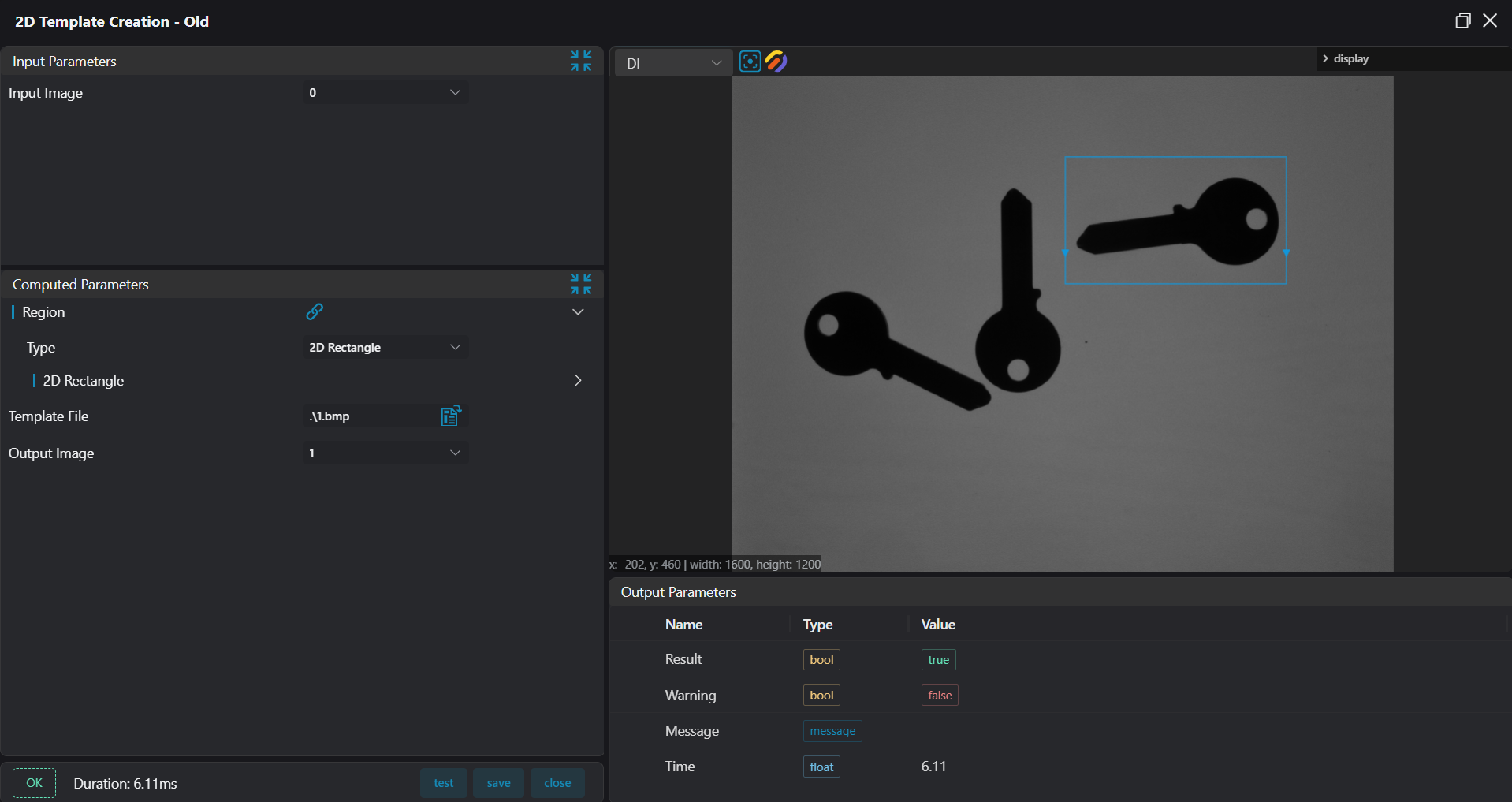
Set the template file address.
Set the output image IM.
Click
Testto check if the image window and parameters meet expectations.If there are no issues, click
Save. Run the operator in the run list, and then view the running results in the corresponding IM.