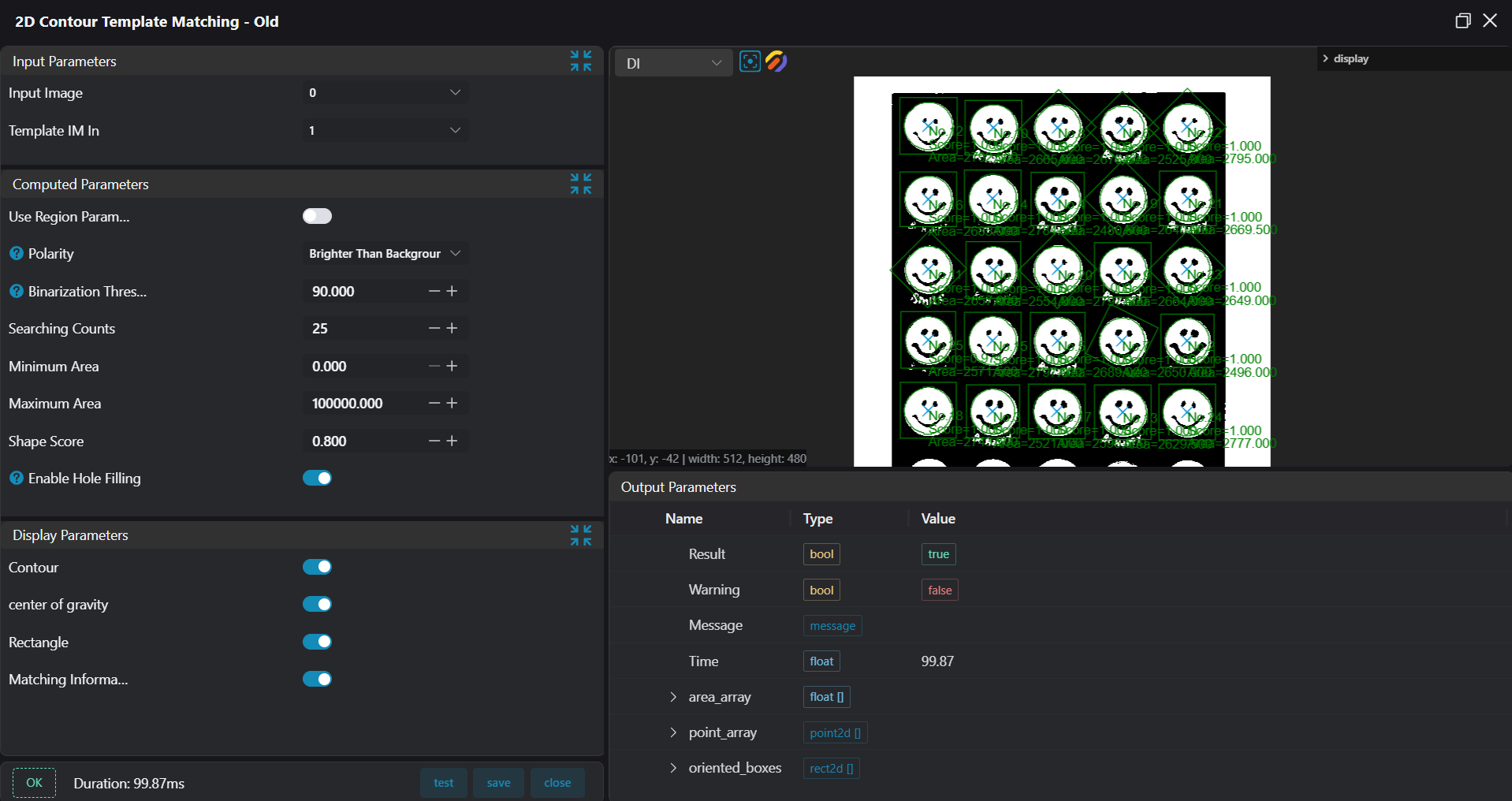
2D Contour Template Matching
Operator Function
Find target contours in the ROI of the input image.
Parameter Introduction
Input Parameters
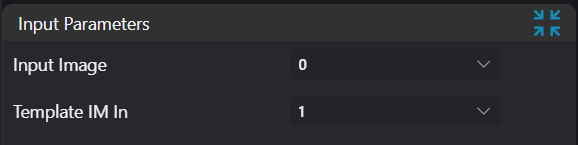
| Parameter | Range | Default Value | Description | Illustration |
|---|---|---|---|---|
| Input Image | 0-8 | 0 | IM number for image input | |
Calculation Parameters
| Parameter | Range | Default Value | Description | Illustration |
|---|---|---|---|---|
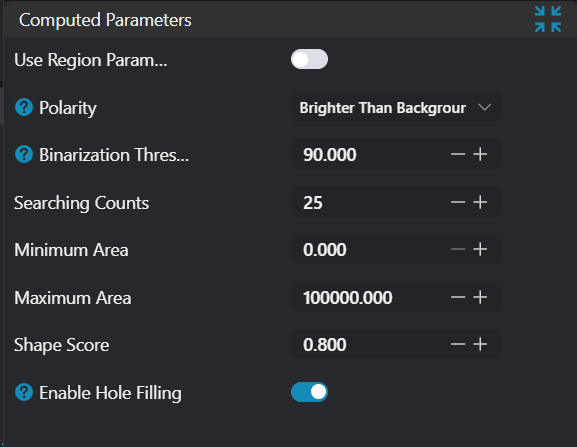
| Use Region Parameters | true/false | false | If enabled, use region as input; if disabled, use input image as input | |
| Region | 2D Window | 2D Window | Set the range of the search area | 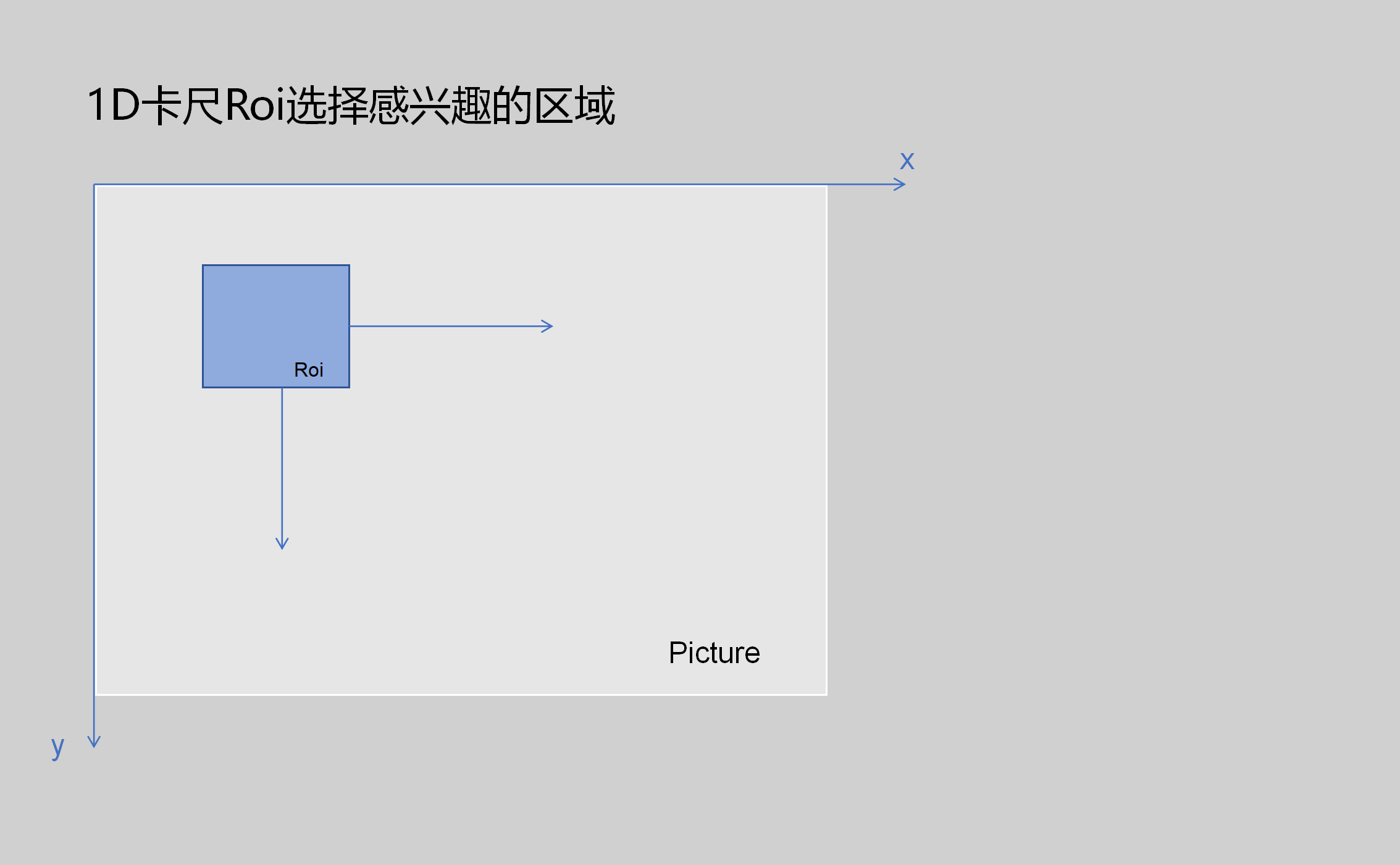 |
| Polarity | Brighter than background/Darker than background | Darker than background | Brighter than background: Find high brightness blobs Darker than background: Find low brightness blobs Both: Find both high and low brightness blobs | 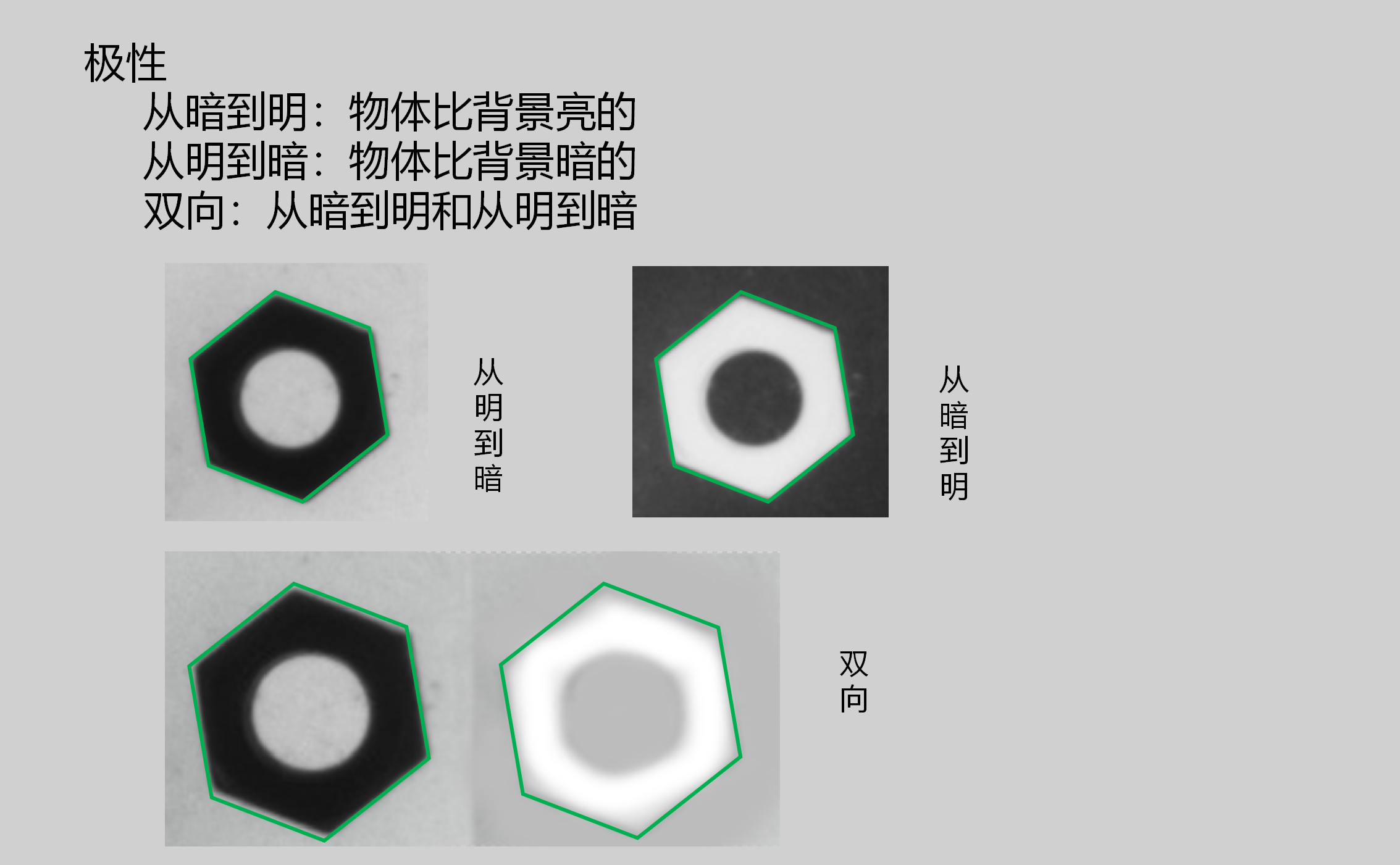 |
| Binarization Threshold | 1-255 | 90.000 | Threshold for image binarization | 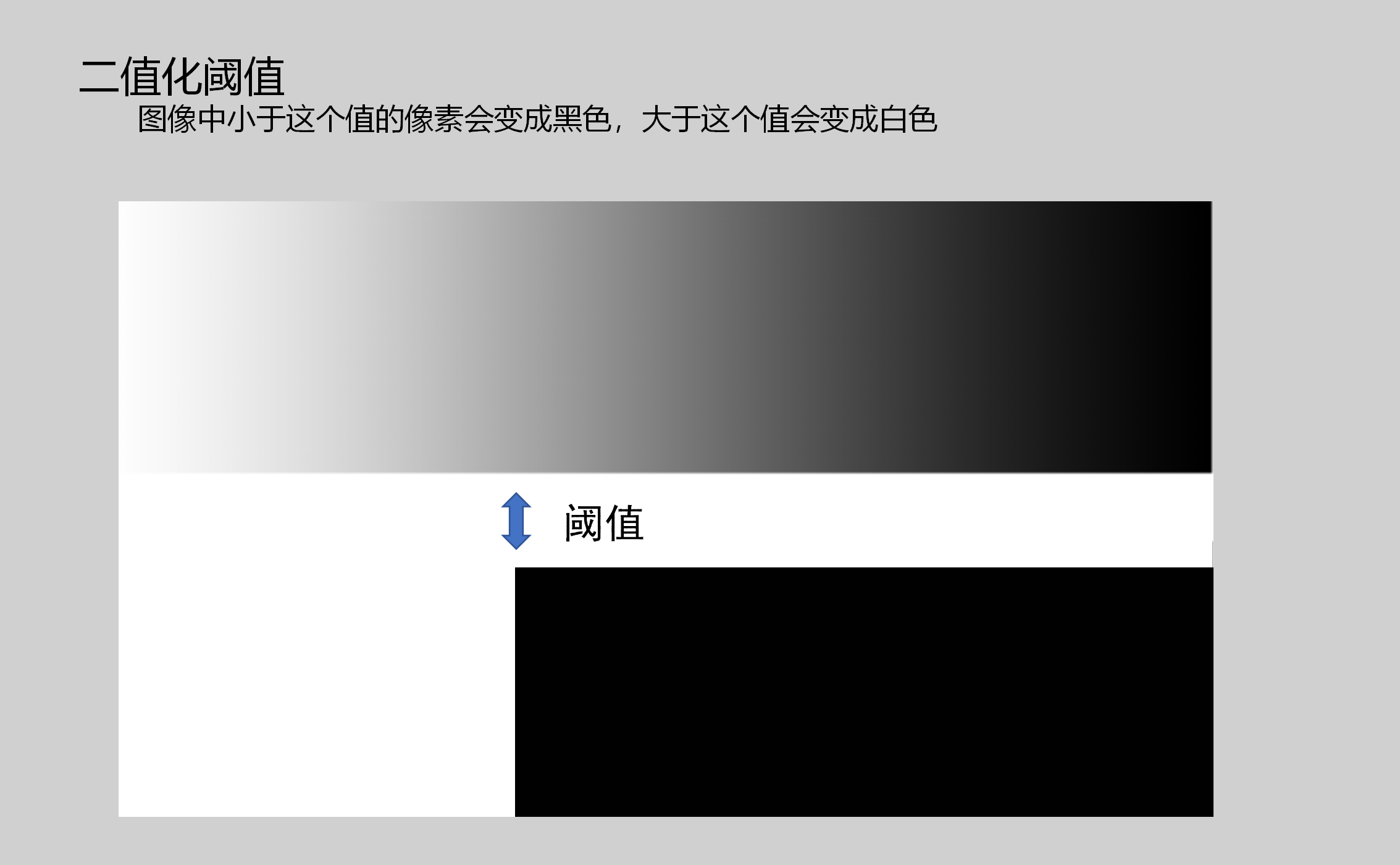 |
| Search Quantity | 1-500 | 10 | Number of blobs to find | |
| Minimum Blob Area | 0.000-1000000.000 | 0.000 | Minimum blob area to find | |
| Maximum Blob Area | 1.000-1000000.000 | 100000.000 | Maximum blob area to find | |
| Hole Filling | true/false | false | Minimum hole area: Fill holes smaller than this value | 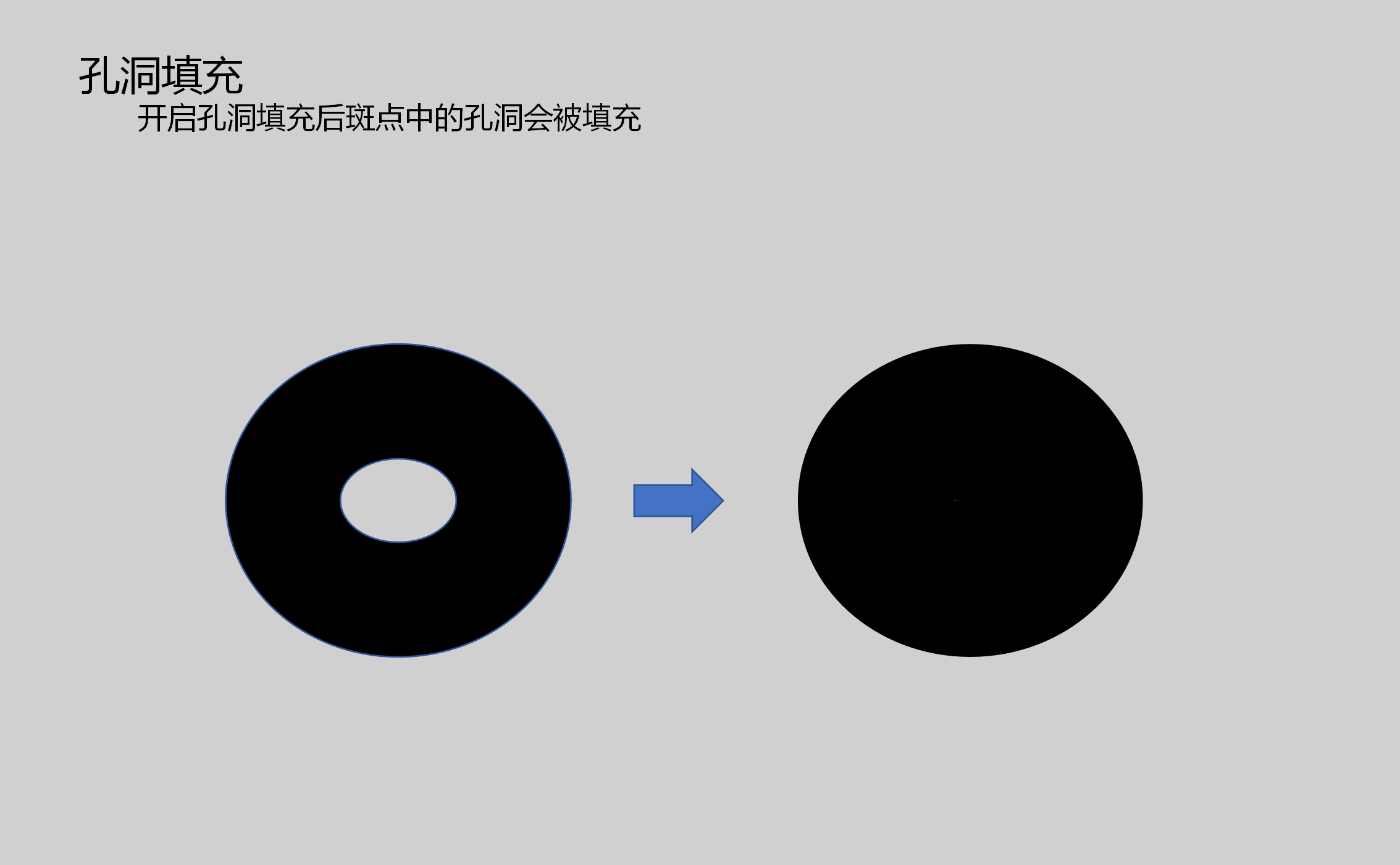 |
Result Display
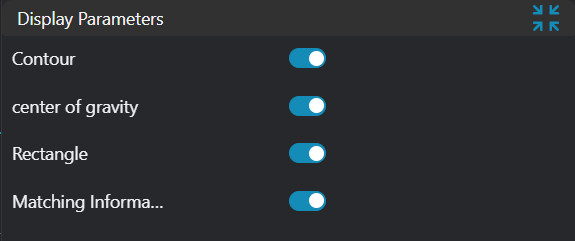
| Parameter | Range | Default Value | Description | Illustration |
|---|---|---|---|---|
| Contour | true/false | false | If enabled, display the found target contour on the IM image | |
| Center of Gravity | true/false | false | If enabled, display the found target center point on the IM image | |
| Bounding Rectangle | true/false | false | If enabled, display the found target bounding rectangle on the IM image | |
| Matching Information | true/false | false | If enabled, display the found target information on the IM image |
Output Parameters
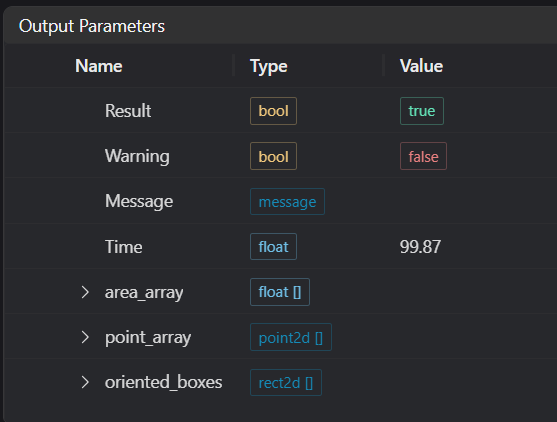
| Name | Type | Range | Description |
|---|---|---|---|
| Result | bool | true/false | true for success false for failure |
| Warning | bool | true/false | true indicates a warning false indicates no warning |
| Message | string | Output success, error, or warning messages. Empty if no error or warning. | |
| Time | float | Operator execution time, unit: ms | |
| area_array | float[] | Found target area | |
| point_array | point2d[] | Found target center point information | |
| oriented_boxes | rect2d[] | Found target rectangle information (center point, size, angle relative to the template image) |
Exception Troubleshooting
| No. | Exception Information | Corresponding Parameter | Solution |
|---|---|---|---|
| 1 | Input image is empty | Check if the content in the input path is correct | |
| 2 | Template not found | Ensure there are contours with correct polarity in the template image | |
| 3 | Input value is {0t}, invalid region type | Region type | Only window2d supported |
| 4 | Not found | 1. Lower the score 2. Adjust the area range |
Example Introduction
Engineering Design
Select the
Load Imagetool to load the template image to IM1.Select the
Load Imagetool to load the required 2D matching image to IM0.Select the
2D Contour Template Matchingtool.
Tool Usage
Select the input image and template image for the operation. The image numbers must match the IM numbers where the images are located in the project.
Move the window to the position to be measured, enclosing the image to be tested.
::: Warning Tips 1. Use the ROI controller on the image window to drag or scale the window; 2. Directly modify the window's start or end point coordinates in the calculation parameters to adjust the window position and size; :::
Set the parameters.
Check the content you want to display in the result display section.
Click
Testto check if the image window and parameters meet expectations.If there are no issues, click
Save. Run the operator in the run list, and then view the running results in the corresponding IM.