2D Image Template Matching
Operator Function
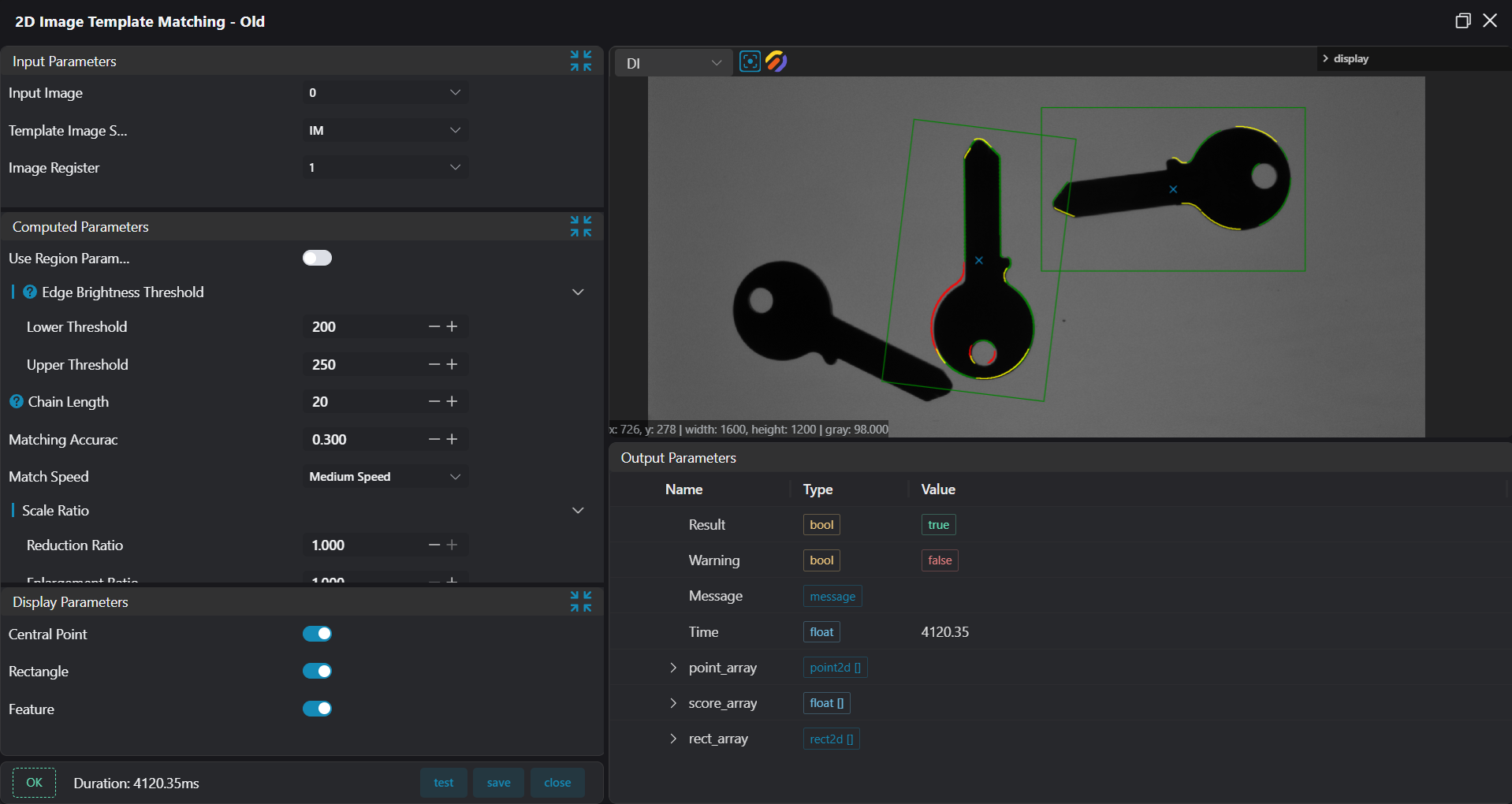
Find the template image in the target image and output its center coordinates and bounding rectangle parameters.
Parameter Introduction
Input Parameters
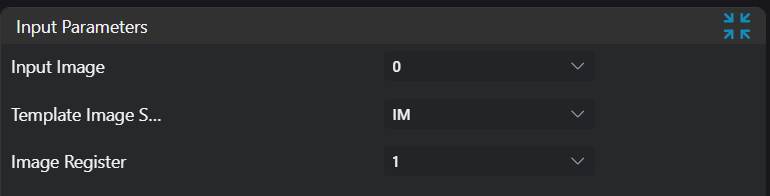
| Parameter | Range | Default Value | Description | Illustration |
|---|---|---|---|---|
| Input Image | IM number for image input | |||
| Template Image Source | Method for inputting the template image, including: IM number: IM number for image input Template file path: File path for image input |
Calculation Parameters
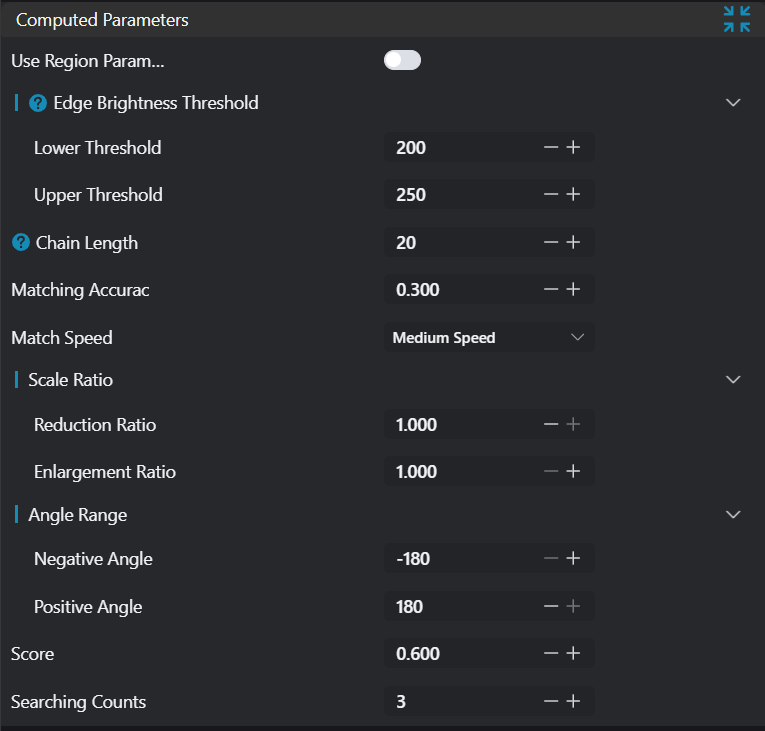
| Parameter | Range | Default Value | Description | Illustration |
|---|---|---|---|---|
| Use Region Parameters | true/false | false | If enabled, use the region as input; if disabled, use the input image as input | |
| Region | 2D Window | 2D Window | Set the range of the search area | |
| Edge Luminance Threshold | Parameter for Canny edge detection. Higher values filter out more details. | 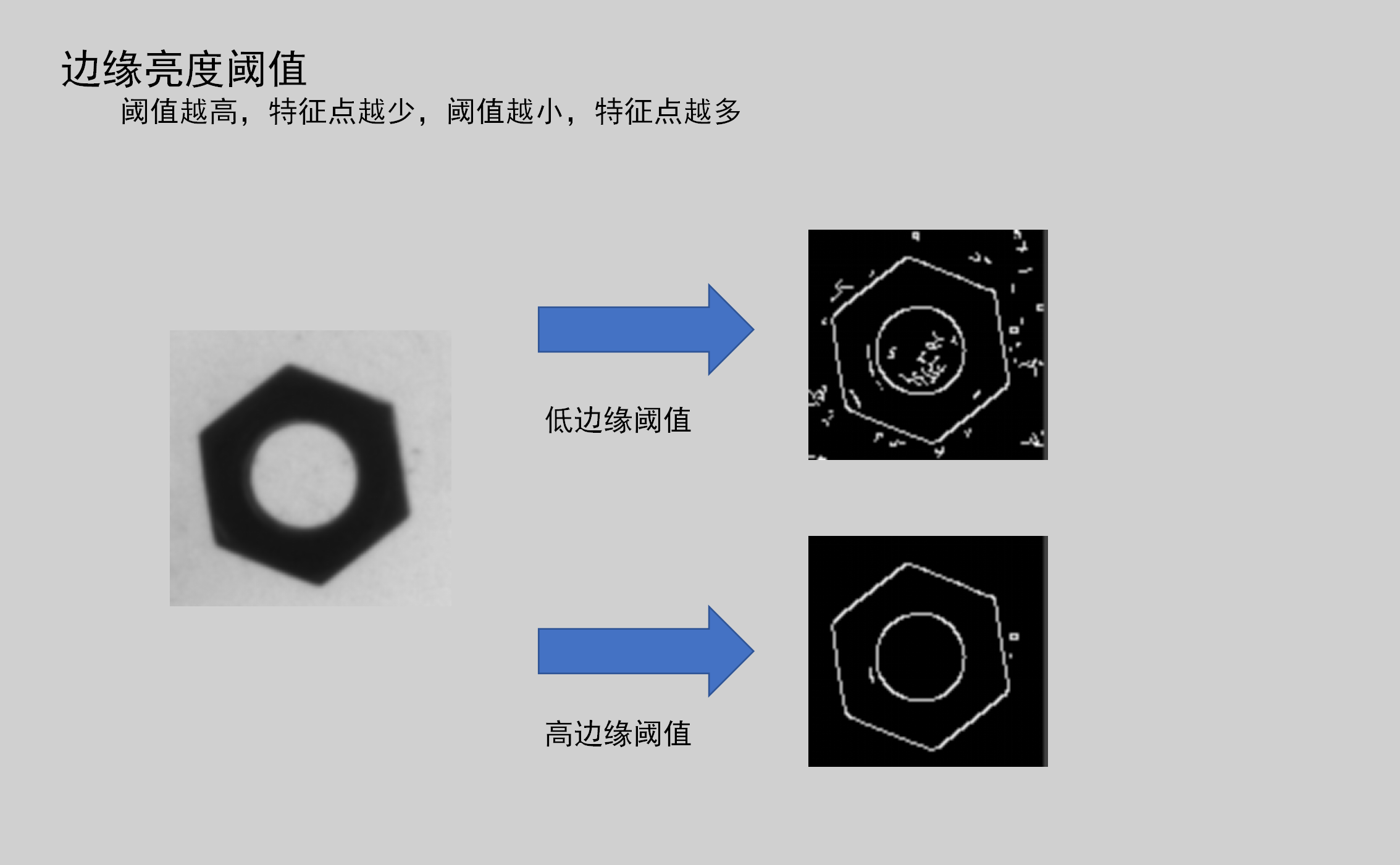 | ||
| Low Threshold | 0-255 | 50 | Threshold for weak edges, affects edge retention. | |
| High Threshold | 0-255 | 100 | Threshold for strong edges, affects edge determination. | |
| Matching Precision | 0-2 | 0.8 | Smaller values result in finer matching. | |
| Matching Speed | Slow/Medium/Fast | Medium | Algorithm running speed. Faster speeds may reduce accuracy, including: Slow: No feature pyramid Medium: Pyramid level set to 2 Fast: Pyramid level set to 4 | |
| Scaling Down Ratio | 0.5-1 | 1.000 | Allowed scaling down ratio of target contour area relative to template contour. | |
| Scaling Up Ratio | 1-1.5 | 1.000 | Allowed scaling up ratio of target contour area relative to template contour. | |
| Negative Angle | -180-0 | 0 | Counterclockwise rotation angle when training the template. | |
| Positive Angle | 0-180 | 0 | Clockwise rotation angle when training the template. | |
| Score Filter | 0-1 | 0.900 | Difference between target contour shape and template contour shape. Smaller is better. | |
| Search Quantity | 1-500 | 5 | Number of target templates to find. |
Result Display
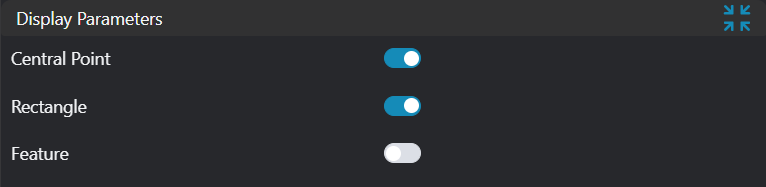
| Parameter | Range | Default Value | Description | Illustration |
|---|---|---|---|---|
| Center Point | true/false | false | If enabled, display the found target center point on the IM image. | |
| Bounding Rectangle | true/false | false | If enabled, display the found target bounding rectangle on the IM image. | |
| Features | true/false | false | If enabled, display the found target contour on the IM image. |
Output Parameters
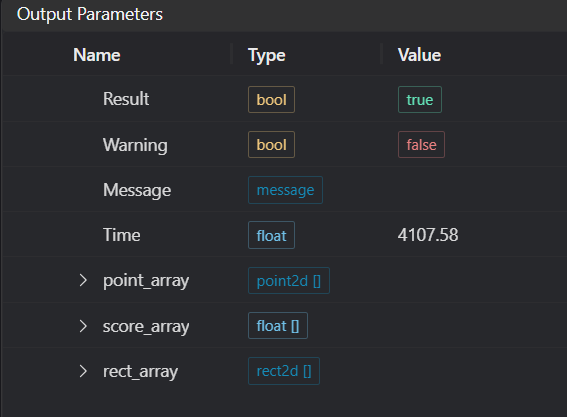
| Name | Type | Range | Description |
|---|---|---|---|
| Result | bool | true/false | true for success false for failure |
| Warning | bool | true/false | true indicates a warning false indicates no warning |
| Message | string | Output success, error, or warning messages. Empty if no error or warning. | |
| Time | float | Operator execution time, unit: ms | |
| point_array | point2d[] | Found target center point information. | |
| rect_array | rect2d[] | Found target rectangle information (center point, size, angle relative to the template image). |
Exception Troubleshooting
| No. | Exception Information | Corresponding Parameter | Solution |
|---|---|---|---|
| 1 | File "{0}" does not exist or cannot be accessed. | File path | Create the file or change to a file with read permissions. |
| 2 | File "{0}" cannot be opened successfully. | File path | 1. Close programs using the file 2. Check if the disk is normal 3. Ensure the file format is correct |
| 3 | Input image is empty. | Check if the template image is empty. | |
| 4 | Reduce score. | Reduce the score. The target score is too high, filtering out all results. | |
| 5 | Not found. | Adjust precision and angle. | |
| 6 | Input value is {0t}, invalid region type. | Region type | Only window2d is supported. |
Example Introduction
Engineering Design
Select the
Load Imagetool to load the required 2D image to IM0.Select the
2D Template Creationtool to create a template file and output the template image to IM1.Select the
2D Image Template Matchingtool.
Tool Usage
Select input image IM0, set the template image source as Image Register, and select Image Register 1 (i.e., IM1).
Set the parameters.
Check the content you want to display in the result display section.
Click
Testto check if the image window and parameters meet expectations.If there are no issues, click
Save. Run the operator in the run list, and then view the running results in the corresponding IM.