
Shengxiang SizectorS Series
| Parameter | Type | Description | Dependency |
|---|---|---|---|
| Serial Number | Enumeration | Specify the serial number of the camera | |
| Software Trigger | Boolean (Switch) | Set whether software trigger is required for image capture | |
| Mode | Enumeration | Set the image capture mode: Fast, Standard, Accurate, Ultra-Accurate | |
| Real-Time Post-Processing. Enable | Boolean (Switch) | Set whether to enable the real-time post-processing function | |
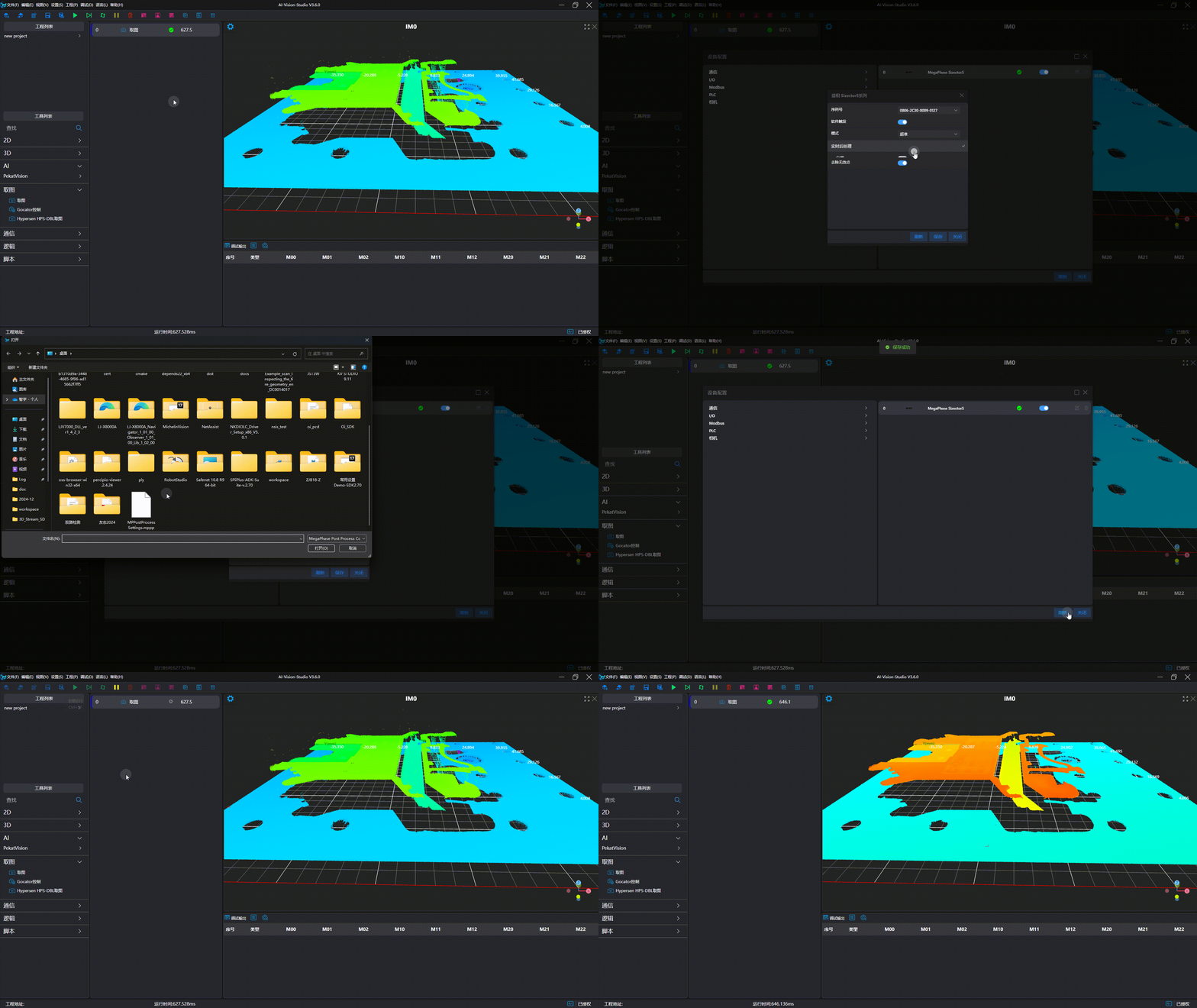
| Real-Time Post-Processing. Configuration File (*.mppp) | Path | Specify the path of the real-time post-processing configuration file, with the suffix .mppp; supports project-relative paths | Real-Time Post-Processing. Enable = On |
| Remove Invalid Points | Boolean (Switch) | Set whether to enable the function of removing invalid points; an unordered point cloud will be output after removing invalid points |
Camera Usage
Camera Preparation
- Ensure the camera USB is connected.
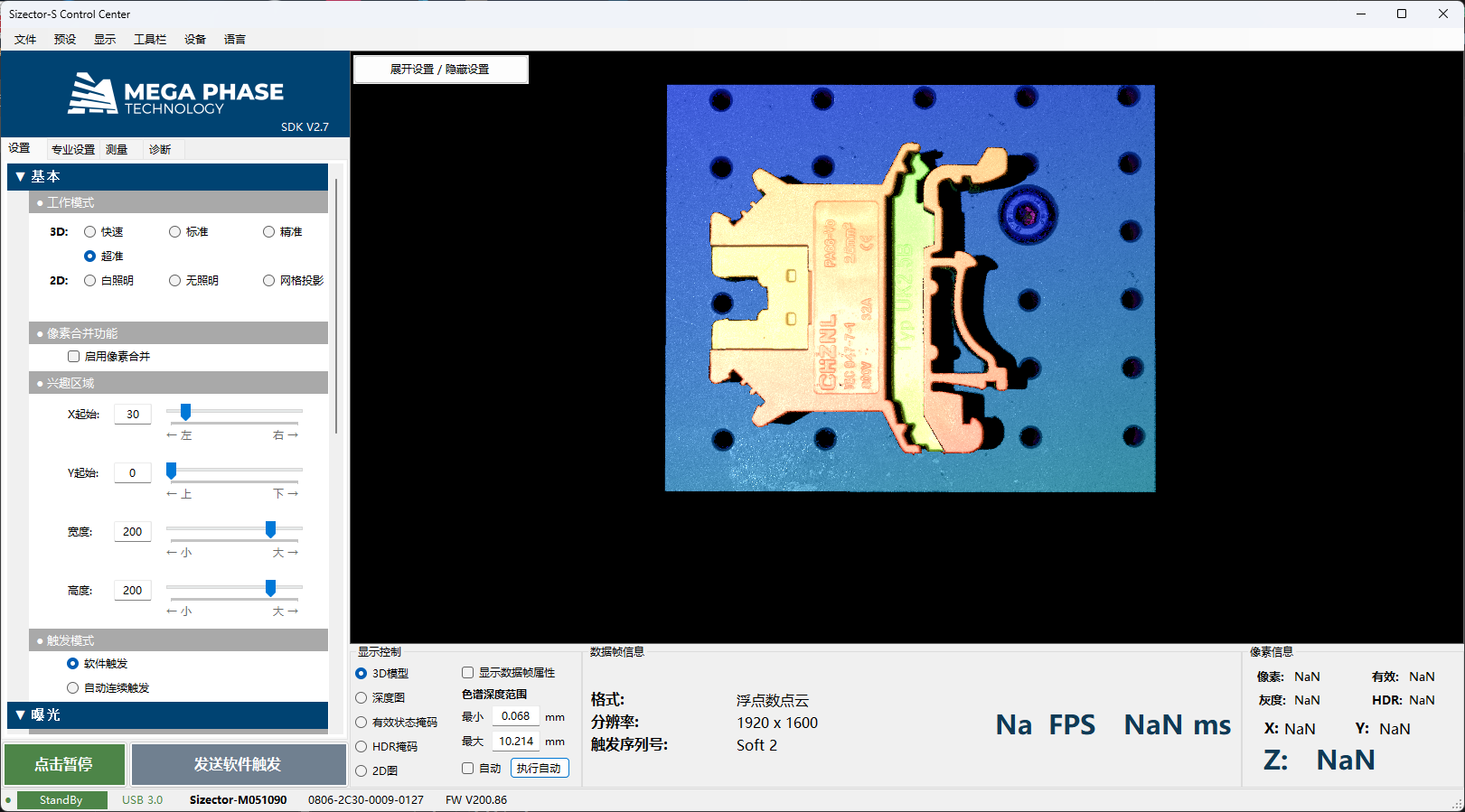
- Verify that images can be captured using the official camera software and meet the desired results.
Add and Connect Device
Tip
Please close the official image capture software before connection to avoid mutual interference.
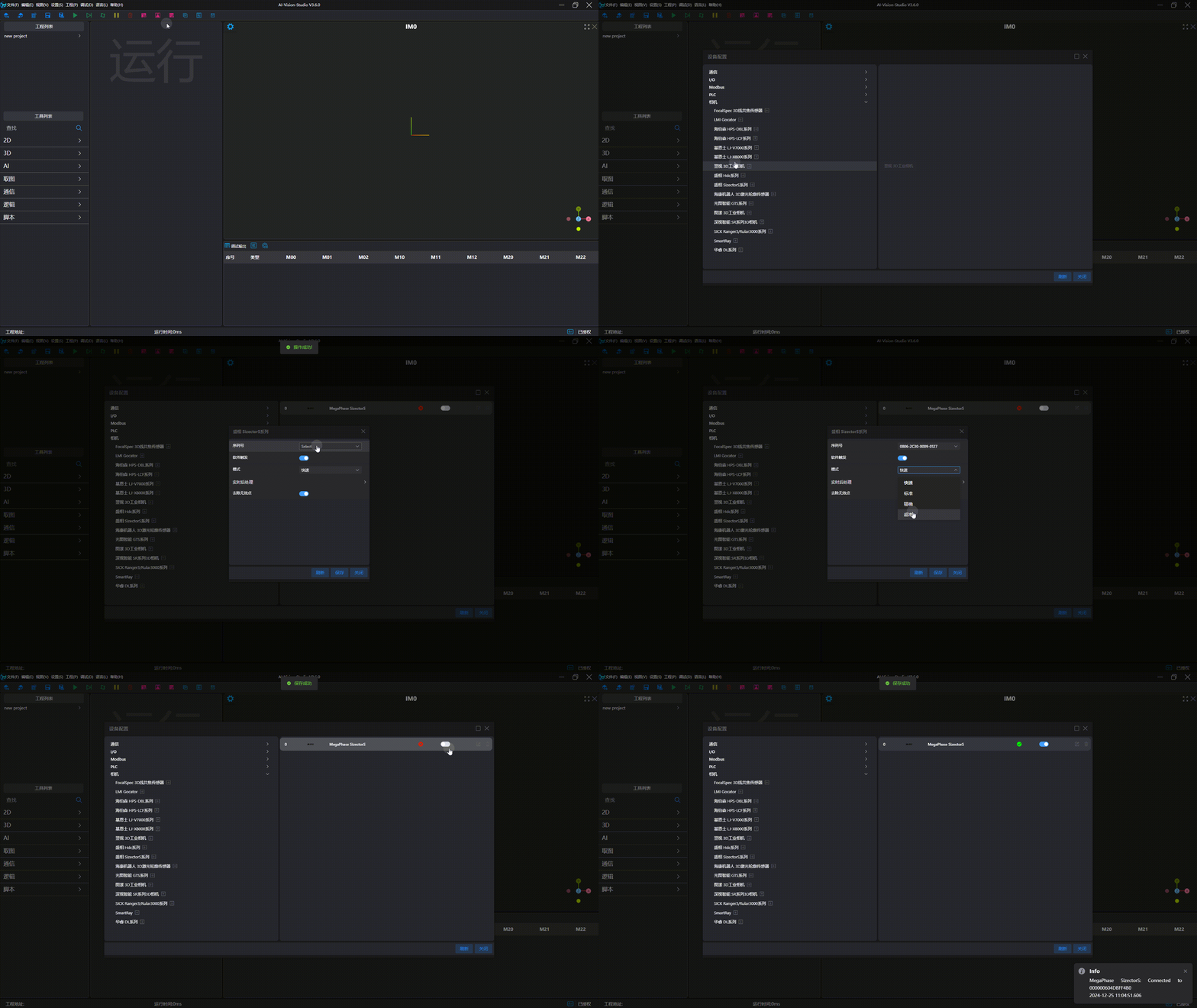
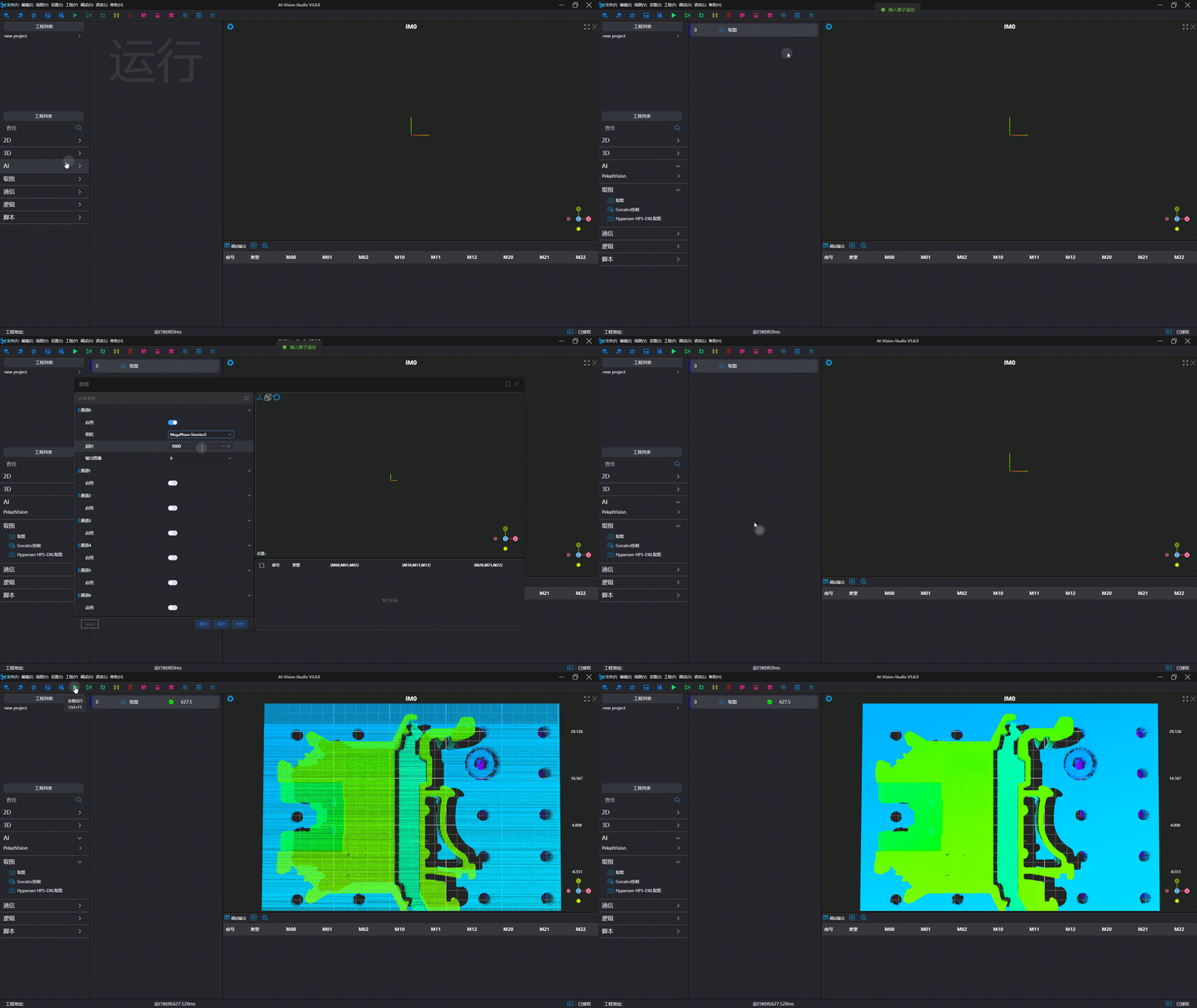
Image Capture Test
Tip
The official image capture software enables display optimization by default, so the actual captured image may differ from the display effect in the official software. You can disable display optimization through the following operations: 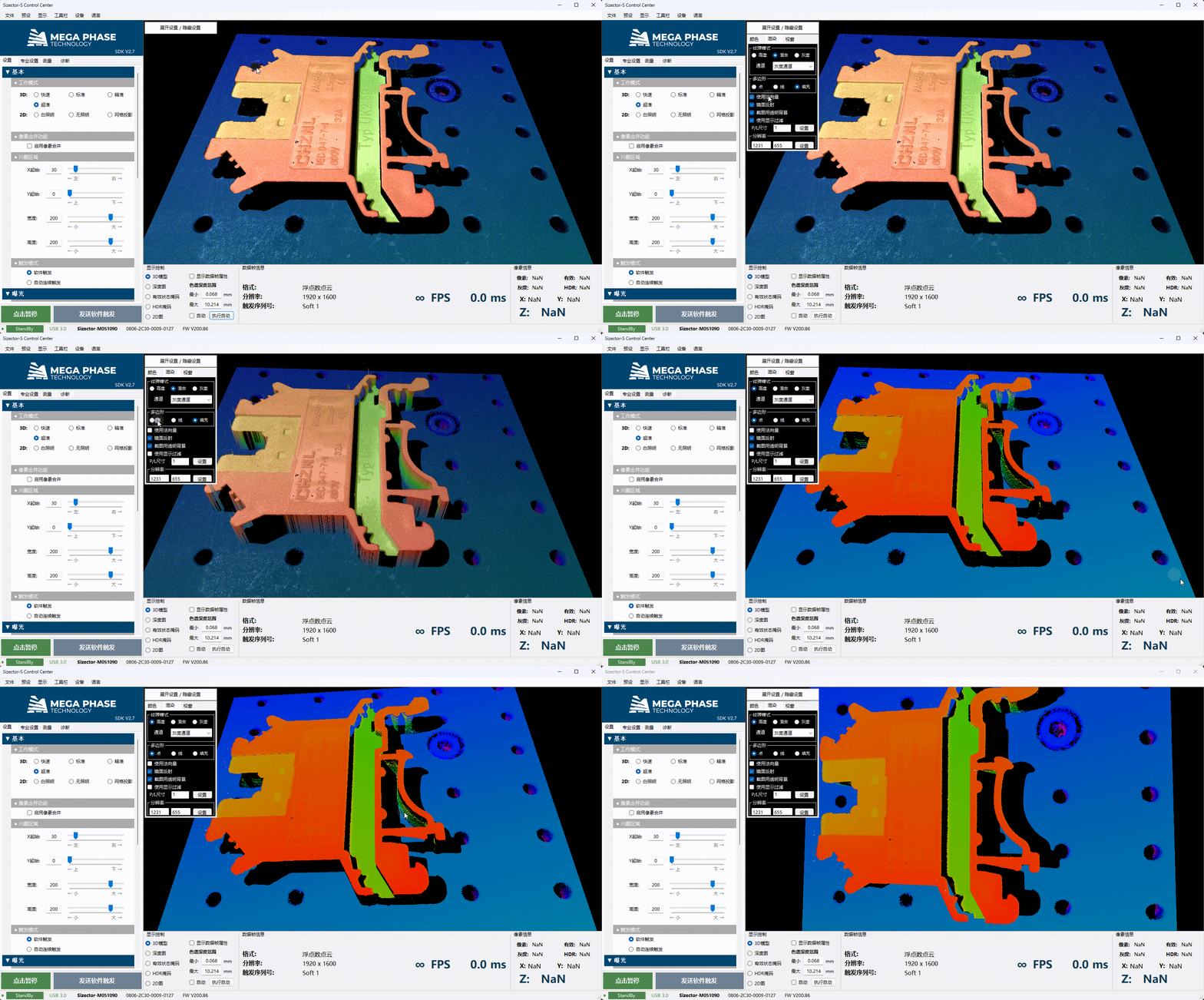
Apply Real-Time Post-Processing
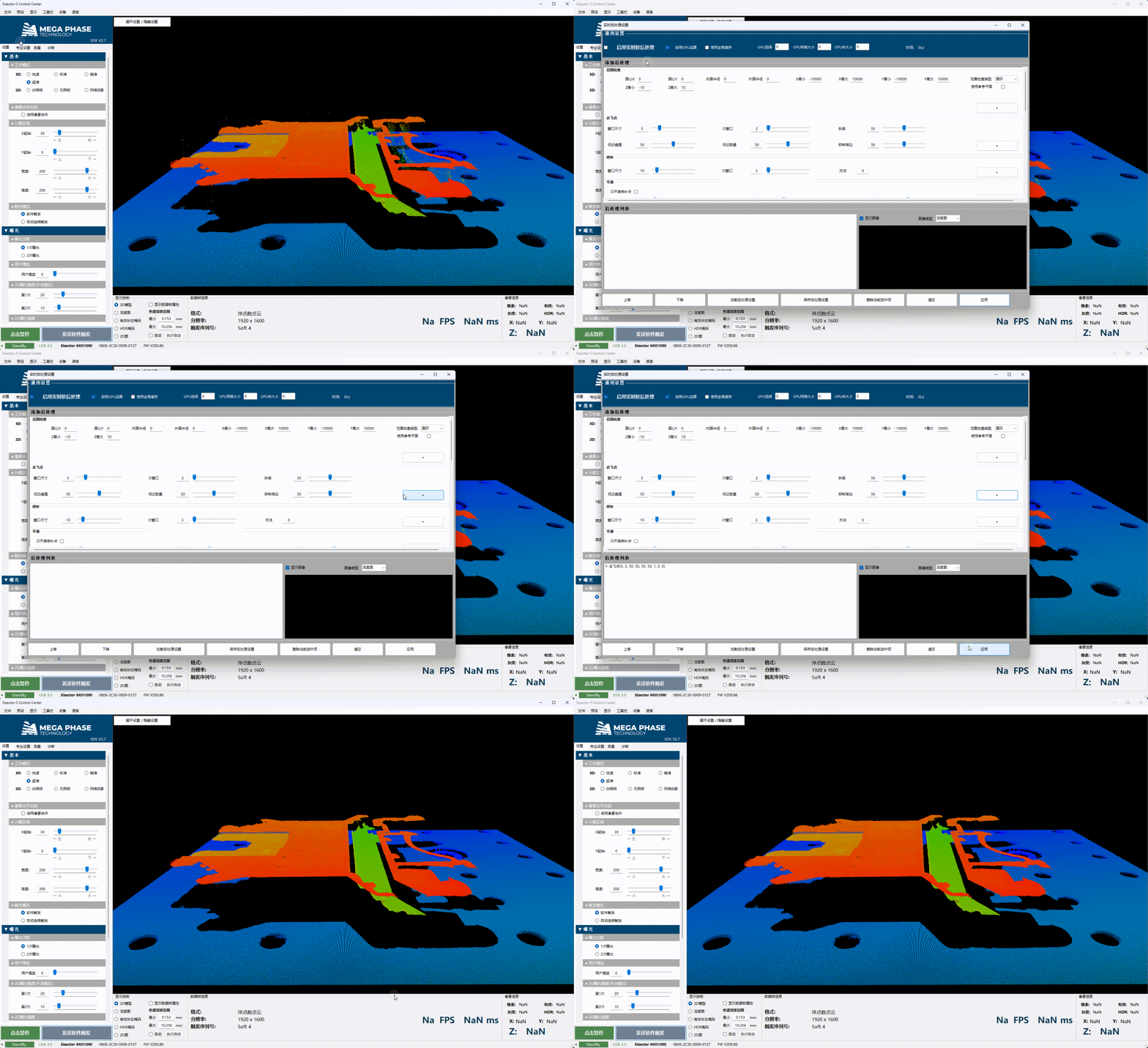
Configure Real-Time Post-Processing
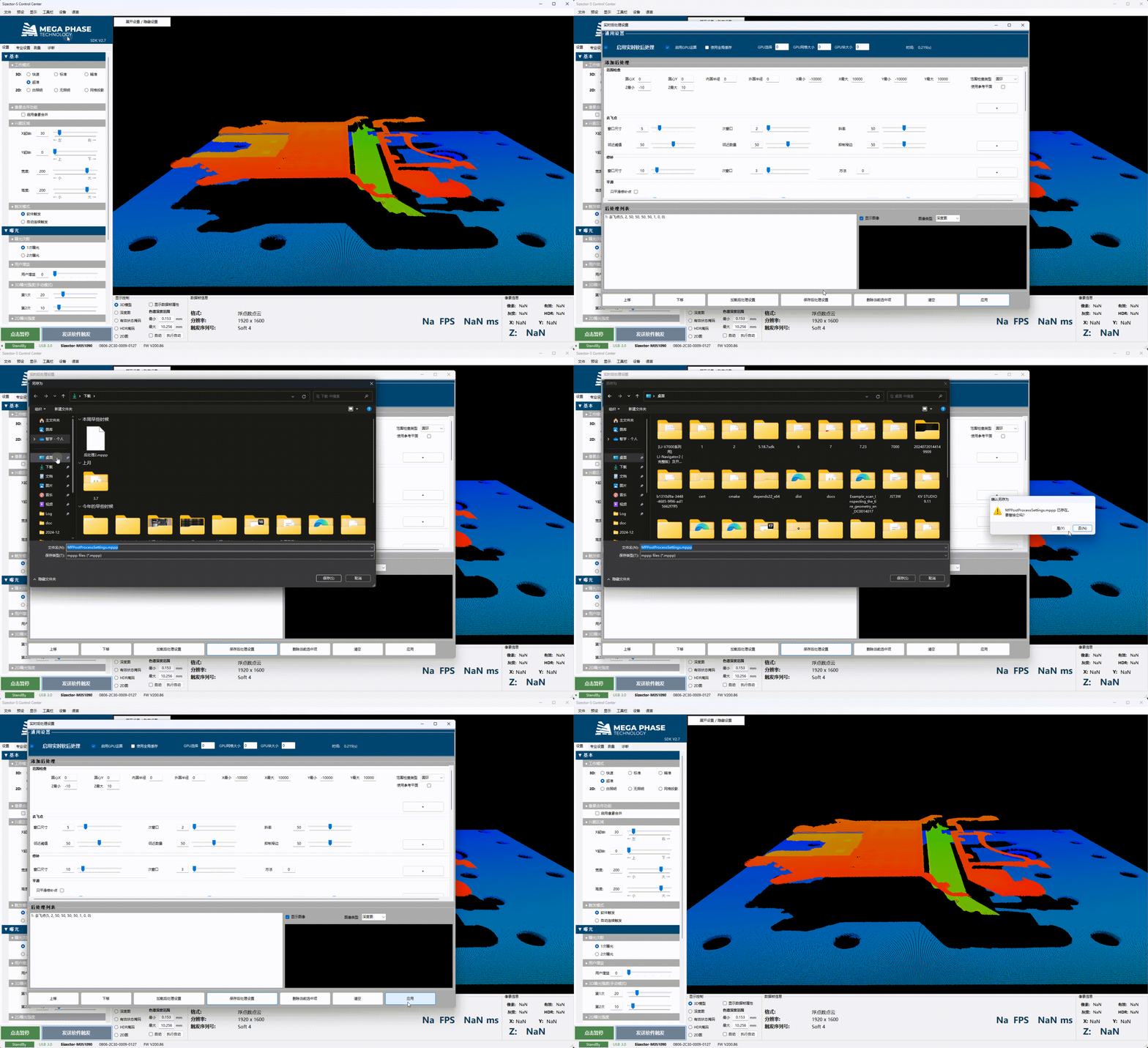
Export Real-Time Post-Processing Configuration File
Use Real-Time Post-Processing Configuration File
Tip
AI-Vision only supports 4 types of post-processing: Range Detection, Outlier Removal, Repair, and Smoothing. Other types of post-processing will be skipped.