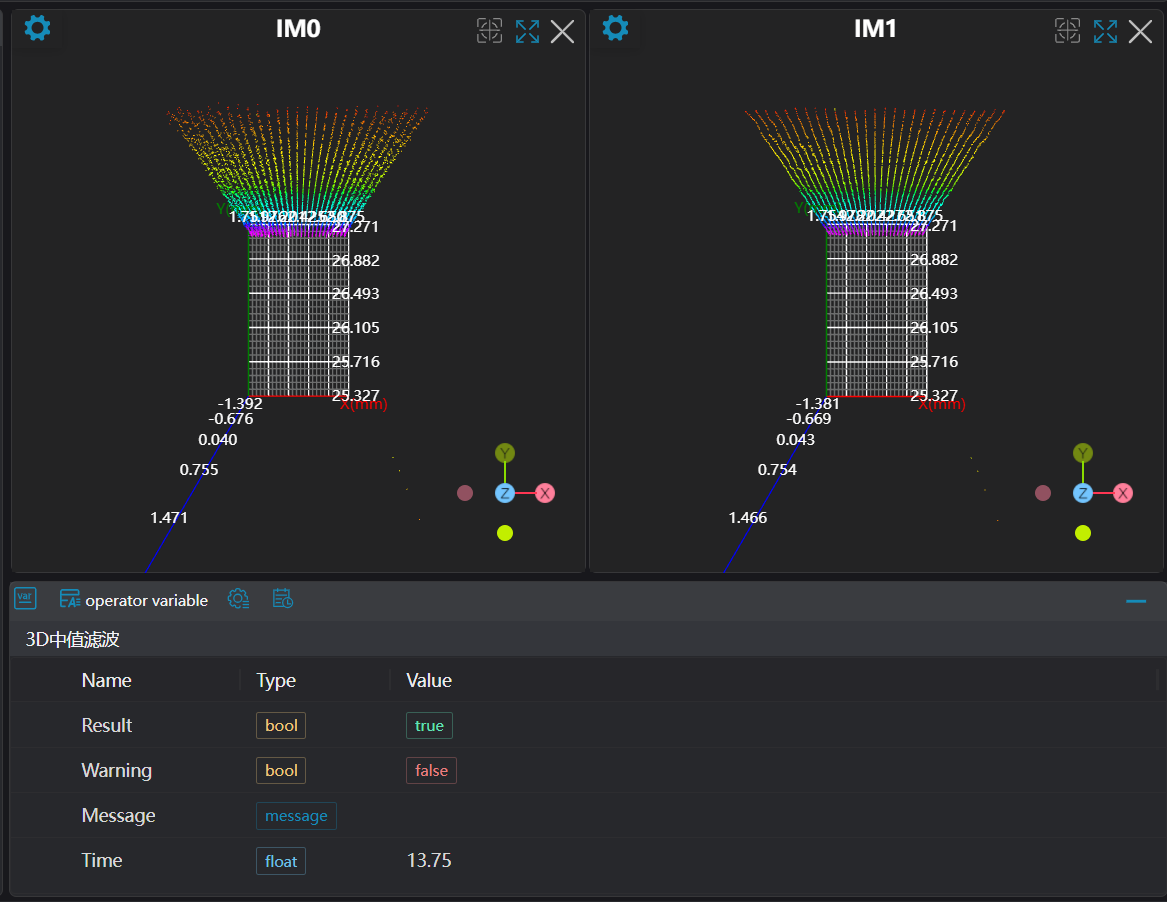
3D Median Filter
Operator Function
The median filter uses the median value of neighboring points to replace the original value at the query point, thereby achieving smoothing and noise reduction.
Parameter Introduction
Input Parameters

| Parameter | Range | Default Value | Description | Illustration |
|---|---|---|---|---|
| Input Image | 0-8 | 0 | IM number for image input | |
Calculation Parameters
| Parameter | Range | Default Value | Description | Illustration |
|---|---|---|---|---|
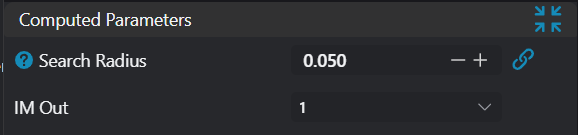
| Search Radius | 0.050 | The search radius determines the filtering range of the median filter. A larger radius value results in stronger smoothing effects; a smaller radius value results in less noticeable smoothing effects. Note: The search radius should not be too large. An excessively large search radius can cause distortion in the point cloud. Adjust according to the actual situation. | 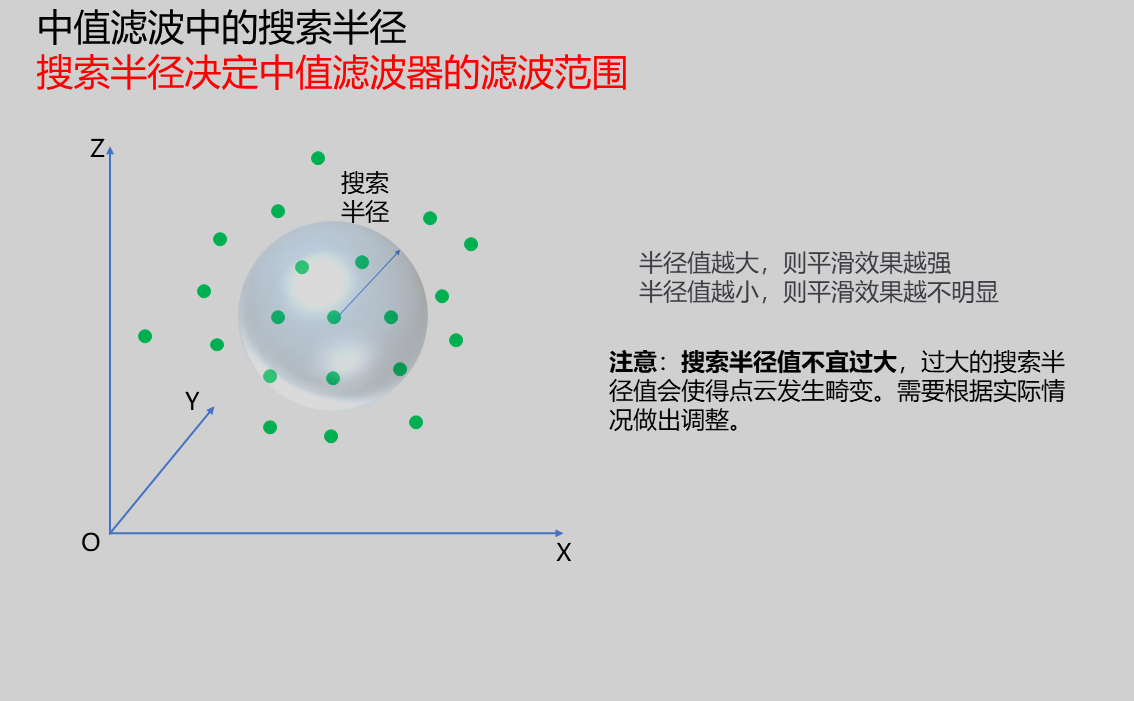 | |
| Output Image | 0-8 | 0 | IM number for image output |
Output Parameters
| Name | Type | Range | Description |
|---|---|---|---|
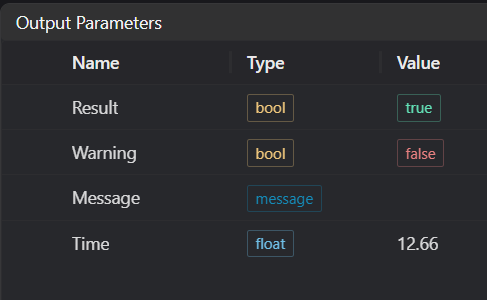
| Result | bool | true/false | true for success false for failure |
| Warning | bool | true/false | true indicates a warning false indicates no warning |
| Message | string | Output success, error, or warning messages. Empty if no error or warning. | |
| Time | float | Operator execution time, unit: ms |
Exception Troubleshooting
| No. | Exception Information | Corresponding Parameter | Solution |
|---|---|---|---|
| 1 | Input point cloud is empty | Check if input point cloud is empty |
Example Introduction
Engineering Design
Select the
Load 3D Point Cloudtool to load the required 3D point cloud image to IM0.Select the
3D Median Filtertool.
Tool Usage
Select the input image for the operation. The image number must match the IM number where the image is located in the project.
Set the parameters.
Click
Testto check if the image window and parameters meet expectations.If there are no issues, click
Save. Run the operator in the run list, and then view the running results in the corresponding IM.