3D Point Cloud Matching
Operator Function
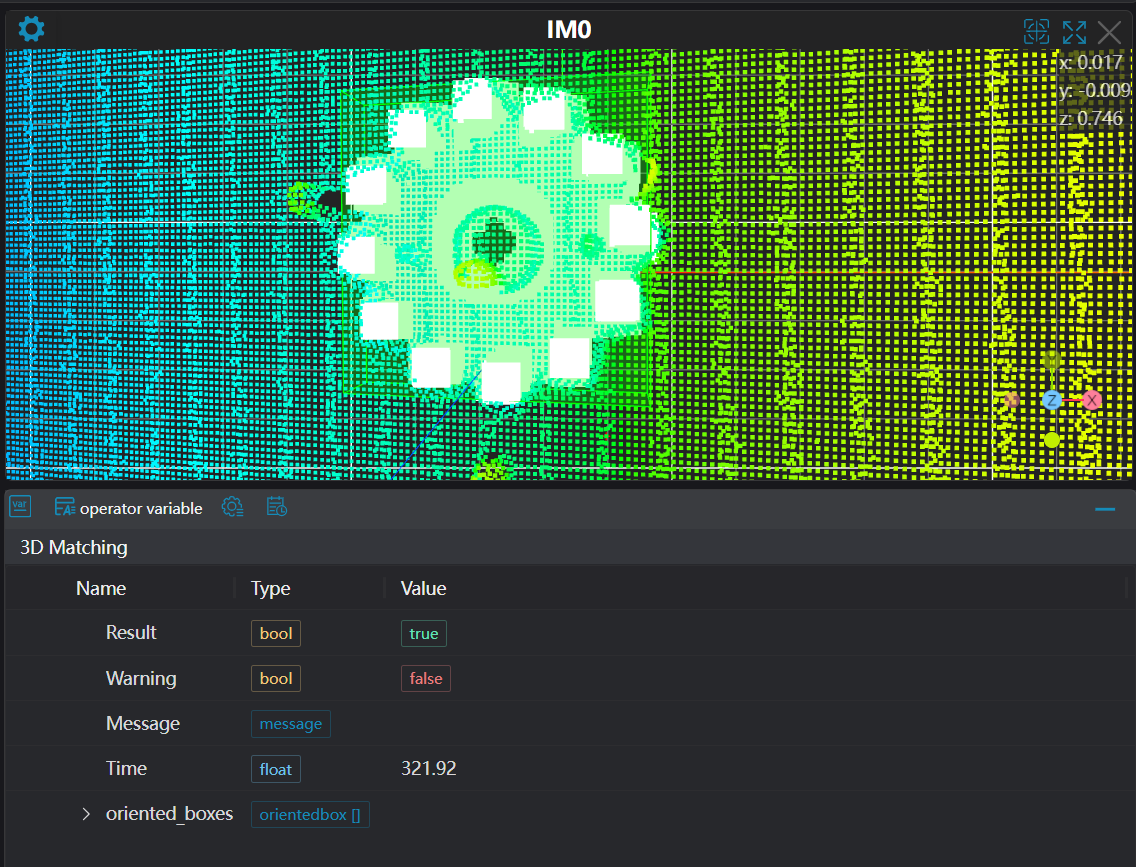
Match based on the model within the scene point cloud, outputting the oriented bounding boxes of matching results.
Parameter Introduction
Input Parameters
| Parameter | Range | Default Value | Description | Illustration |
|---|---|---|---|---|
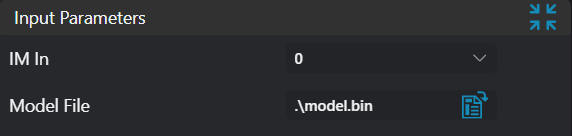
| Input Image | 0-8 | 0 | The IM number for image input | |
| Model Path | Set the path to load the model |
Calculation Parameters
| Parameter | Range | Default Value | Description | Image |
|---|---|---|---|---|
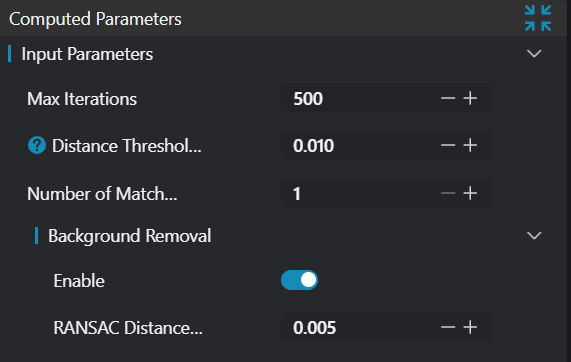
| ICP Iteration Count | (0, 5000) | 500 | Number of iterations for ICP algorithm, range is (0, 5000) | |
| Matching Point Pair Distance Threshold | (0, 100) | 0.01 | Point pair distance threshold during ICP iteration; point pairs exceeding this threshold will be ignored. | |
| Matching Count | [1, 100] | 1 | Number of objects to be matched. Range is [1, 100] | |
| Background Point Removal | true/false | false | Whether to remove background points | |
| Distance Threshold | (0, 10) | 0.005 | Only required when Background Point Removal is enabled: Threshold for removing background points. |
Result Display
| Parameter | Range | Default Value | Description | Illustration |
|---|---|---|---|---|
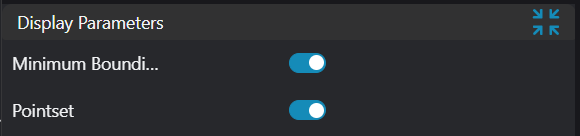
| Minimum Bounding Box | true/false | false | Minimum bounding box of the object; if enabled, displayed in the image | |
| Point Set | true/false | false | Template point cloud point set; if enabled, displayed in the image |
Output Parameters
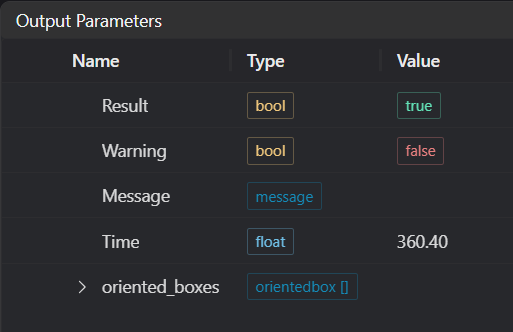
| Name | Type | Range | Description |
|---|---|---|---|
| Result | bool | true/false | true for success false for failure |
| Warning | bool | true/false | true indicates there is a warning false indicates there is none |
| Message | string | Outputs success, error, or warning information; if there is no error or warning, it is empty | |
| Time | float | Operator execution time, unit: ms | |
| oriented_boxes | orientedbox | Minimum bounding boxes of matched objects |
Exception Troubleshooting
| No. | Exception Information | Corresponding Parameter | Solution |
|---|---|---|---|
| 1 | Model file input parameter is empty | Select correct file path | |
| 2 | {0} access not allowed | Model file path | Check if file path is correct |
| 3 | Cannot open {0} for reading | Model file path | Check if file is being used by other software |
| 4 | Matching failed | Check if matching point pair threshold is set too small |
Example Introduction
Engineering Design
Select the
Load 3D Point Cloudtool to load the 3D point cloud image to be processed into IM0.Select the
3D Point Cloud Matchingtool.
Tool Usage
Select the input image for operation; the image number must match the IM number where the image is located in the project.
Set
Model File Path,Matching Point Pair Distance Threshold,Matching Count, andBackground Removalparameters.Click
Testto check if the image window and parameters meet expectations.
Usage Tips
- You can turn on the switches in the result display to observe if the results are correct.
- If there are no issues, click
Save, then run the operator in the run list to view the results in the corresponding IM.