3D Point Cloud Interpolation
Operator Function
Based on the input organized point cloud, perform interpolation on the point cloud according to the number of interpolation points to obtain a new point cloud.
Parameter Introduction
Input Parameters

| Parameter | Range | Default Value | Description | Illustration |
|---|---|---|---|---|
| Input Image | 0-8 | 0 | The IM number for image inputNote: This operator requires organized point cloud as input | |
Calculation Parameters
| Parameter | Range | Default Value | Description | Illustration |
|---|---|---|---|---|
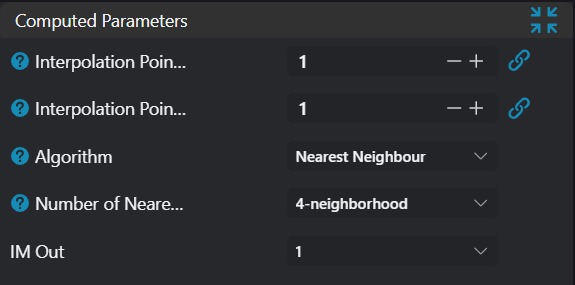
| Interpolation Points per Row | 0 | Number of points to interpolate between two adjacent points in each row. Maximum 3 points can be inserted. | 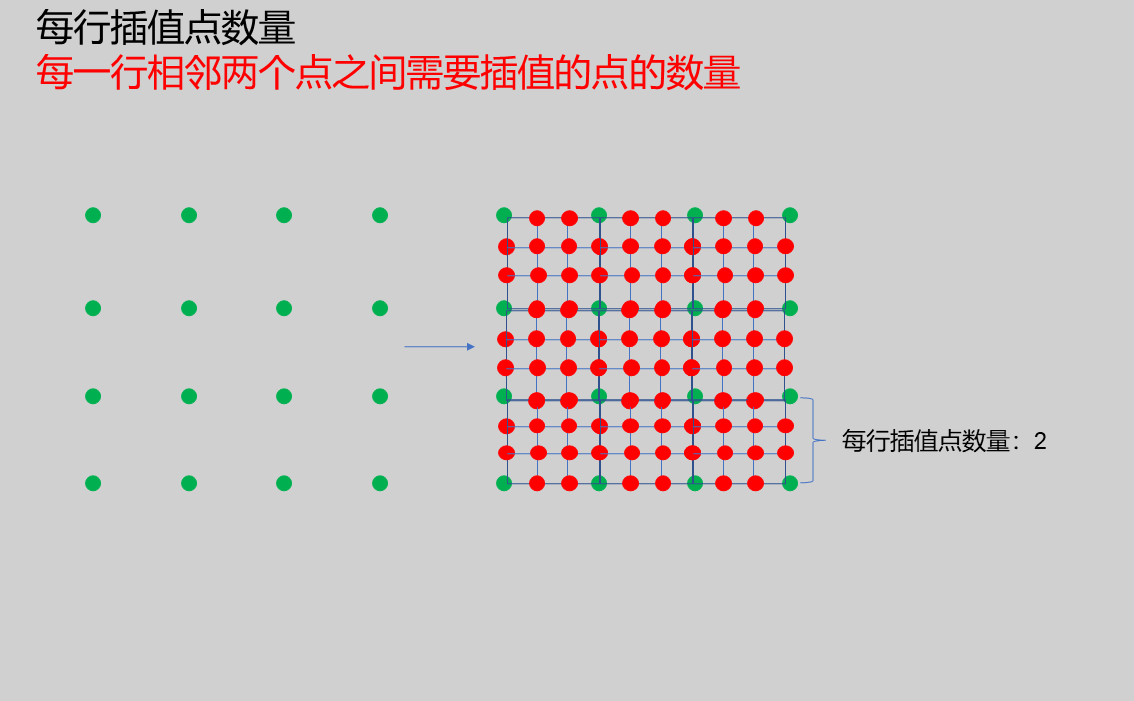 | |
| Interpolation Points per Column | 0 | Number of points to interpolate between two adjacent points in each column. Maximum 3 points can be inserted. | 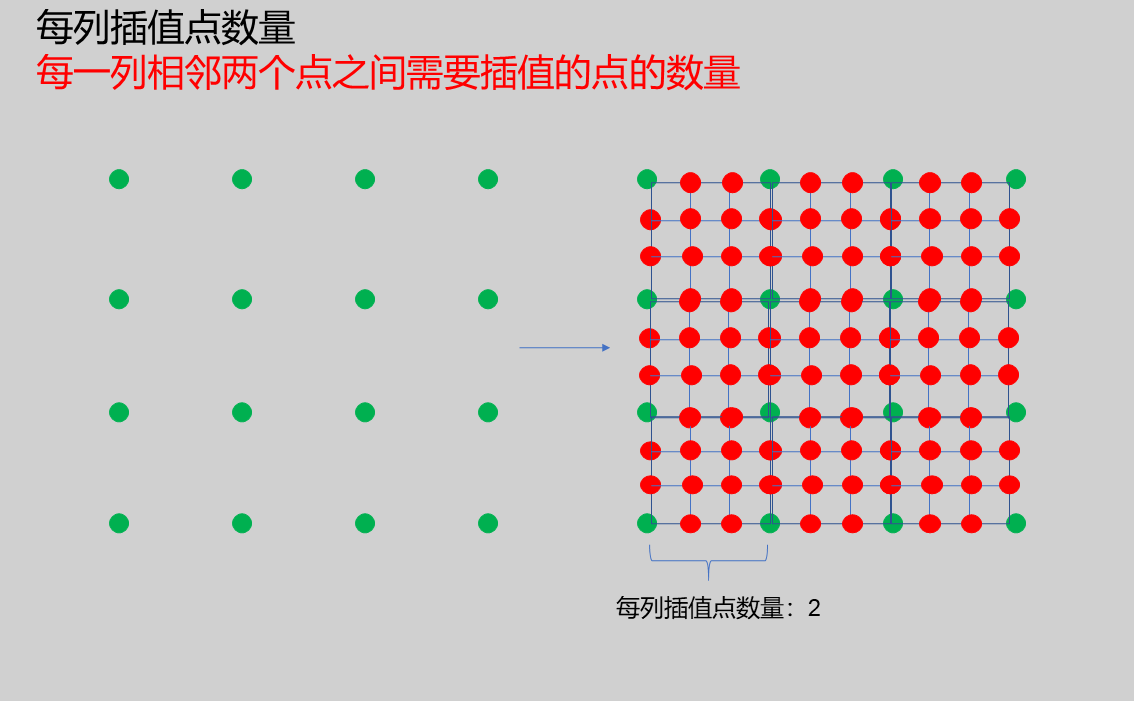 | |
| Algorithm | Nearest Neighbor Interpolation | Nearest Neighbor Interpolation | Nearest Neighbor Interpolation: Uses the nearest point in the neighborhood of the current interpolation position as the interpolation result. | |
| Neighborhood Points | 4 Neighbors/8 Neighbors/24 Neighbors | 4 Neighbors | 4 Neighbors: Search 4 adjacent surrounding points 8 Neighbors: Search 8 adjacent surrounding points 24 Neighbors: Search 24 adjacent surrounding points | 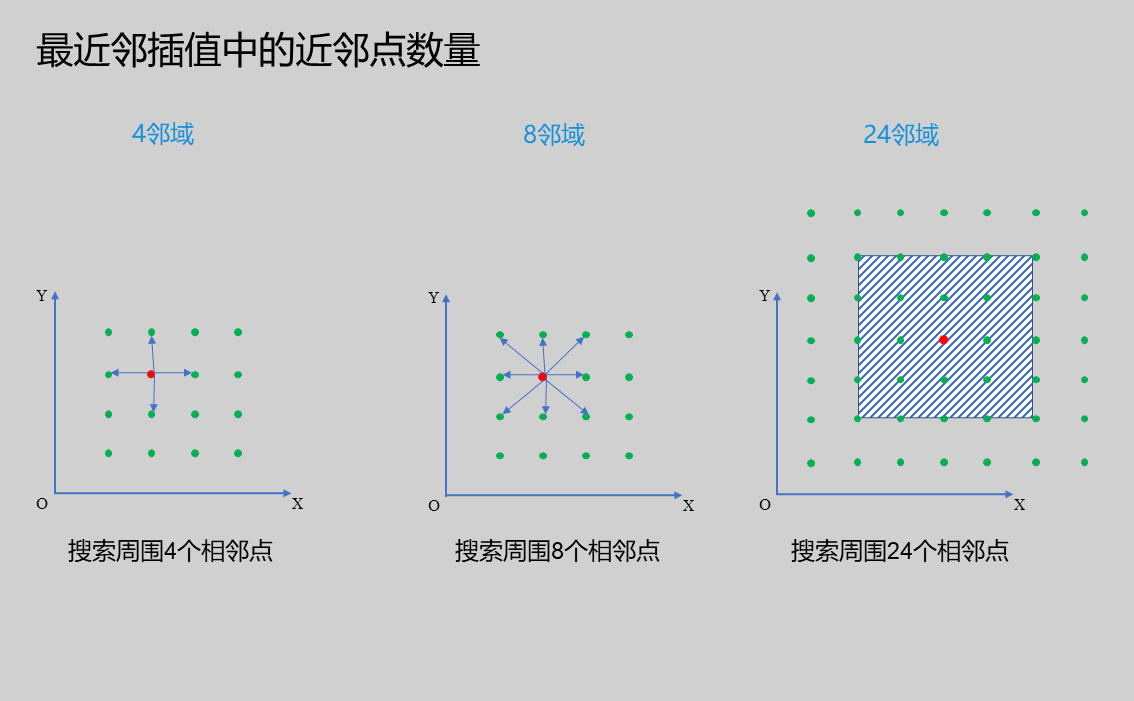 |
| Output Image | 0-8 | 0 | The IM number for image output |
Output Parameters
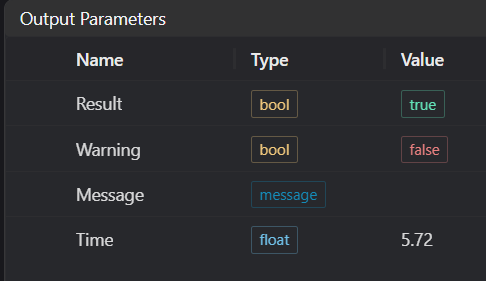
| Name | Type | Range | Description |
|---|---|---|---|
| Result | bool | true/false | true for success false for failure |
| Warning | bool | true/false | true indicates there is a warning false indicates there is none |
| Message | string | Outputs success, error, or warning information; if there is no error or warning, it is empty | |
| Time | float | Operator execution time, unit: ms |
Exception Troubleshooting
| No. | Exception Information | Corresponding Parameter | Solution |
|---|---|---|---|
| 1 | Input point cloud is empty | Check if input point cloud is empty | |
| 2 | Only supports organized point cloud | Input organized point cloud | |
| 3 | The input value is {0}, invalid neighborhood search method | Neighborhood Points | Only supports 4 neighbour, 8 neighbour, 24 neighbour |
| 4 | The input value is {0}, invalid algorithm | Algorithm | Only supports Nearest Neighbour |
Example Introduction
Engineering Design
Select the
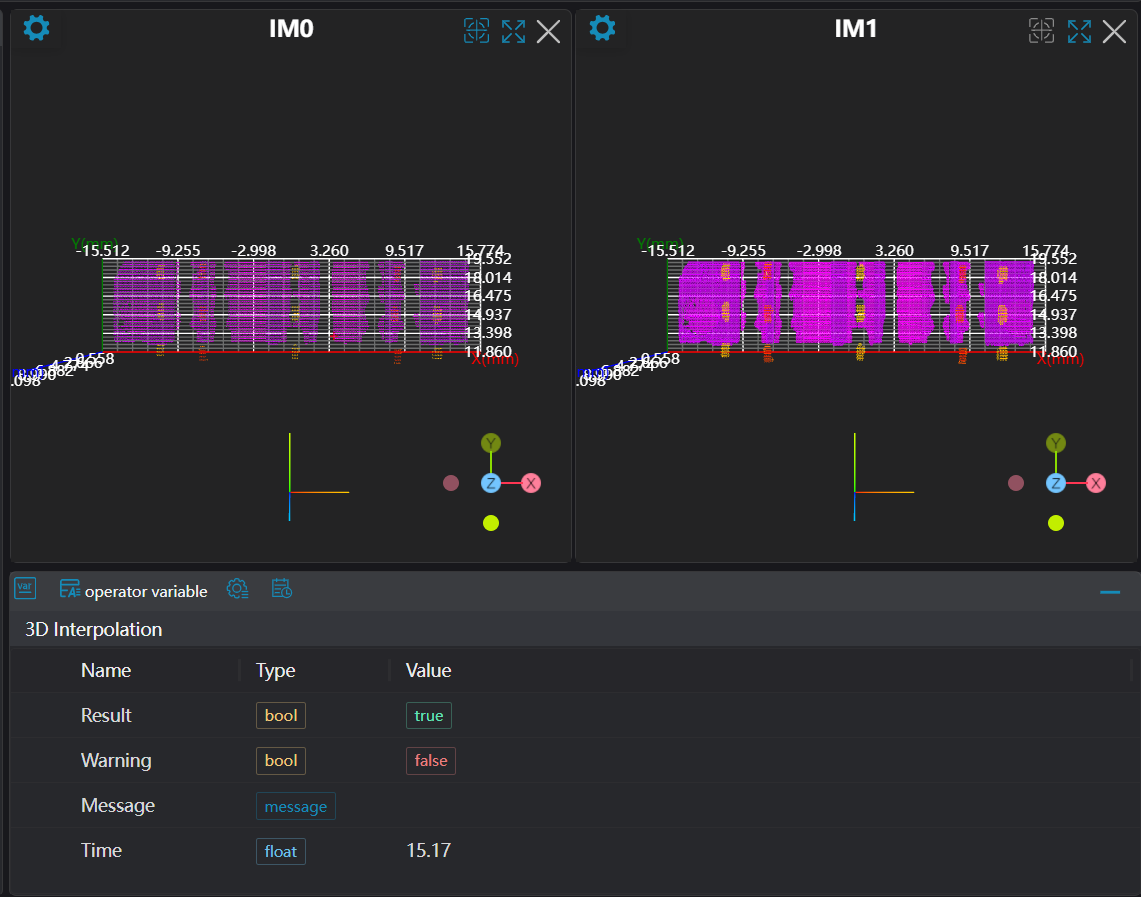
Load 3D Point Cloudtool to load the 3D point cloud image to be processed into IM0.Select the
3D Point Cloud Interpolationtool.
Tool Usage
Select the input image for operation; the image number must match the IM number where the image is located in the project.
Set
Interpolation Points per Row,Interpolation Points per Column,Neighborhood Points, andOutput Imageparameters.Click
Testto check if the image window and parameters meet expectations.If there are no issues, click
Save, then run the operator in the run list to view the results in the corresponding IM.