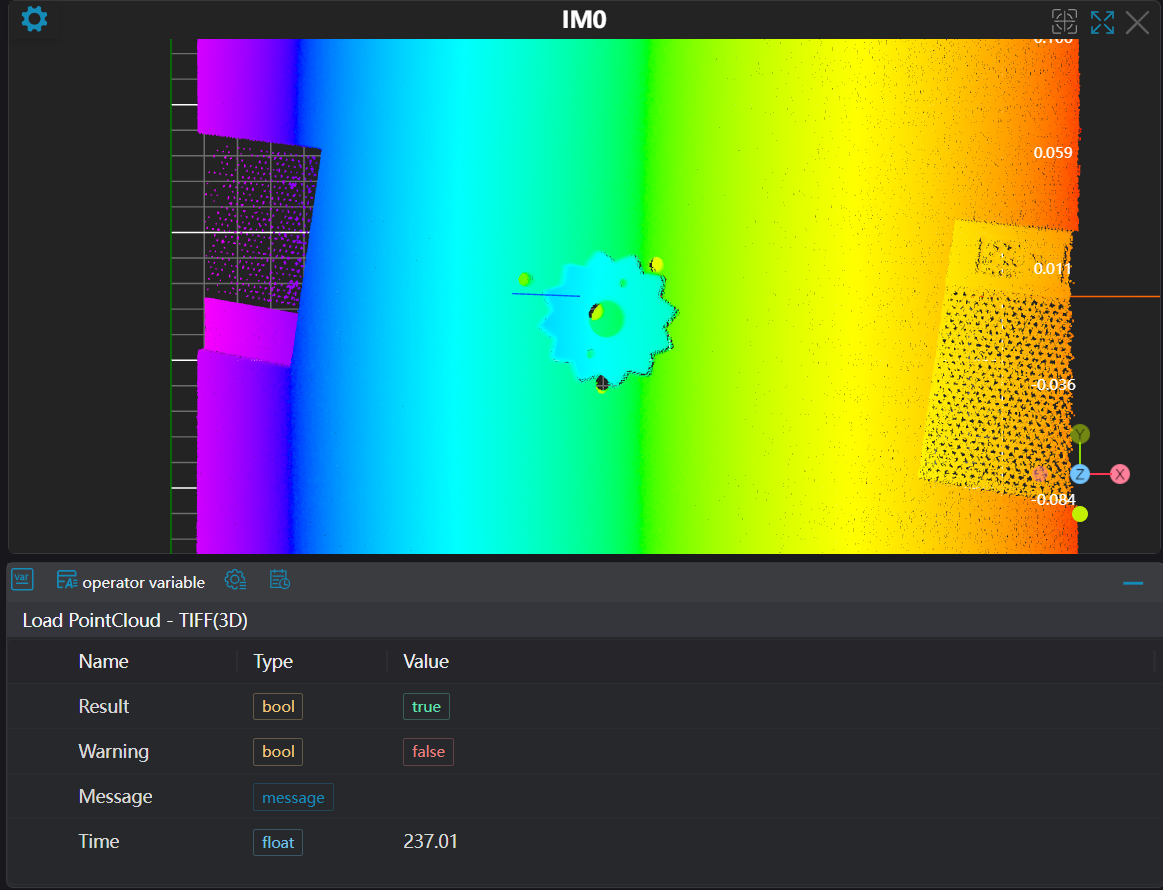
Load 3D Point Cloud - 3D TIFF
Operator Function
Convert 3 input TIFF images into a point cloud image.
Parameter Introduction
Input Parameters
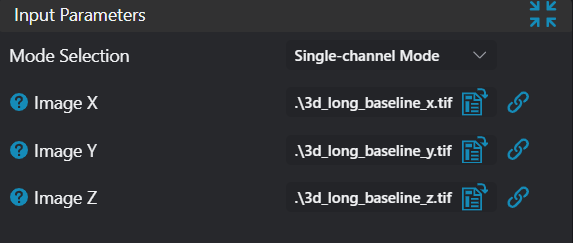
| Parameter | Range | Default Value | Description | Illustration |
|---|---|---|---|---|
| X Image | Empty | Image containing x coordinates | ||
| Y Image | Empty | Image containing y coordinates | ||
| Z Image | Empty | Image containing z coordinates |
Calculation Parameters
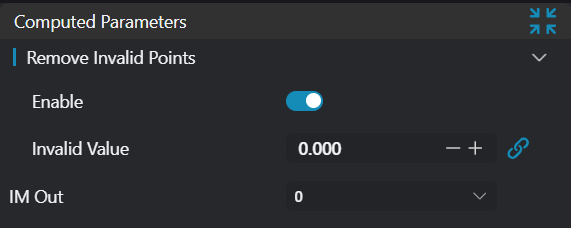
| Parameter | Range | Default Value | Description | Illustration |
|---|---|---|---|---|
| Remove Invalid Points | true/false | false | Whether to remove invalid points. Enable to remove invalid points, disable to keep them. | |
| Invalid Value | 0.000 | User-defined invalid value to be removed. Only effective for TIFF Z images. | ||
| Output Image | IM number for image output |
Output Parameters
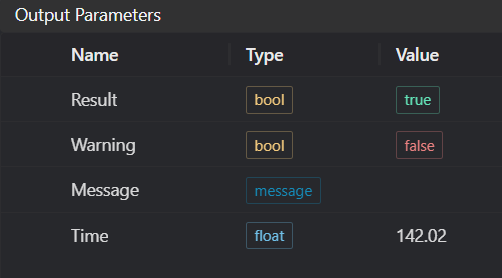
| Name | Type | Range | Description |
|---|---|---|---|
| Result | bool | true/false | true for success false for failure |
| Warning | bool | true/false | true indicates a warning false indicates none |
| Message | string | Output success, error, or warning messages. Empty if no error or warning | |
| Time | float | Operator execution time, unit: ms |
Exception Troubleshooting
| No. | Exception Information | Corresponding Parameter | Solution |
|---|---|---|---|
| 1 | One of the input paths is empty | Select the correct file path | |
| 2 | Loading {0} failed: Permission denied or file does not exist | File path | Create the folder or switch to a folder with read permissions |
| 3 | Loading {0} failed: Unsupported image format | File path | Only TIFF format files are supported |
| 4 | Loading {0} failed: Unable to open file stream | File path | Check if the file is being used by other software |
| 5 | All input images must have the same dimensions | Only TIFF format images with the same input dimensions are supported |
Example Introduction
Engineering Design
Select the Load Point Cloud - TIFF tool to load the required 3D point cloud image into IM0.
Tool Usage
Select the TIFF images for X, Y, Z input images.
Set the parameters.
Click
Testto check if the image window and parameters meet expectations.If everything is correct, click
Save, then run the operator in the run list. You can view the results in the corresponding IM.