Depth Map to Point Cloud
Operator Function
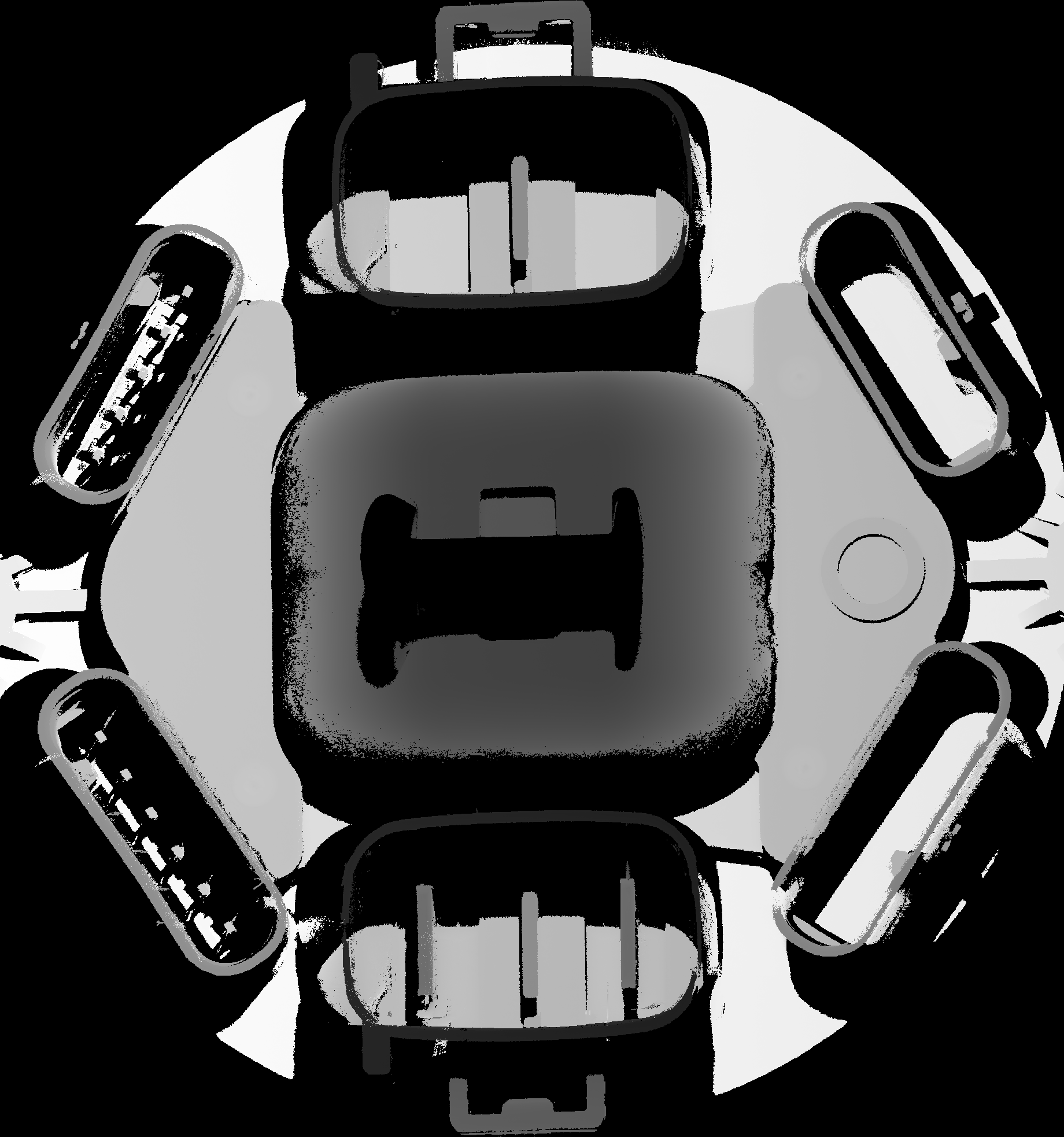
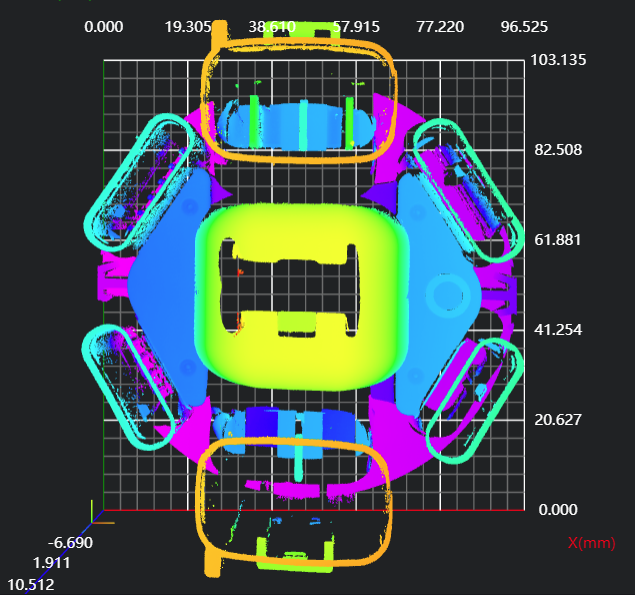
Convert the input 2D depth map to a point cloud.
Parameter Introduction
Input Parameters

| Parameter | Range | Default Value | Description | Illustration |
|---|---|---|---|---|
| Input Image | 0-8 | 0 | The IM number for image input | |
Calculation Parameters
| Parameter | Range | Default Value | Description | Illustration |
|---|---|---|---|---|
| Algorithm | Process Integer Type Images, Process Integer or Float Type Images | Process Integer Type Images: Input image pixel data type is unsigned integer Process Integer or Float Type Images: Input image pixel data type is float or double | ||
| Z Value when Pixel is Black | 0.000 | The height value corresponding to grayscale value | 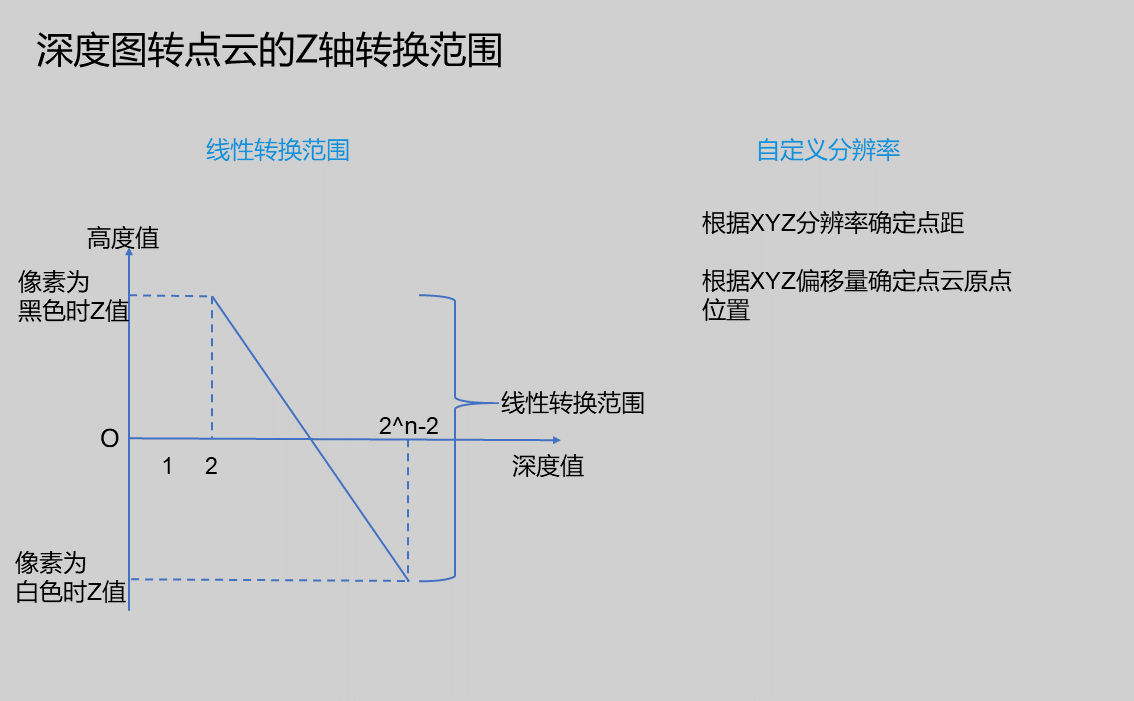 | |
| Z Value when Pixel is White | 0.000 | The height value corresponding to grayscale value | | |
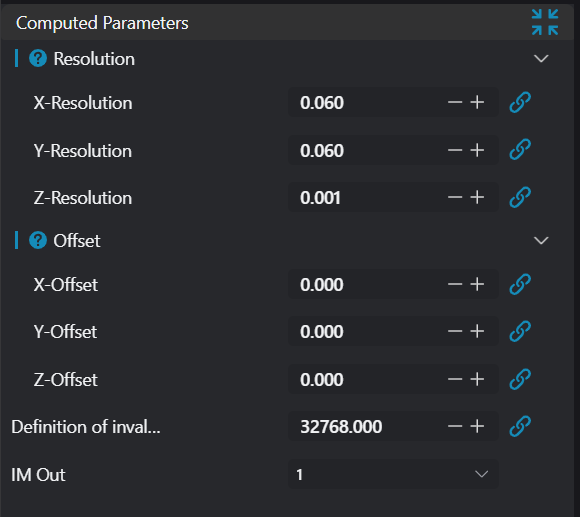
| X-axis Resolution | 1.000 | Set the point spacing in X direction | ||
| Y-axis Resolution | 1.000 | Set the point spacing in Y direction | ||
| Z-axis Resolution | 1.000 | Set the point spacing in Z direction. Note: Only displayed when using Process Integer or Float Type Images. | ||
| X Offset | 0.000 | Set the offset in X direction to shift the point cloud in X direction | ||
| Y Offset | 0.000 | Set the offset in Y direction to shift the point cloud in Y direction | ||
| Z Offset | 0.000 | Set the offset in Z direction to shift the point cloud in Z direction. Note: Only displayed when using Process Integer or Float Type Images. | ||
| Output Image | 0-8 | 0 | The IM number for image output |
Output Parameters
| Name | Type | Range | Description |
|---|---|---|---|
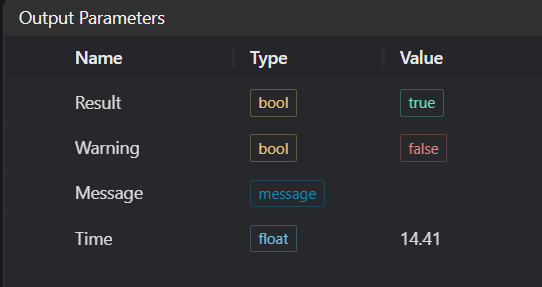
| Result | bool | true/false | true for success false for failure |
| Warning | bool | true/false | true indicates a warning false indicates none |
| Message | string | Output success, error, or warning messages. Empty if no error or warning | |
| Time | float | Operator execution time, unit: ms |
Mapping Relationship Between Depth Value and Height Value
| Depth Value | Height Value |
|---|---|
| 0 | Invalid point (nan) |
| 2 | Z Value when Pixel is Black |
n is bit depth | Z Value when Pixel is White |
| 1 | Invalid point (nan) |
n is bit depth | Invalid point (nan) |
Exception Troubleshooting
| No. | Exception Information | Corresponding Parameter | Solution |
|---|---|---|---|
| 1 | Input image is empty | Check if input image is empty | |
| 2 | Resolution cannot be 0 | Modify resolution value to be greater than 0 | |
| 3 | Unsupported image type. Only 8-bit or 16-bit images supported | In linear conversion range mode, only 8-bit, 16-bit images are supported | |
| 4 | Unsupported image channel count | In linear conversion range mode, only single-channel, 3-channel, 4-channel images of 8-bit, 16-bit are supported | |
| 5 | Z Value when Pixel is Black and Z Value when Pixel is White cannot be the same | Modify the two values to be different | |
| 6 | Unsupported floating-point image type | In custom resolution mode, only single-channel, 3-channel, 4-channel images of 8-bit, 16-bit are supported | |
| 7 | Input value {0} is invalid z value conversion method | z value conversion method | Only Integer type images, Integer or Float type images are supported |
Example Introduction
Engineering Design
Select the
Load 3D Point Cloudtool to load the required 3D point cloud image into IM0.Select two
Depth Map to Point Cloudtools and set different z value conversion methods.
Tool Usage
Select the input image for operation. The image number must match the IM number where the image is located in the project.
Set the parameters.
Click
Testto check if the image window and parameters meet expectations.If everything is correct, click
Save, then run the operator in the run list. You can view the results in the corresponding IM.