
TCP Recipe Switching and Gocator Parameter Modification
Project Flow
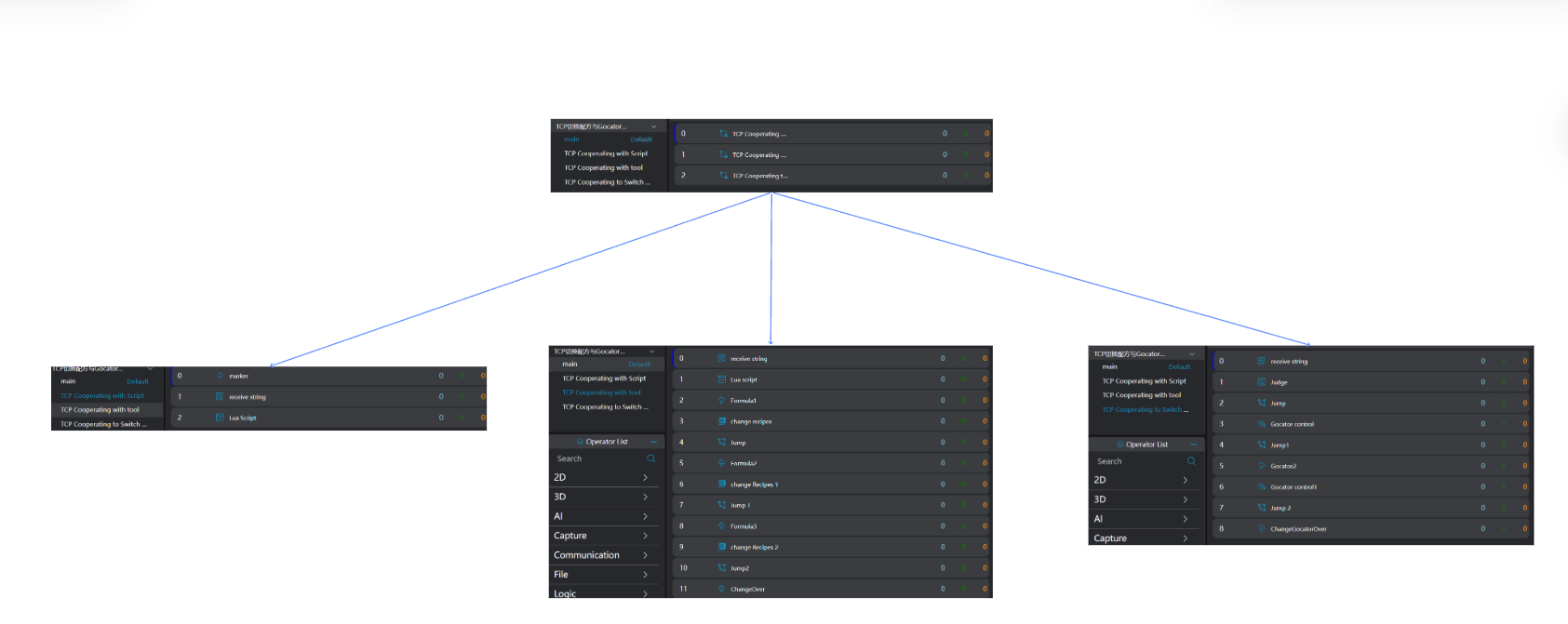
Device Configuration
Select TCP Client or TCP Server and configure it.
Select LMI Gocator and choose the camera.
TCP Cooperating with Script to Switch Recipes
Select the
Markertool as the jump point for receiving error strings.Select the
Receive Stringtool, choose the device, and set the timeout period and output.Select the
Lua Language Scripttool to switch recipes by judging the received string.
-- Judge and switch recipes
if ChangeFormula == "1" then
   SwitchRecipe("Recipe 1")
elseif ChangeFormula == "2" then
   SwitchRecipe("Recipe 2")
elseif ChangeFormula == "3" then
   SwitchRecipe("Recipe 3")
else
    Jump("ReStart")
endTCP Cooperating with Tools to Switch Recipes
Plane Fitting
Select the
Receive Stringtool, choose the device, and set the timeout period and output.Select the
Lua Language Scripttool to jump to the specified marker for recipe switching by judging the received string.
if Formula == "1" then
   Jump("Formula1")
elseif Formula == "2" then
   Jump("Formula2")
elseif Formula == "3" then
   Jump("Formula3")
endSelect the
Markertool as the jump point for switching to Recipe 1.Select the
Switch Recipetool to switch to Recipe 1.
Select the Judgment tool to jump to the recipe switching end position after the Switch Recipe tool finishes execution.
The operations for switching to Recipe 2 and 3 are the same as for Recipe 1.
Select the
Markertool as the jump point for ending recipe switching.
TCP Cooperating to Switch Gocator Parameter Configurations
Select the
Receive Stringtool, choose the device, and set the timeout period and output.Select the
Judgmenttool to judge the received string and output the result.Select the
Jumptool, bind the Result of the previousJudgmenttool as activation, and jump to theGocator2marker when the result is NG.Select the
Gocator Parameter Controltool, choose the camera whose configuration needs to be modified, and modify the configuration.Select the
Judgmenttool to jump to the end marker after theGocator Parameter Controltool finishes execution.Select the
Markertool, set it asGocator2, and use it as the jump point for the third-stepJumptool when the second-stepJudgmenttool results in NG.Select the
Gocator Parameter Controltool, choose the camera whose configuration needs to be modified, and modify the configuration.Select the
Judgmenttool to jump to the end marker after theGocator Parameter Controltool finishes execution.Select the
Markertool as the end marker.