3D Downsampling
Operator Function
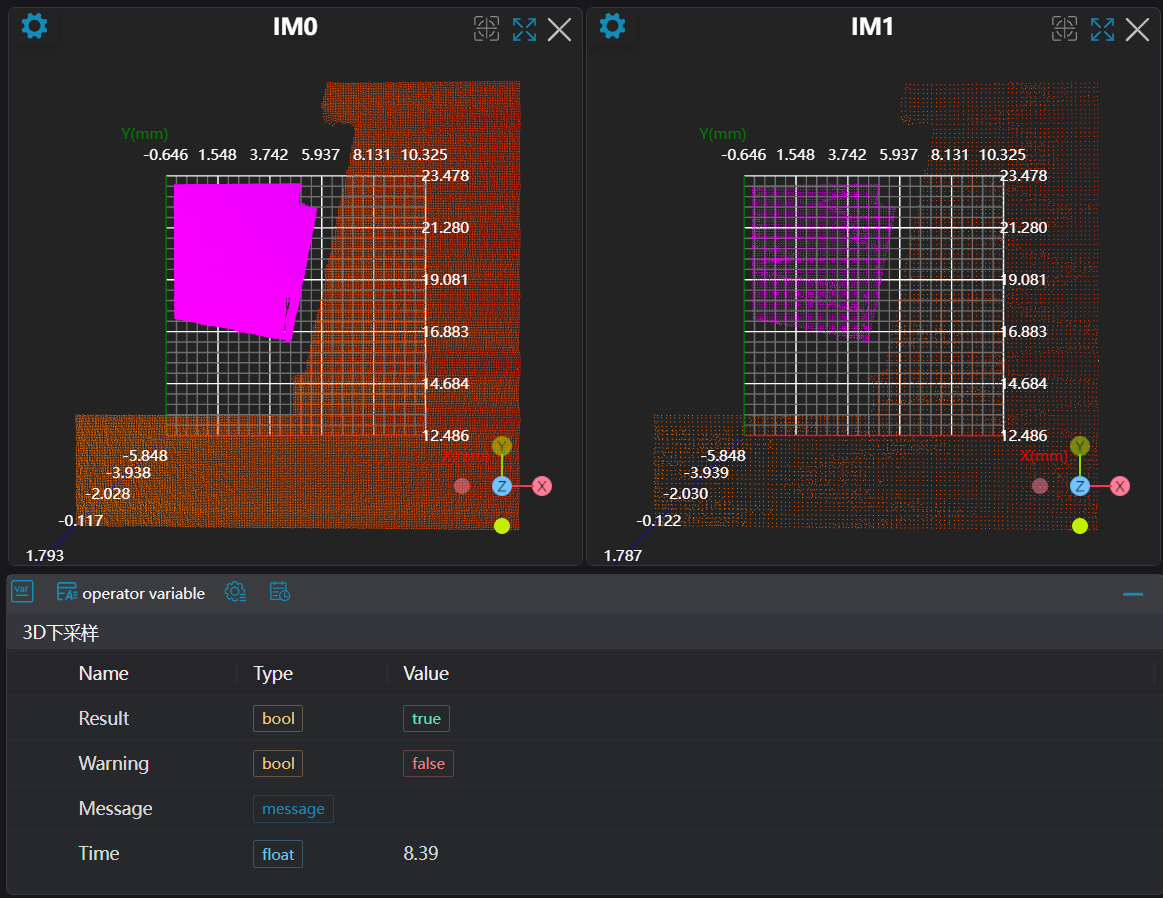
Performs downsampling on the input point cloud image to reduce the amount of point cloud data.
Parameter Introduction
Input Parameters

| Parameter | Range | Default Value | Description | Illustration |
|---|---|---|---|---|
| Input Image | 0-8 | 0 | IM number for image input | |
Calculation Parameters
| Parameter | Range | Default Value | Description | Illustration |
|---|---|---|---|---|
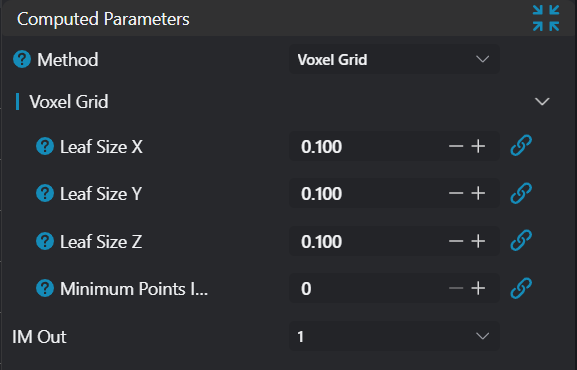
| Algorithm | Voxel Grid | Voxel Grid: Voxels can be understood as higher-dimensional pixels, i.e., the point cloud image is composed of individual voxels (small cubes). The centroid of all points in each voxel is used to represent the spatial position of the current voxel, thereby reducing the amount of point cloud data. | 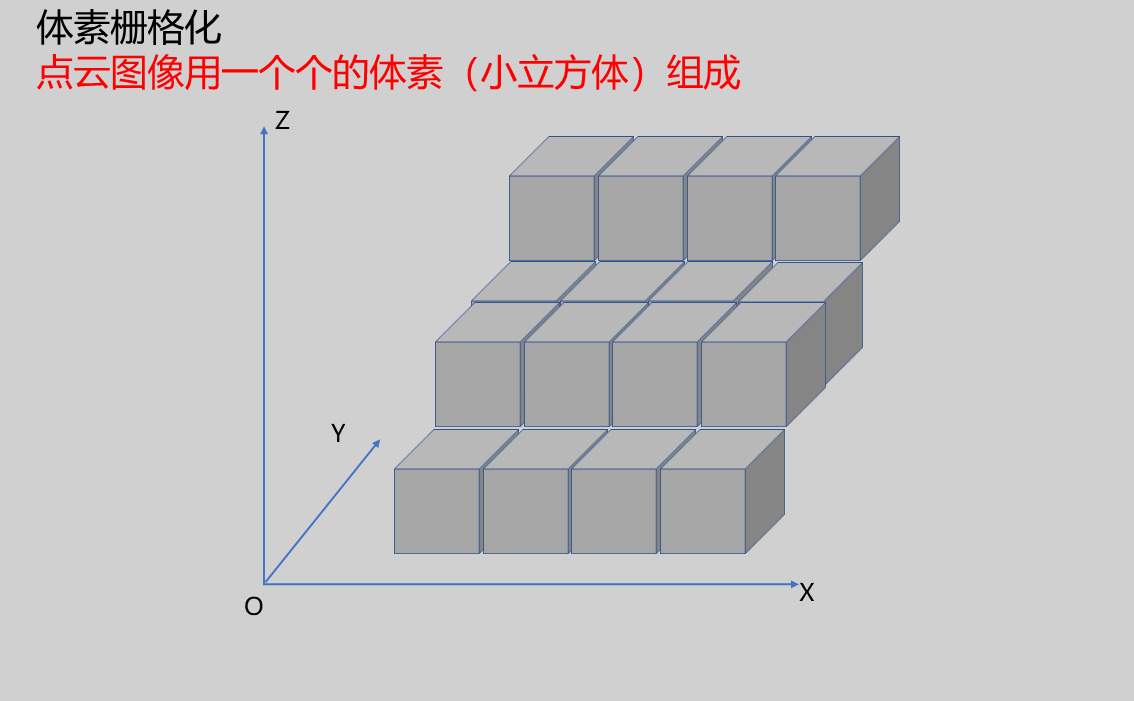 | |
| Grid Length | 0.100 | Cube length | 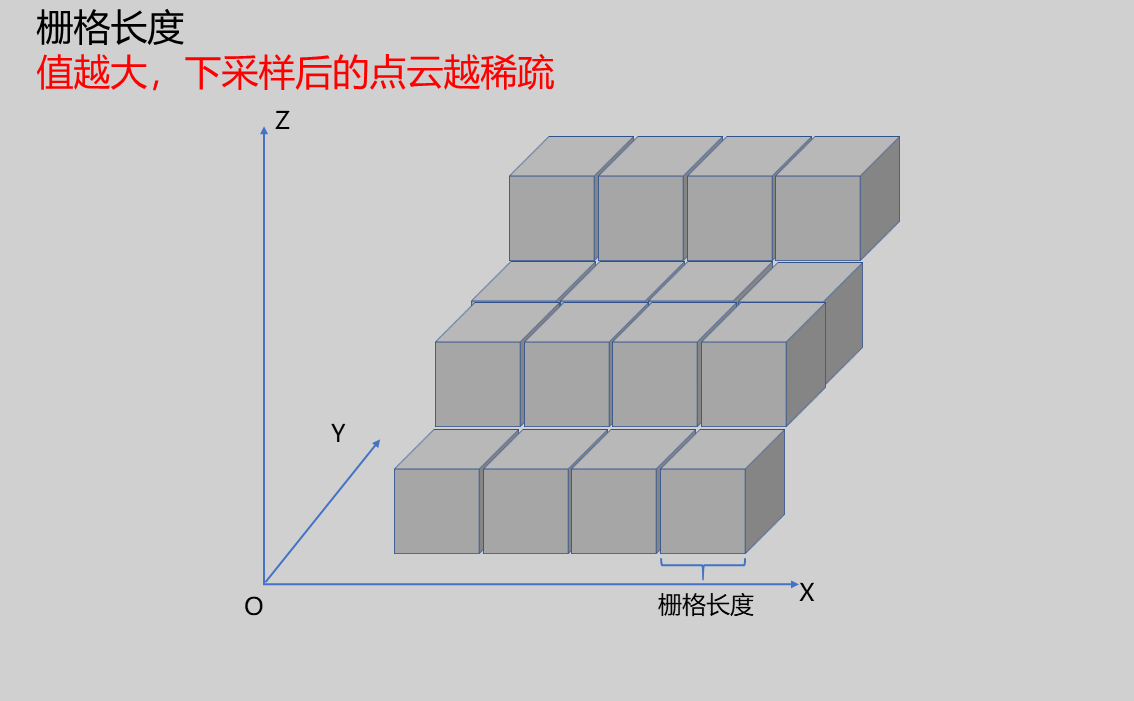 | |
| Grid Width | 0.100 | Cube width | 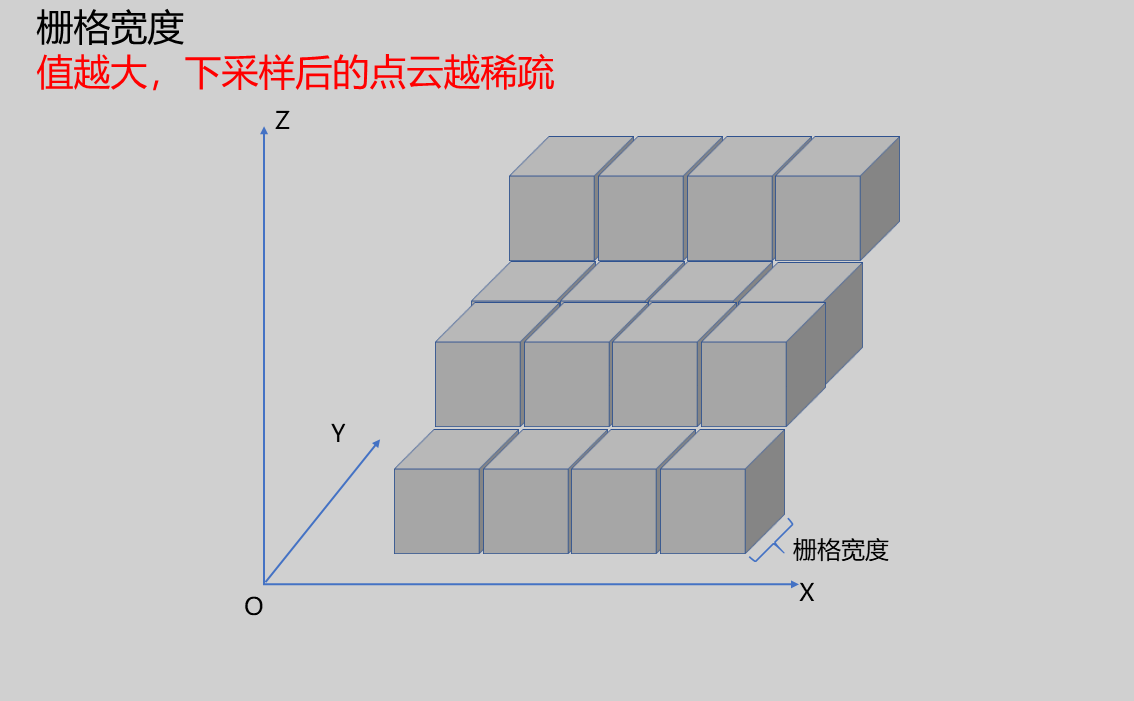 | |
| Grid Height | 0.100 | Cube height | 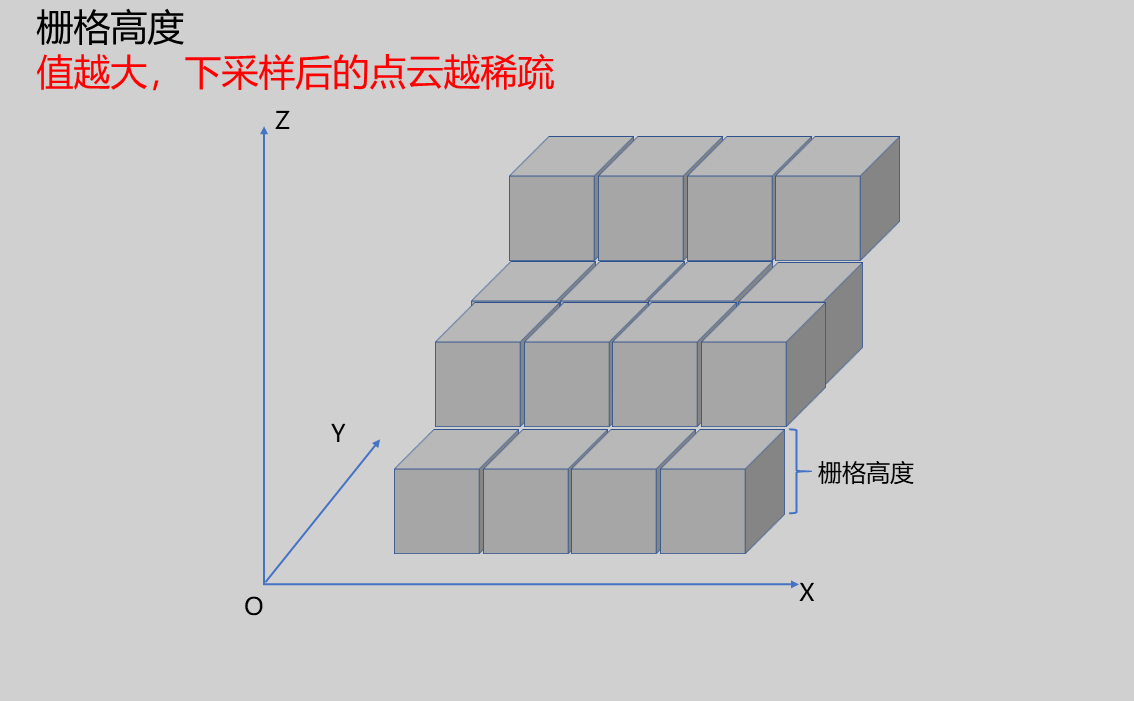 | |
| Minimum Points Per Grid | 0 | Points in grids with fewer than this number will be discarded | 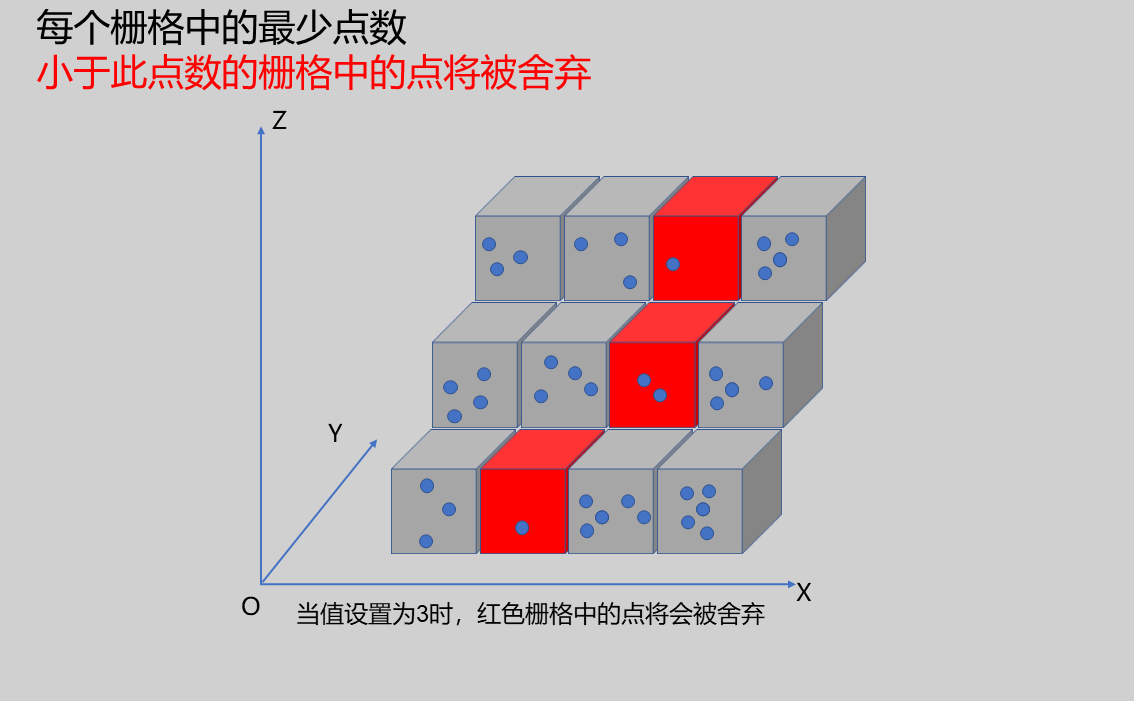 | |
| Output Image | 0-8 | 0 | IM number for image output |
Tip
For more detailed explanations of parameter types, please refer to Type Definitions
Output Parameters
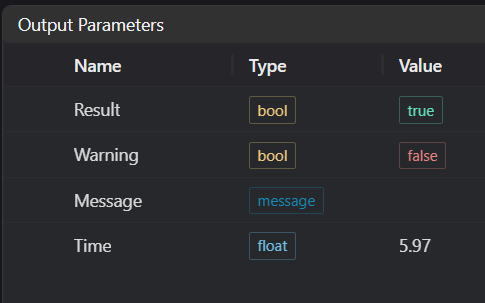
| Name | Type | Range | Description |
|---|---|---|---|
| Result | bool | true/false | true for success false for failure |
| Warning | bool | true/false | true indicates a warning false indicates no warning |
| Message | string | Output success, error, or warning messages. Empty if no error or warning. | |
| Time | float | Operator execution time, unit: ms |
Exception Troubleshooting
| No. | Exception Information | Corresponding Parameter | Solution |
|---|---|---|---|
| 1 | Input value is {0}, {1}, {2}, invalid grid parameters | Grid Length/Width/Height | Grid Length>0, Grid Width>0, Grid Height>0 |
| 2 | Voxel downsampling failed | Check if input point cloud is empty | |
| 3 | Input value is {0}, invalid downsampling filter algorithm | Algorithm | Only Voxel Grid supported |
| 4 | Output point cloud is empty! Please modify parameters | 1. Check if input point cloud is empty 2. Check if point cloud contains invalid values |
Example Introduction
Engineering Design
Select the
Load 3D Point Cloudtool to load the required 3D point cloud image to IM0.Select the
3D Downsamplingtool.
Tool Usage
Select the input image for the operation. The image number must match the IM number where the image is located in the project.
Set the parameters.
Click
Testto check if the image window and parameters meet expectations.If there are no issues, click
Save. Run the operator in the run list, and then view the running results in the corresponding IM.