3D Surface Area
Operator Function
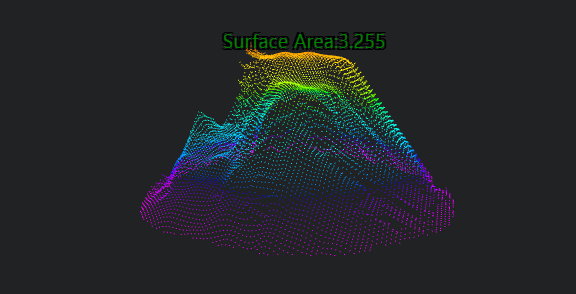
Input object surface point cloud, calculate the surface area of the point cloud, and output the calculation result.
Parameter Introduction
Input Parameters

| Parameter | Range | Default Value | Description | Illustration |
|---|---|---|---|---|
| Input Image | 0-8 | 0 | The IM number for image input | |
Calculation Parameters
| Parameter | Range | Default Value | Description | Illustration |
|---|---|---|---|---|
| Use Region Parameters | true/false | false | If enabled, use Region as input; if not enabled, use Input Image as input | |
| Region | 2D Window/2D Circular Window/2D Polygon Window/Box/Cylinder Box/Rotated Box/Point Set (binding only) | Box | Manually select an appropriate ROI regionCan bind to select existing ROI regions | |
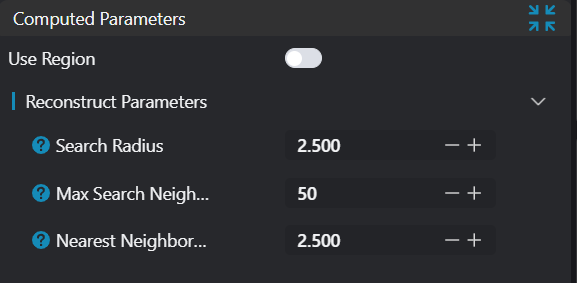
| Search Radius | 0-200 | 2.500 | Set sphere radius for determining k-nearest neighborhoods This value may need adjustment based on point cloud density and distribution. For example, sparser point clouds may require larger search radii | 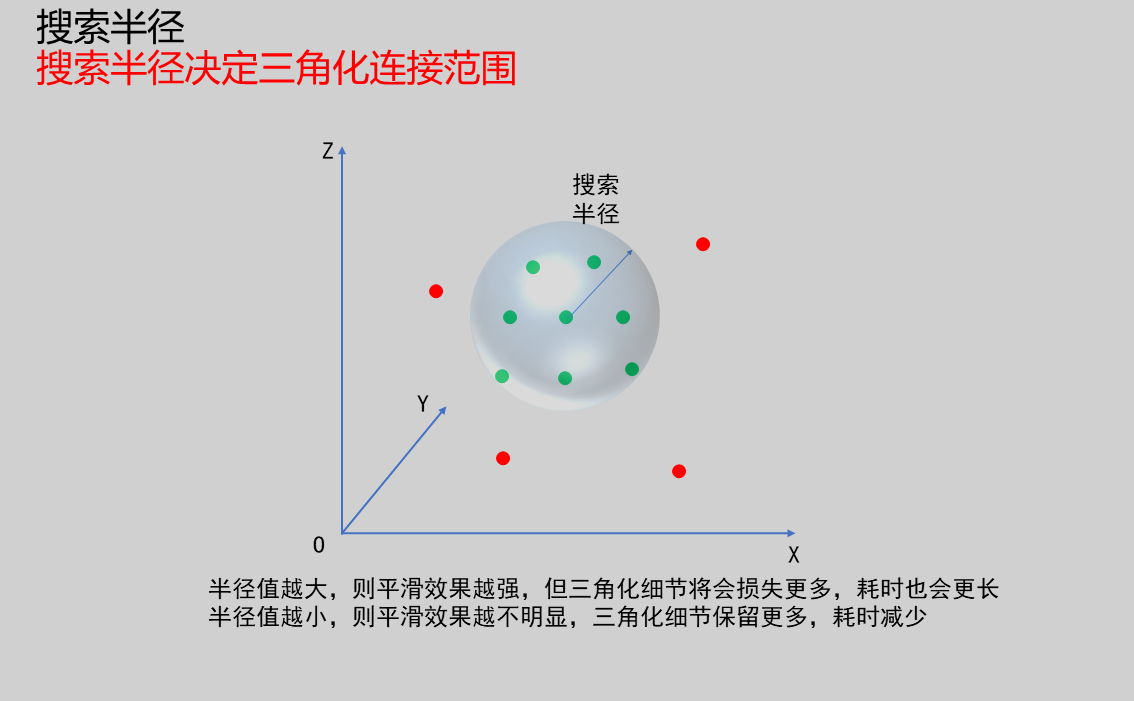 |
| Neighborhood Count | 1-100 | 50 | Set maximum neighborhood count for point cloud normal vector estimation Larger values may improve normal vector estimation robustness, especially for sparse or irregular point clouds. However, excessively large values may increase computational burden and introduce unnecessary noise. Smaller values may improve computational efficiency but could lead to less accurate normal vector estimation in some cases | 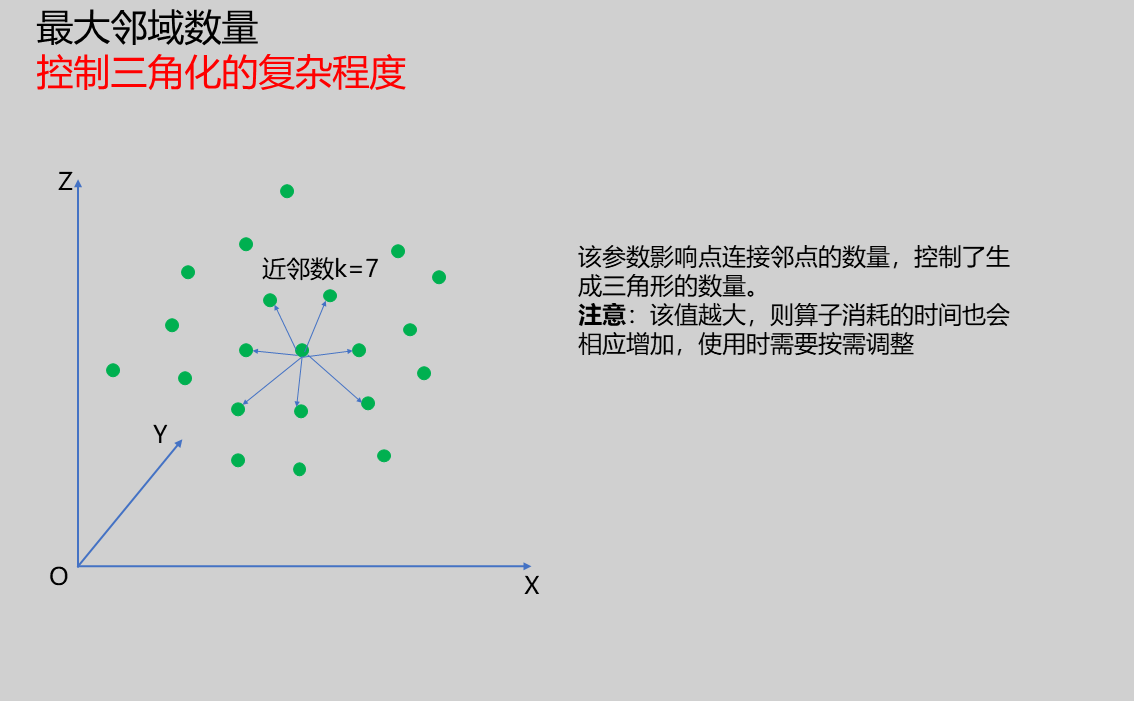 |
| Nearest Neighbor Distance Multiplier | 0-50 | 2.500 | Dynamically adjust maximum search distance for each sample point; larger values increase final sample point maximum search distance. When set to larger values: Search radius increases, meaning algorithm considers more neighboring points to construct triangles, which may be beneficial in sparser point cloud regions. However, if set too large, may cause over-connection and produce inaccurate triangles. When set to smaller values: Search radius decreases, algorithm considers fewer neighboring points. This may be beneficial in denser point cloud regions or when finer reconstruction is needed. However, if set too small, may miss points that should be connected, resulting in incomplete triangular meshes. | 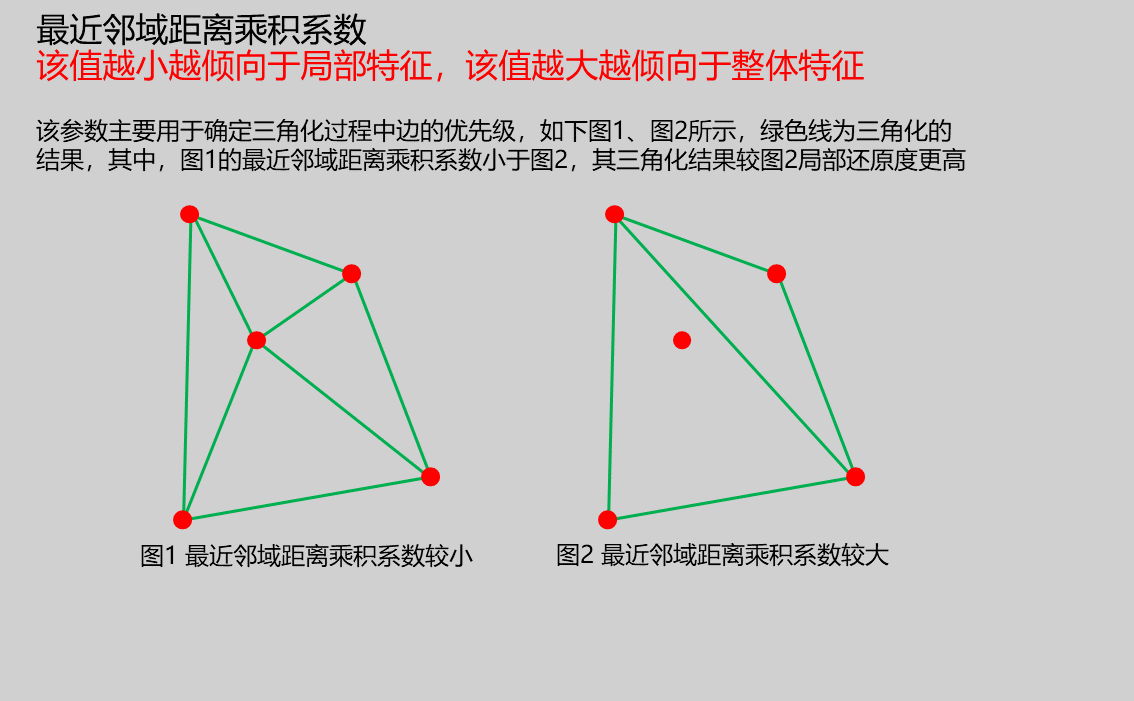 |
Result Display
| Parameter | Range | Default Value | Description | Illustration |
|---|---|---|---|---|
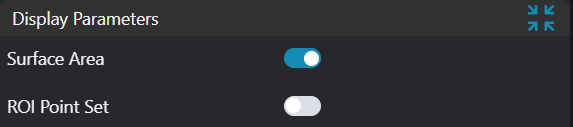
| Surface Area | true/false | false | Surface area value; if enabled, displayed in the image | |
| ROI Point Set | true/false | false | Only effective when Use Region Parameters is selected; the point set of the ROI selected region; if enabled, displayed in the image |
Output Parameters
| Name | Type | Range | Description |
|---|---|---|---|
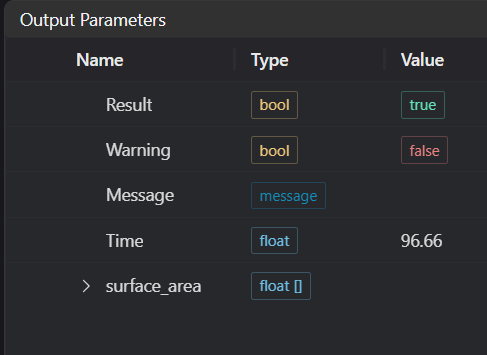
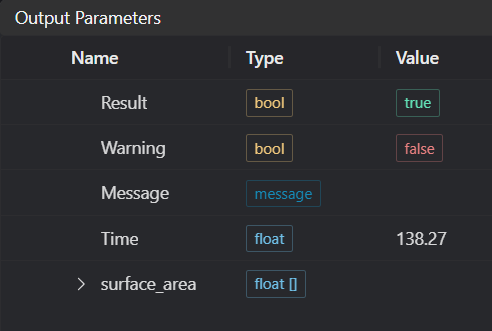
| Result | bool | true/false | true for success false for failure |
| Warning | bool | true/false | true indicates there is a warning false indicates there is none |
| Message | string | Outputs success, error, or warning information; if there is no error or warning, it is empty | |
| Time | float | Operator execution time, unit: ms | |
| surface_area | float | Surface area value | |
Note: When input is an array, all surface area measurements from the array will form an array |
Tip
For more detailed explanations of parameter types, please refer to Type Definitions
Exception Troubleshooting
| No. | Exception Information | Corresponding Parameter | Solution |
|---|---|---|---|
| 1 | Input point cloud is empty | Confirm if IM contains valid points; if no valid points, load point cloud or switch to IM with valid points | |
| 2 | Input region type is {0}, invalid region type | Region Type | Region input type must be one of: 2D Window/2D Circular Window/2D Polygon Window/Box/Cylinder Box/Rotated Box/Point Set |
| 3 | {0} regions are empty | Region Count | 1. Check each region for empty selections 2. Check each point set for empty point sets |
| 4 | Failed to calculate surface area with current parameters | Adjust surface reconstruction parameters: 1. Search radius 2. Maximum neighborhood count 3. Nearest neighbor distance multiplier | |
| 5 | Output area value is too large | Recommend calculating surface area in segments | |
| 6 | Input polygon vertex count less than 3, cannot form polygon | Add 2D polygon window vertices so vertex count is at least three |
Example Introduction
Engineering Design
Select the
Load Point Cloudtool to load the 3D point cloud image to be processed into IM0;Select the
3D Surface Areatool.
Tool Usage
Select the input image for operation; the image number must match the IM number where the image is located in the project.
Either do not enable Use Region Parameters, or enable region and select region type as Box, move the box to the position to be measured, enclosing the point cloud to be measured.
Usage Tips
- Use the ROI controller on the image window to drag or scale the box;
- Directly modify the start or end coordinates of the box in the calculation parameters to adjust the box position and size.
Set parameters
Check the content you want to display in the result display section
Click
Testto check if the image window and parameters meet expectationsIf there are no issues, click
Save, then run the operator in the run list to view the results in the corresponding IM