
Interface Introduction
Page Overview
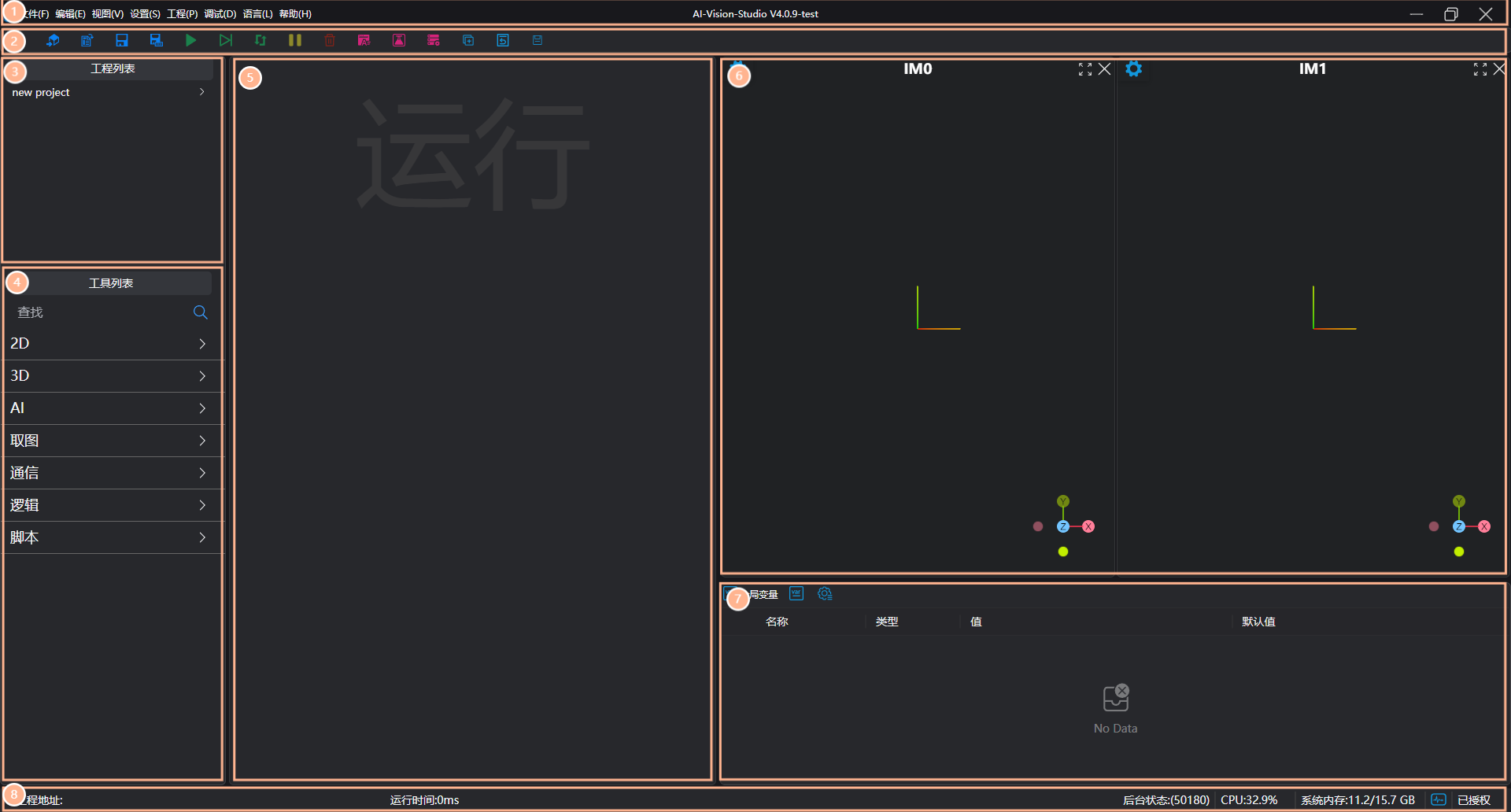
The AI-Vision main interface is divided into eight sections:
| No. | Name | Description |
|---|---|---|
| 1 | Menu Bar | Software settings, system parameter modifications, displays software name and current version, adjusts interface size |
| 2 | Toolbar | Common tool operations, such as file operations, run operations, etc. |
| 3 | Project List | Displays currently loaded projects and programs |
| 4 | Tool List | Displays tools currently supported by the software |
| 5 | Run List | Displays measurement processes composed of various tools, can be debugged by running tools |
| 6 | Image Display Panel | Displays 3D rendering after tool execution, supports mouse operations like drag, scroll, zoom |
| 7 | Debug Output Panel | Displays global variables, operator variables, device list, etc. |
| 8 | Status Bar | Displays current project location and run time, as well as system information |
Keyboard Shortcuts
AI-Vision also provides keyboard shortcuts to simplify operations. The following are the main function shortcuts:
Menu Bar | |
|---|---|
| Alt + F | File menu |
| Alt + B | Start menu |
| Alt + E | Edit menu |
| Alt + V | View menu |
| Alt + S | Settings menu |
| Alt + P | Project menu |
| Alt + L | Language menu |
| Alt + M | Management menu |
| Alt + H | Help menu |
Toolbar | |
|---|---|
| Ctrl + N | Create new project |
| Ctrl + O | Open existing project |
| Ctrl + E | Open example selection |
| Ctrl + S | Save project |
| Ctrl + Shift + S | Save project as |
| Ctrl + F1 | Run complete execution once in run list |
| Ctrl + F2 | Run next in sequence in run list |
| Ctrl + F3 | Run loop execution in run list |
| Ctrl + F4 | Pause execution |
| Ctrl + F6 | Clear status |
| Ctrl + F7 | Open global variables configuration page |
| Ctrl + F8 | Open device configuration page |
| Ctrl + F9 | Open recipe management page |
Other Shortcuts | |
|---|---|
| Esc | Close current popup window |